ShackAssistant
Features

Everything ShackAssistant does

In the order you meet it: from setting up your station, through a day of logging, to a contest and the QSL cards afterwards. Click a screenshot to see it full size.

Station & operator

First: who you are, and where from

Your callsign, operator and locator are stored with each logbook. So a portable log can say PA5DJ/P while your home log says PA5DJ.

The very first time, a setup wizard does this for you. Five steps - your station, your logbook, your radio - and nothing is created until the last page. See the first start.

Station Setup, three tabs

Open File → Station setup and fill in:

  • Basic Info - callsign, operator, locator and QSO location. The fields in red are required.
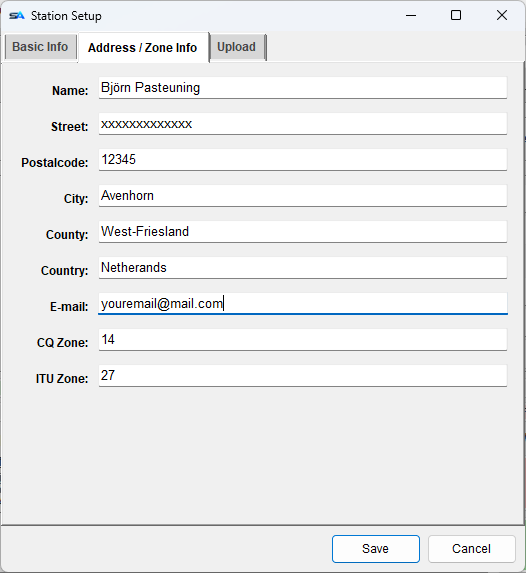
  • Address / Zone Info - your name, address, country, CQ and ITU zone. Macros and QSL labels use these, for example {MYNAME}, {MYCITY} and {MYCQZ}, so you never have to type them again.
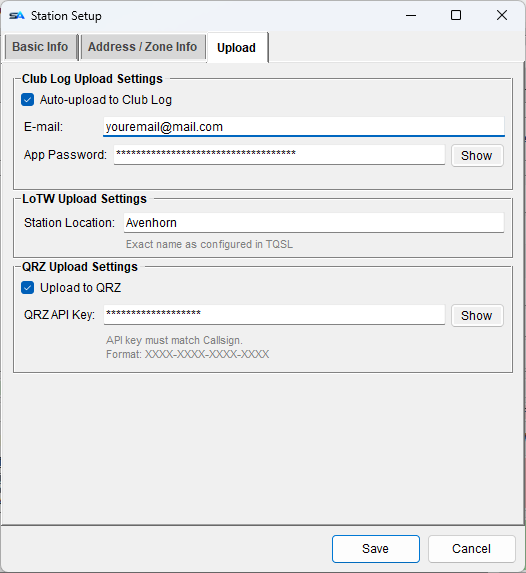
  • Upload - your QRZ logbook key, LoTW station location and Club Log app password for this logbook.

Click Save to store and close, or Cancel to change nothing. If something is missing, the window stays open and puts the cursor in that box.
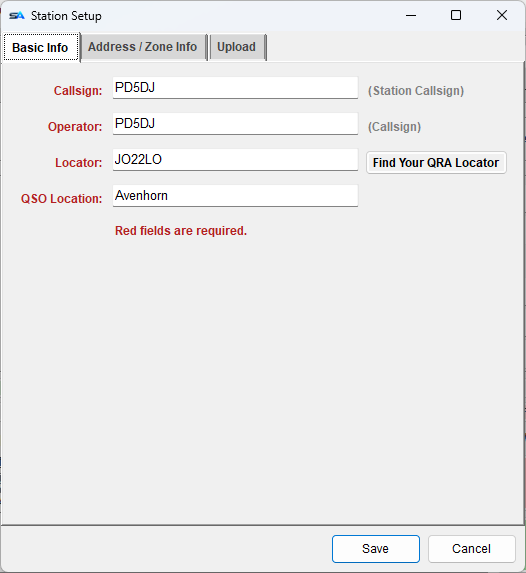
Station Setup, Basic Info tab: callsign, operator, locator and QSO location
File → Station setup. Fields in red are required.

More than one operator at the same station

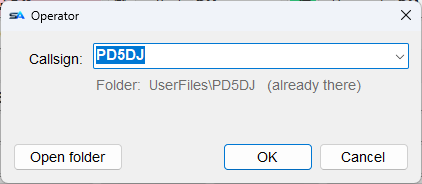
The operator button on the main window shows who is at the key. Click it and type another call to hand over. Each operator gets:

  • Their own WAV recordings, message keys and macros, in Documents\ShackAssistant\UserFiles\<CALL>\. Message keys and macros they do not have yet come from a shared Default set.
  • Recordings are never taken from the shared set - a recording has a callsign spoken in it, and it would be the wrong one.
  • Their call in every QSO they log, and in the Cabrillo OPERATORS line.

Handy at a field day or a club station.

The Operator window: the callsign of the operator now at the key
Click the operator button on the main window to change operator.
Logbooks & storage

Three ways to keep a log

A logbook is a file in your Documents folder, or a database on your own server. All three kinds hold the same QSOs. Save Logbook As converts between them and leaves the original in place.

KindWhat it is, and when to pick it
Local database
.sadb
A database file on this PC. Nothing to install. Nearly always the right choice - it is the default for a new logbook and stays fast however big the log gets.
File
.sak
One plain file, easy to copy to a USB stick or cloud folder. Backups are always made in this form.
Server
MySQL / MariaDB
For two or more PCs logging into one log at the same time - see Networked logbook.

Which file types open and save, including MiniBook's .mbk, ADIF and Cabrillo: see the compatibility table.

Opening and making logbooks

  • New logbook asks whether you want an ordinary log or a contest log.
  • A .mbk logbook from MiniBook opens as it is.
  • Your last logbook opens again at the next start. If it is gone, the program starts empty and says so on the status bar.
  • ADIF (the standard log file format every logging program reads) can be imported and exported. QSOs you already have are recognised.

Automatic backups

  • A backup is made every time you open a logbook, and once a day while you log. A server logbook is backed up as a .sak file you can open without the server.
  • Backups are kept for 7 days, at most 5 per logbook - you can change both. The newest backup of each logbook is always kept.
  • File → Open Backup Folder takes you there. You can choose another folder.
Where your files are
Logbooks, backups, contest definitions, call history, recordings, received text Documents\ShackAssistant\
Per operator: WAV files, message keys, macros Documents\ShackAssistant\UserFiles\<CALL>\
Settings, QSL templates, cluster list %APPDATA%\ShackAssistant\settings\
Country data and Hamlib %ProgramData%\ShackAssistant\

To update, just run the newer setup over the old one. Your logbooks, settings, macros and templates stay where they are.

Rig control

Connect your radio

Two ways to connect

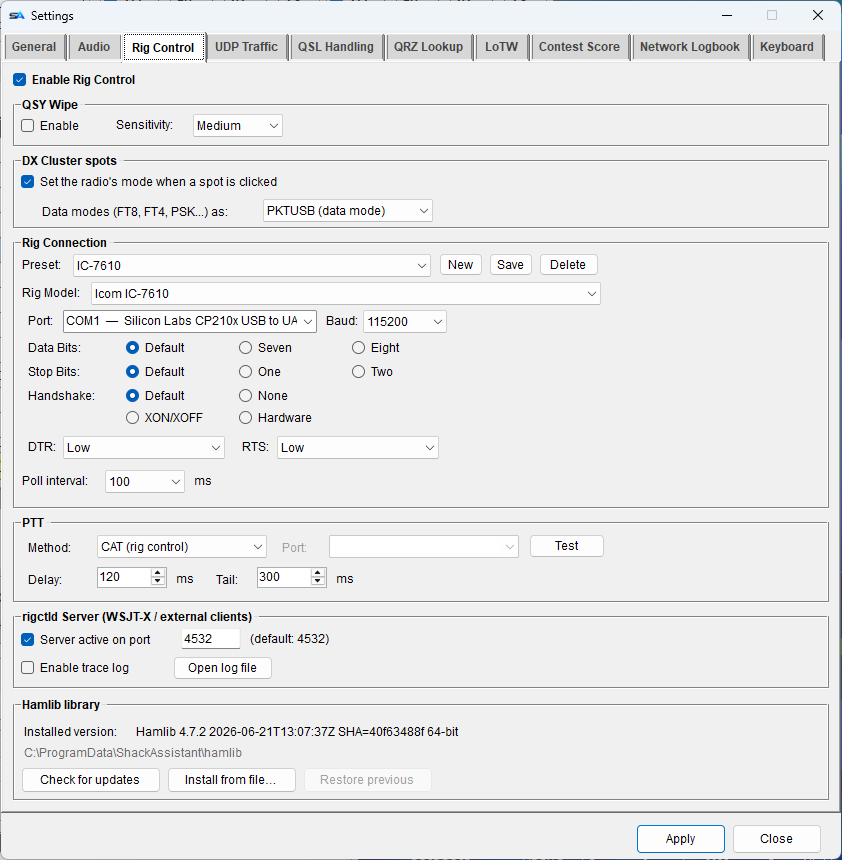
Go to Settings → Rig Control. Radio control uses Hamlib, which comes with the program.

  • Serial (USB/COM port): pick your radio from the Rig model list and choose the port. The list shows the port names from Windows ("COM1 - Silicon Labs CP210x USB to UART Bridge"), so you can recognise your cable. Data bits, stop bits, handshake, DTR and RTS are there if your radio needs them.
  • Network: pick Hamlib NET rigctl and fill in the host and port of a rigctld on your network.
  • Icom over the network: tick Network (Icom LAN) and ShackAssistant logs into the radio itself - CAT, audio and scope over one connection, no RS-BA1. See below.
  • Poll interval: how often the radio is read, 100 ms by default.

Presets: more than one radio

A preset saves a whole connection under a name. Pick one from the list next to Connect on the main window to switch radios. Tick Auto Connect to connect at every start. You cannot change presets while the radio is connected.

PTT per transmitter

The voice keyer, Key Master's CW and Key Master's RTTY each have their own PTT: over CAT, or RTS/DTR on a serial port, set where that transmitter is set up. Test keys your transmitter. CW and RTTY have a Delay before sending starts (120 ms by default) and a Tail, how long PTT stays on afterwards (300 ms).

PTT and CAT can use the same serial port - for example RTS for PTT and DTR for CW keying.

Settings, Rig Control tab: QSY wipe, rig connection, PTT, rigctld server and the Hamlib library
Settings → Rig Control. Apply takes effect straight away.

Share the radio with WSJT-X and others

Only one program can use the radio's port. So let WSJT-X, JTDX and similar programs connect to ShackAssistant instead: it acts as a rigctld on port 4532 and passes on frequency, mode and PTT. Use the settings on the right in WSJT-X.

QSY wipe

Turn the VFO away from the station you were working and the entry is cleared, so a call you did not work is not logged by mistake. Sensitivity sets how far is "away": Fast 0.5 kHz, Medium 2 kHz, Slow 5 kHz. It is off until you switch it on, and only works while Track is on.

Updating Hamlib

The Hamlib library frame shows which version you have. Check for updates gets the newest one, Install from file takes a zip you downloaded, and Restore previous puts the old one back. A new version is used from the next start.

WSJT-X → Settings → Radio
Rig:             Hamlib NET rigctl
Network Server:  127.0.0.1:4532      # the port set under rigctld Server
PTT Method:      CAT
Mode:            Data/Pkt
The callsign box takes rig commands
14074     go to 14.074 MHz
+600      move up 600 Hz   (-600 moves down)
CW        switch the radio to CW

Anything that is not a command is treated as a callsign.

Transverter: work 13 cm, log 13 cm

A transverter turns your 2 m radio into a 13 cm (or 23 cm, or 3 cm) station. The radio knows nothing about that - it still says 144.100. ShackAssistant puts one offset between the two, and that offset is a translation layer, not a display trick: above it everything speaks the real frequency, below it the radio speaks its IF.

Above the layer: 2300.100Below it: 144.100
the entry box and the logbookwhat goes over the cable to the radio
a DX spot you click 
the UDP broadcast to a dashboard 
and WSJT-X, through the rigctld server 

Set it in Settings → Rig Control, in the Rig Connection frame: the mode, the IF band and the offset. It is saved with the preset, so a 13 cm setup and a plain HF setup are two entries in the same list.

  • The band is locked while it is on. Nothing but the output window reaches the radio, and a refusal says which gate closed: "is another band" is a band change, "is not in a band at all" is a typing mistake. Turn the knob on the radio itself and the program says so instead of quietly showing the IF.
  • A marker beside the frequency reads TRV +2156.000, and the title bar says it too. It hangs on the tick box and never on the number, so it cannot claim a layer that is switched off. The Hamlib log notes both frequencies on every translated move.
  • WSJT-X works on 13 cm because what the rigctld server advertises follows the output window. It asks once, when it connects, and refuses anything outside what it was told.

One offset, so a separate receive path - an LNB on the downlink - is a different thing and is not this. Simplex is the assumption.

Settings → Rig Control → Rig Connection
Mode:       Transverter   # Off / Transverter / QO-100
IF band:    2m            # the band the radio works in
Offset:     +2156.000     # MHz, added to what the radio shows

# radio 144.100  +  2156.000  =  antenna 2300.100

QO-100: pick the IF, the rest follows

The QO-100 narrowband transponder is a fixed 500 kHz wide and its downlink is a fixed distance from its uplink, so there is nothing to type twice. Choose QO-100 and give the IF start frequency; the offset is worked out from it.

IF start:   432.000       # whatever your transverter wants

# uplink    2400.000 .. 2400.500   (500 kHz, fixed)
# downlink 10489.500 ..10490.000   (uplink + 8089.500, exact)
  • The downlink is shown on its own row under the entry boxes, and the frequency box is labelled TX (MHz): so there is no doubt which of the two you are typing.
  • Connecting parks the radio in the IF window if it was somewhere else - otherwise the box would show an IF number, because the layer rightly does not translate outside the transponder.
  • A QSO through the transponder is stamped with the receive frequency and band (3cm), and Satellite and Propagation fill themselves in. Only what the program put there is cleared again, so your own entry is never overwritten.
Icom over the network

Your Icom on LAN, WiFi or the internet - with its scope

An IC-7610, IC-7300MK2, IC-7760, IC-9700 or IC-705 has its own network server. ShackAssistant talks to it directly: one connection carries CAT, the radio's audio both ways and its spectrum scope. Nothing else to install.

  • Audio quality per direction, like RS-BA1: sample rate, codec and buffer for receive and transmit, with Recommended: LAN and Internet buttons. Saved with the preset, so an IC-705 at home and portable can each have their own.
  • Your own speakers and microphone for remote operating, with a volume slider and Mute, and <PTT> on a message key.
  • WSJT-X works through one virtual cable and the rigctld server; its PTT opens the microphone.
  • The radio's scope at the bottom of the main window: span, the wheel tunes by the step you choose, a click tunes, RF gain, squelch, ATT and preamp one click away.
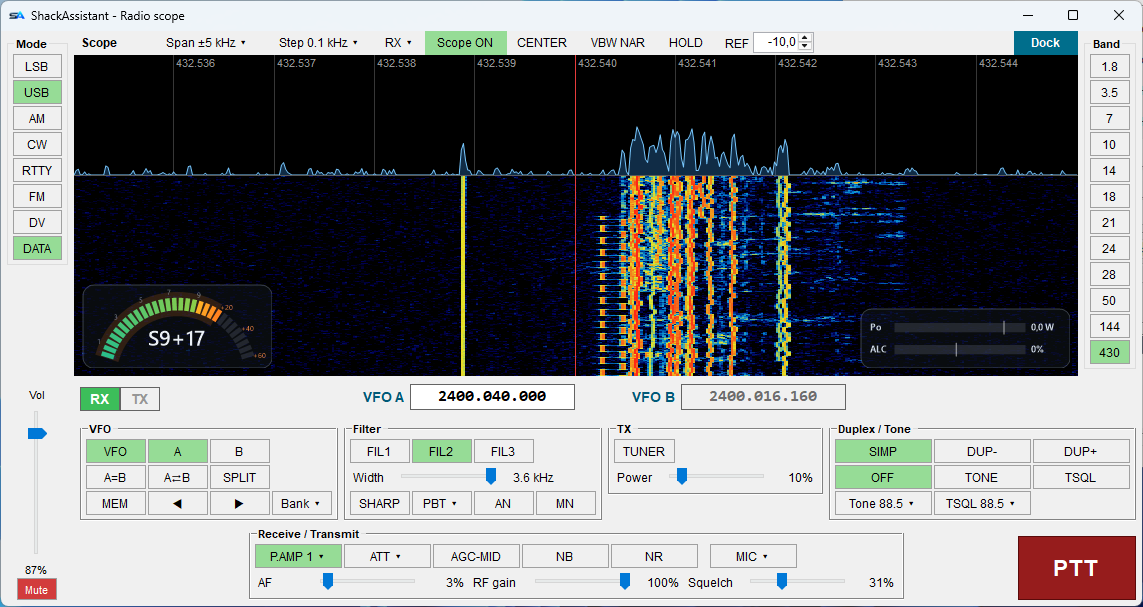
  • Undock it and it becomes a front panel: modes, bands, filters, VFO and memories, antenna, tuner and power, repeater tones, an S-meter and Po/ALC over the waterfall, and a big PTT button.
  • Help → Radio scope demo shows it all without a radio.

See Icom over the network for the details.

The radio's scope undocked: a front panel for the radio
The scope undocked: a front panel for your Icom.
Logging

Type a call, see everything

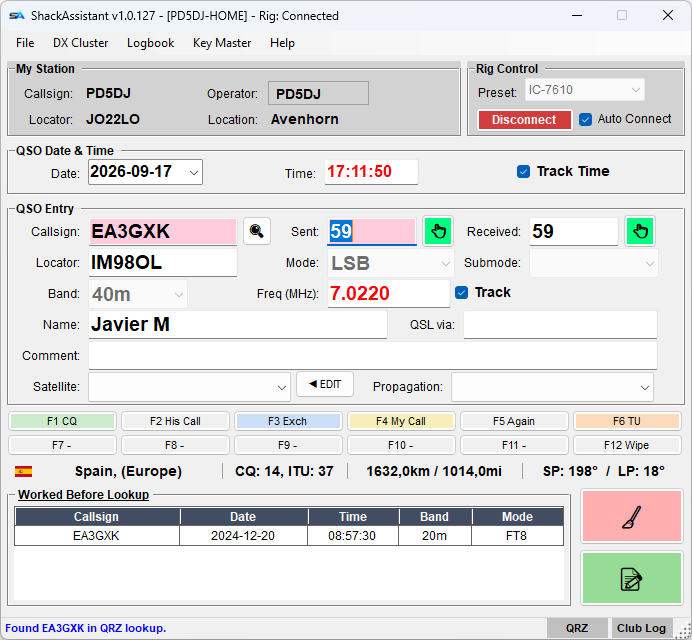
Type a callsign and the main window shows the country and flag, continent, CQ and ITU zone, the distance in km and miles, and the short and long path heading. The worked-before list below shows every earlier QSO with that station.

  • QSO Date & Time is in UTC. Untick Track Time to type them yourself, for example for QSOs from a paper log.
  • Track next to the frequency: the radio fills it in. Untick it to type the frequency yourself.
  • Log the QSO with Ctrl+G, clear the entry with Ctrl+W. The QSO is saved at once - there is no Save button.
  • Delete the last QSO with Ctrl+Delete. It shows the QSO and asks first.
The main window: my station, QSO date and time, QSO entry, message keys, country line and the worked-before list
The main window. The status bar says where the information came from - here a QRZ lookup.

The colours in the worked-before list

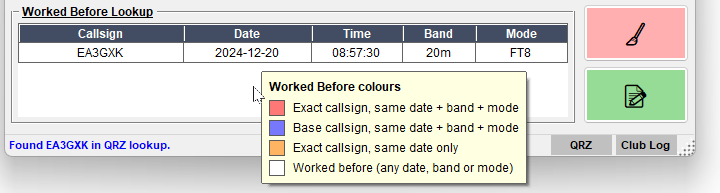
They tell you at a glance whether you need this station. Right-click the list to see the legend.

ColourIt means
Red This call, today, on this band and mode - a dupe (you already have it)
Blue The same station with another prefix or suffix, today, same band and mode
Orange This call, today, on another band or mode
White Worked before, on another day
The worked-before list with the colour legend open
Right-click for the colour legend.

Filling in the rest

  • QRZ lookup - click the magnifier or press Ctrl+L. Name and locator are filled in only if they are empty. Switch QRZ lookup on in Settings first.
  • Call history - an N1MM call history file, or your own log, fills in what a station sent before.

Message keys, right under the entry

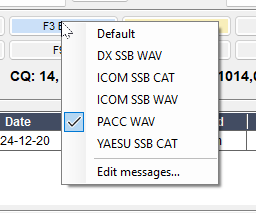
Twelve keys, F1–F12. Right-click a key to switch to another set, for example one per contest.

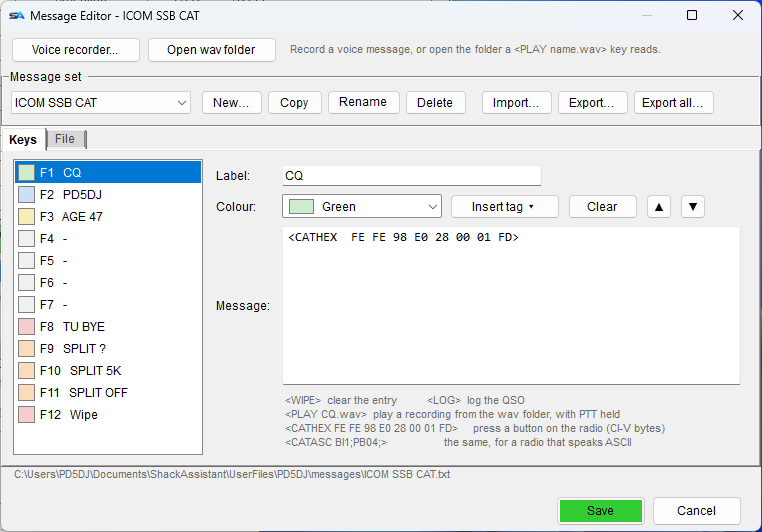
A key can play a recording, press a button on the radio (such as a voice memory), clear the entry or log the QSO. Esc stops it.

A message set file
# F-key, caption, comma, what it does.  <> do something, {} fill something in.
F1 CQ,CQ.wav
F2 His Call,<PLAY CALL.wav>
F3 Exch,<PLAY EXCH.wav>
F4 My Call,<PLAY MYCALL.wav>
F6 TU,<PLAY TU.wav><LOG>
F7 Mem 1,<CATHEX FE FE 98 E0 28 00 01 FD>   # IC-7610 voice memory 1
F8 Mem 1,<CATASC PB01;>                    # the same on a Yaesu
F9 Split,<SPLIT +1000>
F12 Wipe,<WIPE>

If the radio refuses a CAT command, you are told.

The voice keyer, and a recorder to fill it

A message key with a .wav file plays it into your transmitter, with PTT on for exactly as long as the recording.

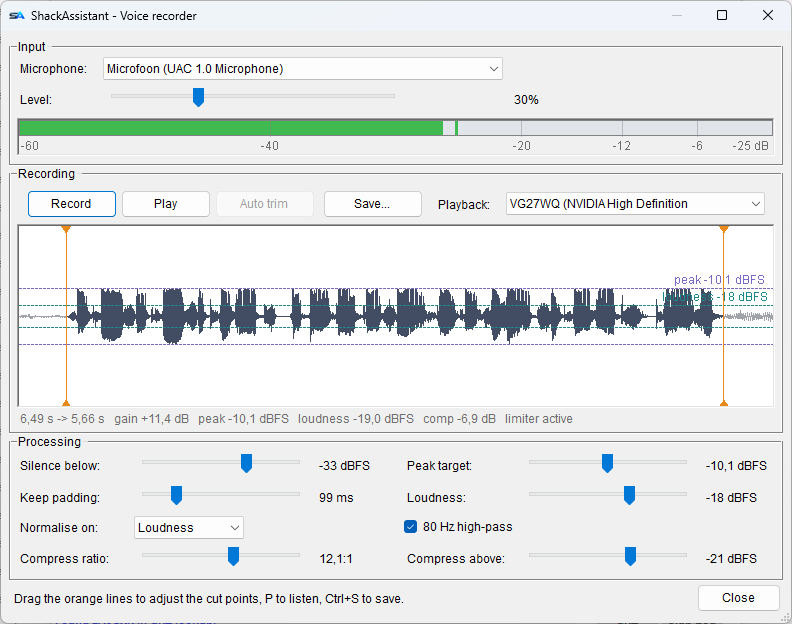
Click Voice recorder at the top of the Message Editor to make those files:

  • Record and play back. Playback does not go on the air.
  • Auto trim cuts the silence at the start and end, or drag the orange lines.
  • Normalise makes every message equally loud. Compression is there if you want it.
  • Save asks where to put the recording, starting in the current operator's WAV folder.
The voice recorder: input level, waveform with cut points and the processing sliders
The voice recorder. You see the result of every slider before you save.
The logbook window

Your whole log in one window

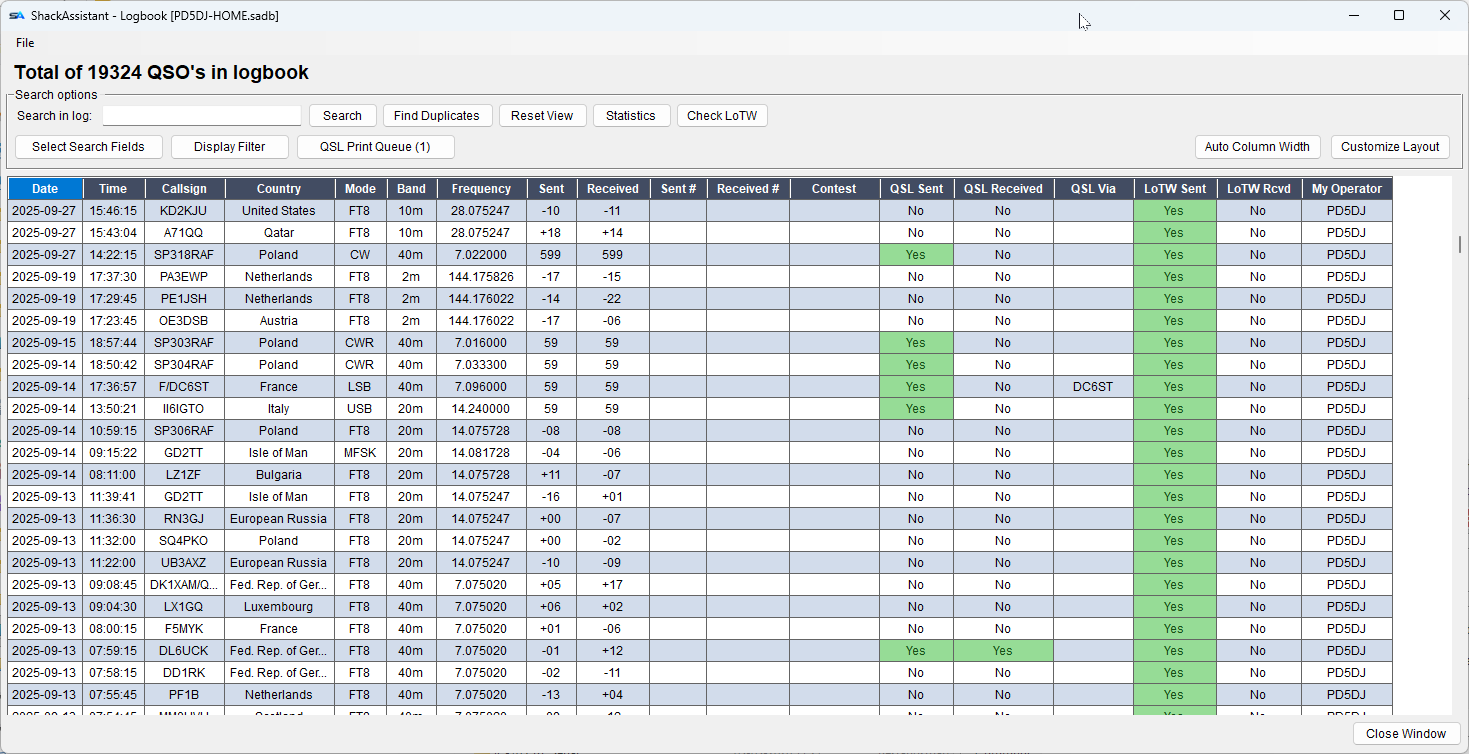
Press Ctrl+B to open the log: one list with every QSO, fast however big it is. Searching, filtering, editing, printing and uploading all start here.

The logbook window: search options, buttons and the QSO grid with green confirmation cells
Green cells are confirmations: QSL sent or received, LoTW matched. Today's QSOs have their own colour, and you choose which columns to show.

Finding a QSO

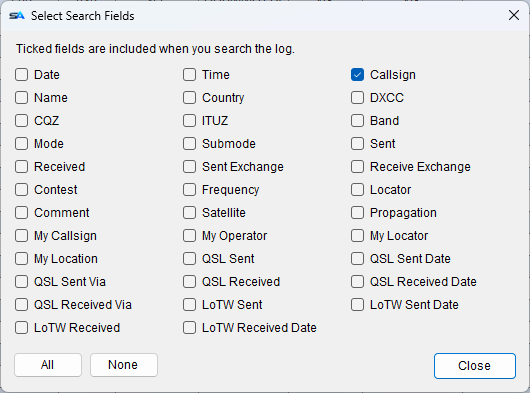
  • Search in log searches the fields you tick under Select Search Fields.
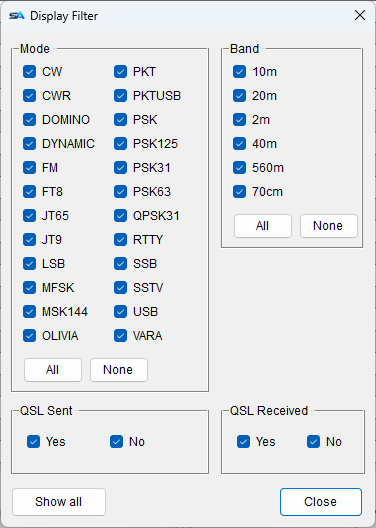
  • Display Filter hides modes, bands, QSL states or contest QSOs you do not want to see - and Contest is Yes/No, so you can isolate them as well as hide them. It only changes what you see, not the log.
  • Reset View clears the search and the filter.
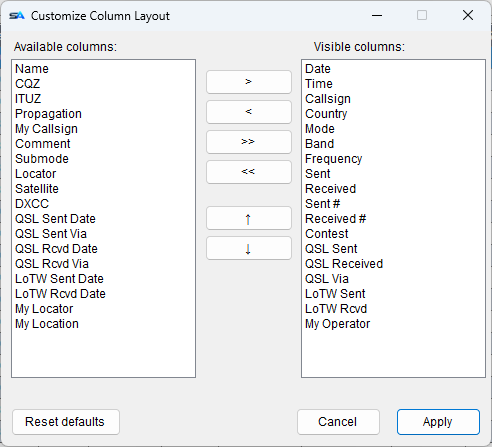
  • Customize Layout sets which columns you see and in what order. Auto Column Width makes every column wide enough for its contents.

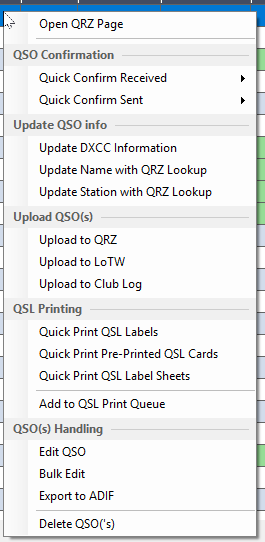
The right-click menu

Select one or more QSOs and right-click:

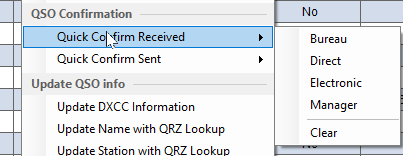
  • QSO Confirmation - Quick Confirm Sent or Received: sets the flag, today's date and the route (bureau, direct…) in one click.
  • Update QSO info - refresh country data, or fetch details from QRZ.
  • Upload QSO(s) - to QRZ, LoTW or Club Log.
  • QSL Printing - print now, or add to the print queue.
  • QSO(s) Handling - edit, bulk edit, export to ADIF, or delete.

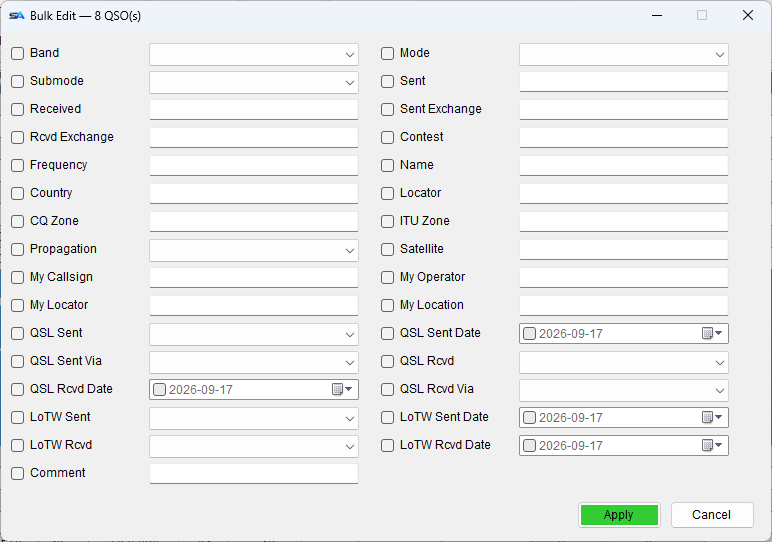
Editing one, or many

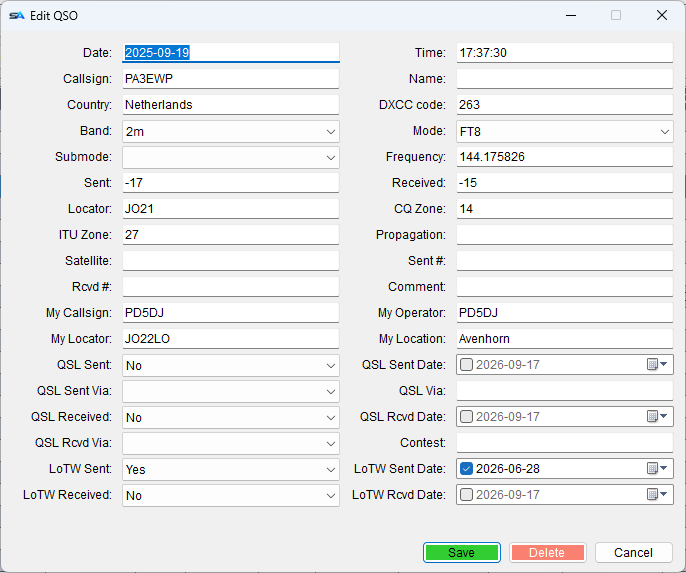
  • Edit QSO shows every field of one QSO.
  • Bulk Edit changes one field on all selected QSOs. Setting QSL or LoTW to Yes fills in today's date for you.
  • Changes are saved at once.

ADIF in and out

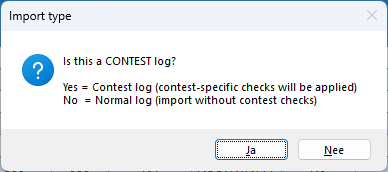
  • Import reads ADIF from any other program. It first asks whether this is a contest log.
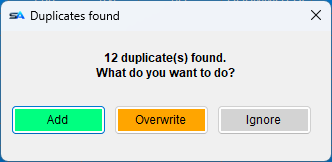
  • For QSOs already in your log you choose: Add, Overwrite or Ignore.
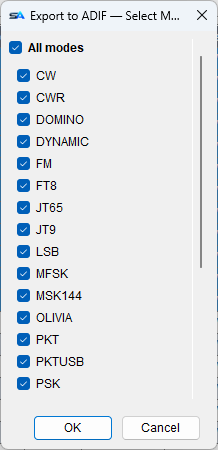
  • Export writes the whole log or your selection, for the modes you tick.
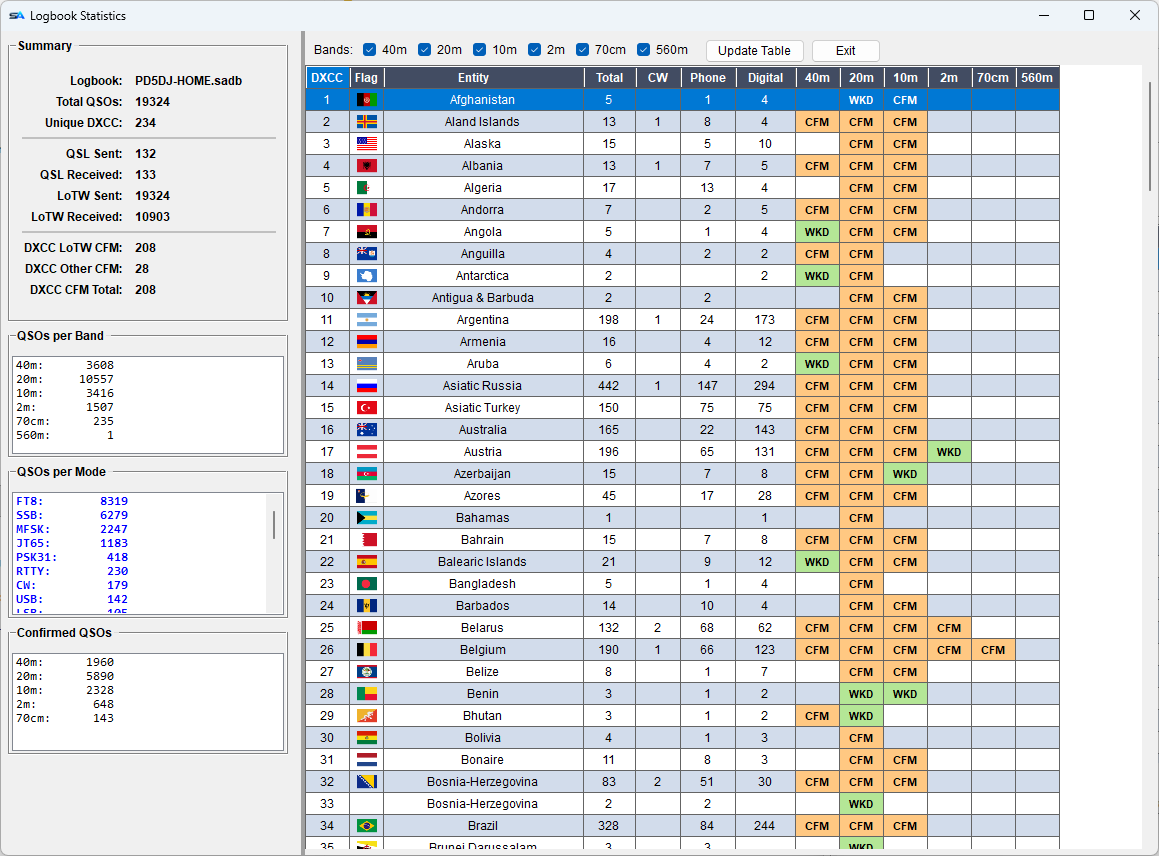
Logbook Statistics: summary, QSOs per band and mode, and the DXCC table with worked and confirmed per band
Statistics: totals on the left, every DXCC country with WKD or CFM per band on the right.

Statistics

  • Summary: total QSOs, DXCC countries, QSLs and LoTW, and how many countries are confirmed. Counts per band and per mode.
  • The DXCC table: per country and band, worked (WKD) or confirmed (CFM). Tick your bands and click Update Table.

Duplicate finder

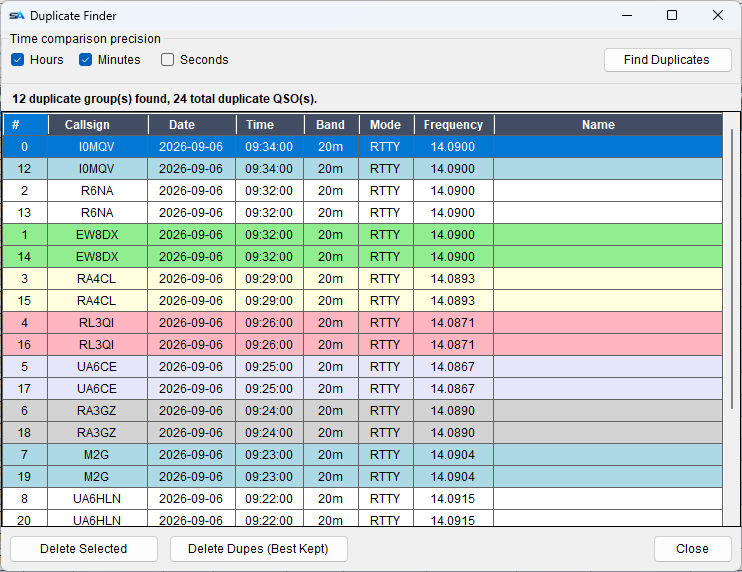
Imported the same QSOs twice? Find Duplicates shows QSOs that are the same contact, each group in its own colour.

  • Time comparison precision: how close the times must be - hour, minute or second.
  • Delete Dupes (Best Kept) keeps the most complete copy, QSL data included.
  • Delete Selected removes only the ones you pick.
DX cluster & band map

Every spot coloured against your own log

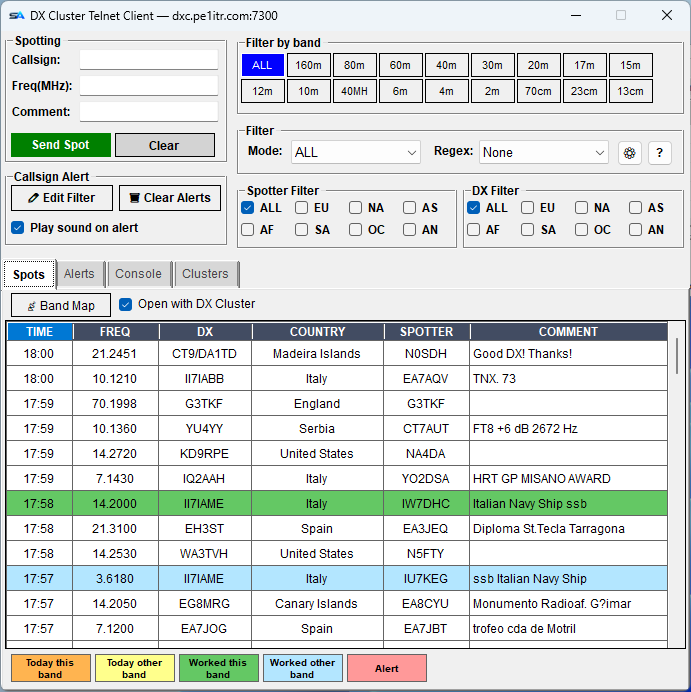
A DX cluster is a network where hams post the stations they hear ("spots"). Press Ctrl+D to open the cluster window. Each spot is coloured by your own log, so you see at once whether you need that station.

The DX Cluster window: spotting, alerts, band and mode filters, and the spot list coloured against the log
The Spots tab: sending and filters at the top, the spots below, the colour legend at the bottom.

What the colours mean

ColourThe spotted station is
Purpleyou - your own call was spotted
Redon your alert list
Dark orangeworked today, on this band
Yellowworked today, on another band
Dark greenworked before, on this band
Light blueworked before, on another band
Whitenever worked - go get it

The colours are also named at the bottom of the window.

One click to the station

  • Click a spot and the radio goes to that frequency and mode, with the callsign in the entry.
  • The mode is taken from the spot's comment (a spot saying RTTY tunes to RTTY). If the comment says nothing, the frequency decides.
  • Sound-card modes (FT8, PSK31, OLIVIA…) set the radio to DIGITAL.
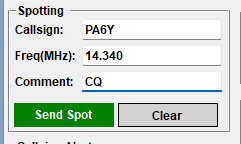
  • Send Spot posts your own spot: callsign, frequency and a comment. A QSO from WSJT-X fills these in for you.

Filters

Use them together; they work at once.

  • Band - click one or more bands. ALL shows every band again.
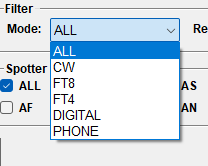
  • Mode - ALL, CW, FT8, FT4, DIGITAL or PHONE.
  • Regex - your own saved search patterns, for example only QRP spots or only one prefix.
  • Spotter and DX by continent: for example only spots from Europe, or only DX in Asia.

Alerts and the band map

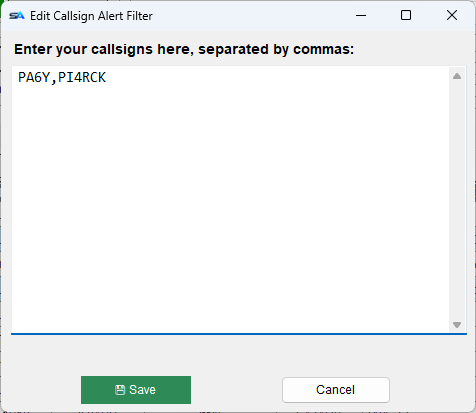
  • Alerts: a list of callsigns you are looking for. When one is spotted it turns red, with a sound if you want one.
  • Band Map shows the spots on a map of the band that follows your VFO. Tick Open with DX Cluster to open it every time.

Choosing a cluster

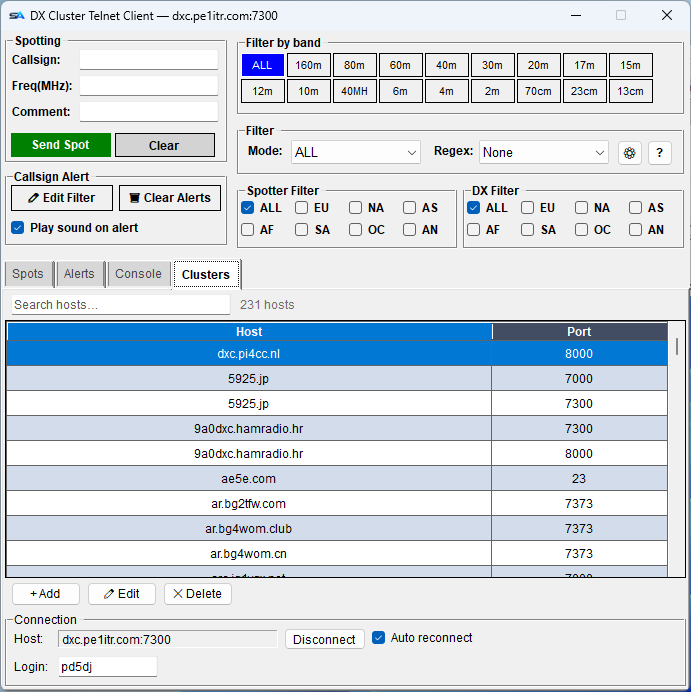
  • The Clusters tab has 231 clusters to choose from, with a search box - type pi4 or 7300. You can add, edit and delete your own.
  • Connection is at the bottom: host, Connect, Auto reconnect. Your callsign is the login.
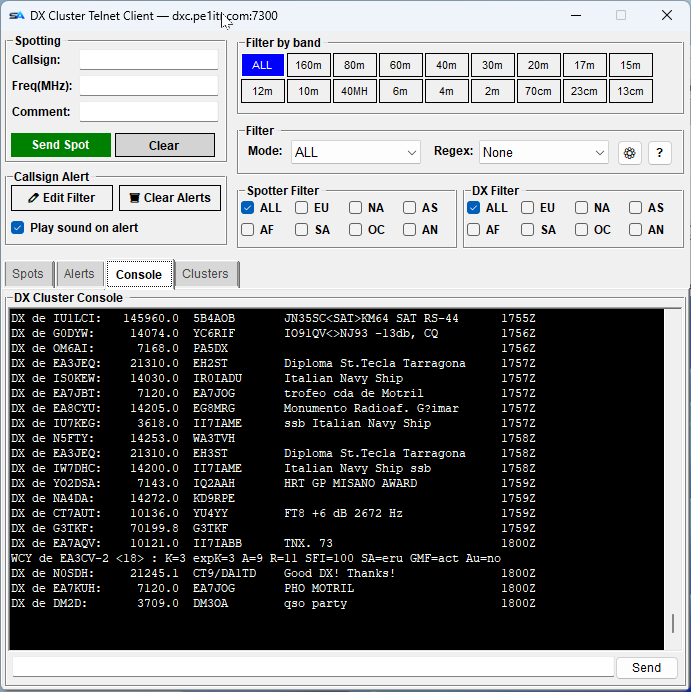
  • The Console tab shows the cluster as text, with a line to type your own cluster commands.
Key Master

CW and RTTY in one window - receive, send, log

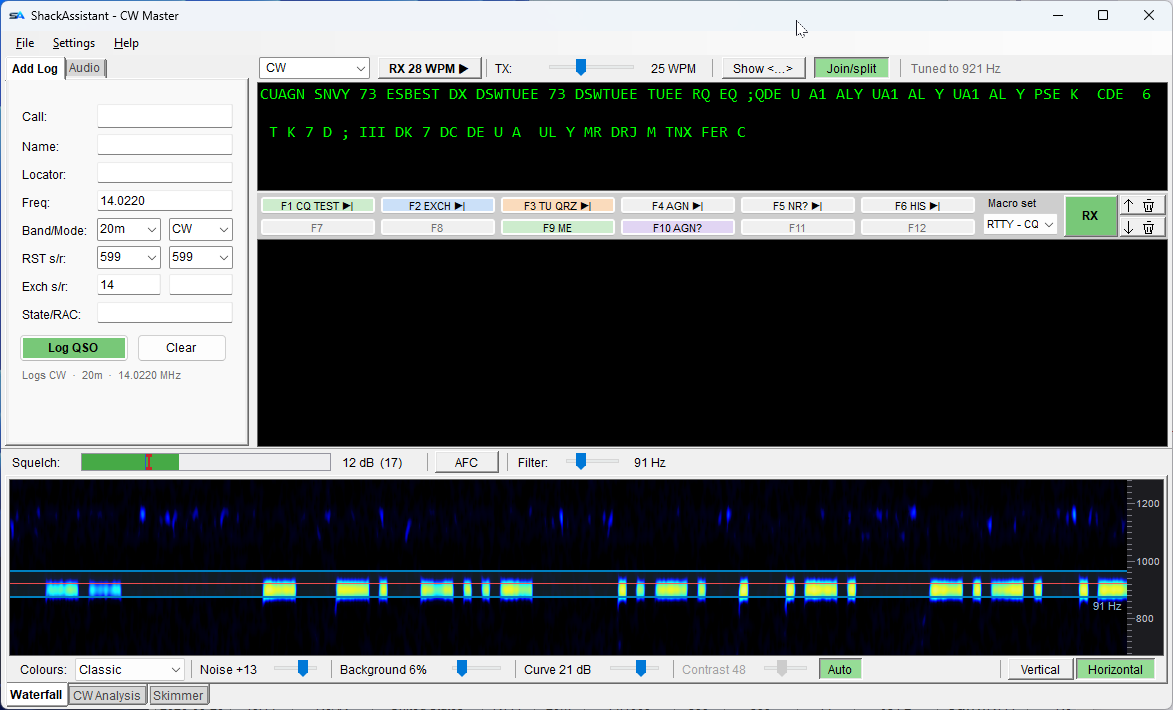
Key Master reads CW and RTTY from your sound card and shows the band as a waterfall. It also sends, from the keyboard or from twelve macro keys, and has its own quick log. Press Ctrl+K to open it. The drop-down at the top left picks how the transmitter is driven: CW (keyed on a serial line), CW-AFSK (a tone from the sound card), RTTY (serial FSK) or RTTY-AFSK (two tones from the sound card). Each has its own cards, port and PTT setting; what goes into the log stays CW or RTTY.

Key Master in CW: quick log, decoded text, macro keys, squelch bar and the waterfall
CW. Left the quick log, in the middle the received text and the macro keys, below the controls and the waterfall.

Receiving

  • Click a signal in the waterfall to read it. Text appears at once.
  • The speed follows the station by itself (RX 26 WPM). Click it to send at the same speed.
  • Squelch: drag the bar until only real signals print.
  • AFC follows a drifting station. The filter runs from 40 to 250 Hz.
  • A tooltip names the exact word a click will pick - so you see that 599-14 is two words before you click.
  • Double-click a word to make it the callsign. Right-click it for locator, RST or exchange.

Sending

  • Type ahead while it sends. Sent text is struck through.
  • The sidetone is at the cursor, so on SSB you transmit on the station you hear.
  • How it is keyed is the mode; PTT is set per mode. Cut numbers if you want them: 599 goes out as 5NN.
  • RX/TX: green while you listen, red while you send. Click it to stop. In the two AFSK modes a TUNE button beside it puts a steady tone on the air so you can set your drive against the set's own ALC meter - it counts down and stops itself after ten seconds.

Three views of the band

  • Waterfall - the band, with the cursor and the filter.
  • CW Analysis - signal, noise and the squelch line, which you can drag.
  • Skimmer - reads the whole band at once, one station per line.

The waterfall can stand or lie

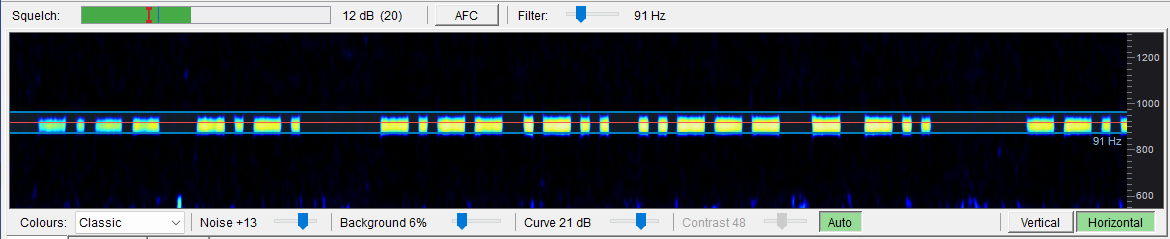
Vertical is the band across with time running down. Horizontal turns it a quarter turn - time across, the band up the side, the way CW Skimmer draws it - and then a station is a straight line whose keying you can read in the picture. Lying down, the mouse wheel zooms and the Hz scale follows.

The row underneath is every colour control there is: six palettes, Noise for where the signal colours start, Background for how bright the noise is drawn, and Curve for how steeply the colours climb - small is the Skimmer look, large makes a stronger station really look brighter. None of it changes a decoded character.

The waterfall lying down, with the colour row underneath
Lying down, with the colour row under it.

RTTY, in the same window

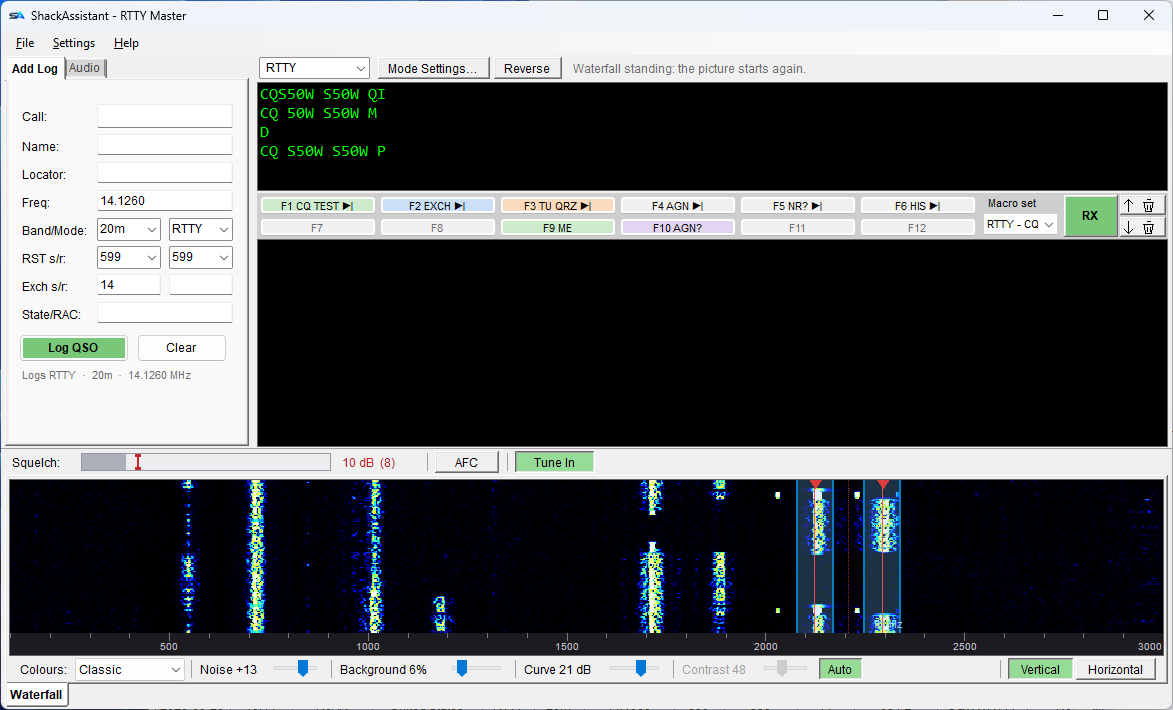
Pick RTTY or RTTY-AFSK. Only the mode's own controls change - and there are just three of them on the bar, because the rest sits one click away in Mode Settings.

  • Mode Settings: baud rate and shift (the usual 45.45 and 170, or type your own), ITA2 or ASCII, stop bits, UoS, and the line endings the other end expects.
  • Reverse stays on the bar, where you reach for it: it swaps the two tones, and it is the first thing to try when a signal prints rubbish.
  • The cursor covers both tones. Place it over the two traces and click. With Tune In on, a click tunes the radio so the station lands on your set's FSK mark tone - the one spot your own answer goes out from.
Key Master in RTTY: baud, shift, bits and CR/LF controls, decoded text and the tone pair on the waterfall
RTTY. Mode Settings and Reverse on the bar; the waterfall shows the two tones of the station.

The quick log, and the audio tab

  • The line under the quick log shows what will be logged: Logs CW · 40m · 7.0220 MHz. It always logs the mode you are working, whatever the main window says.
  • Band and frequency follow the radio, unless you type your own.
  • In a contest it grows the boxes that contest asks for, right behind the received exchange, and the comment box steps aside - so a CW or RTTY contest can be worked from this one window. See Contesting.
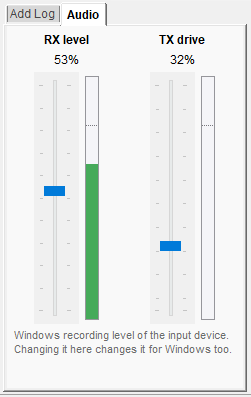
  • On the Audio tab, RX level is your receive level and TX drive how much audio goes to the transmitter.

Received text is saved

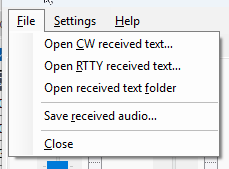
Everything you receive is saved per day in Documents\ShackAssistant\received. The File menu opens it, or saves the received audio.

Macros: twelve keys, in sets

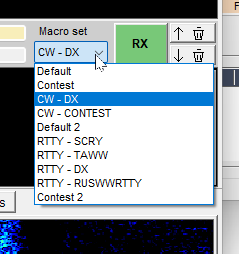
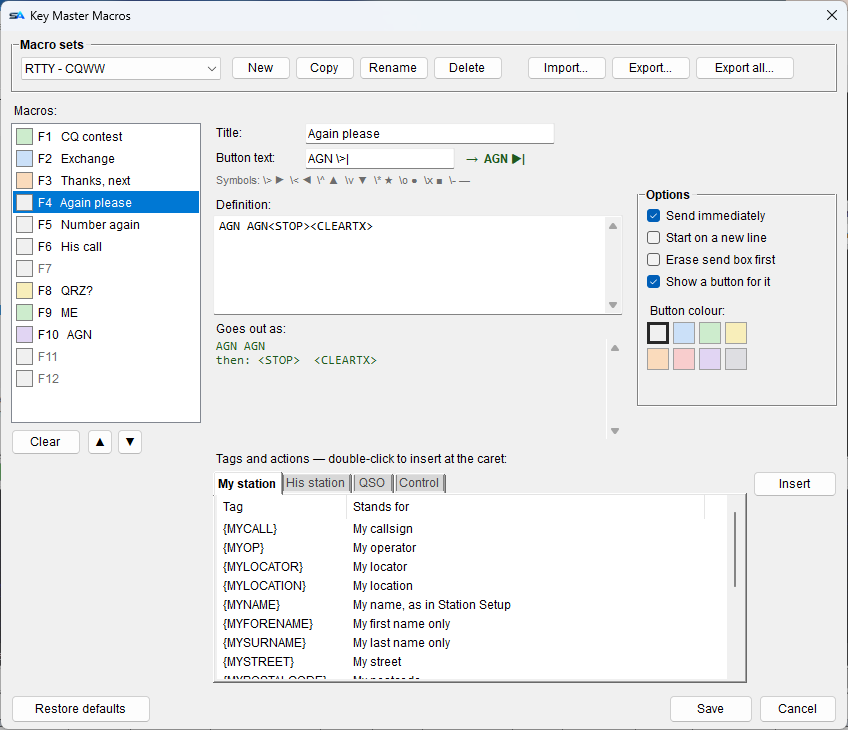
F1–F12, for CW and RTTY, in as many sets as you like. Pick a set from the drop-down on the macro bar. Right-click a key to edit it.

  • Braces fill something in, angle brackets do something. {CALL}, {MYCALL}, {MYNAME} and more fill in; <LOG>, <STOP>, <SERIAL+> act.
  • <LOG> at the end of TU {MYCALL} <LOG> logs the QSO once the text has been sent.
  • Each key has a caption and a colour. Sets can be imported and exported.

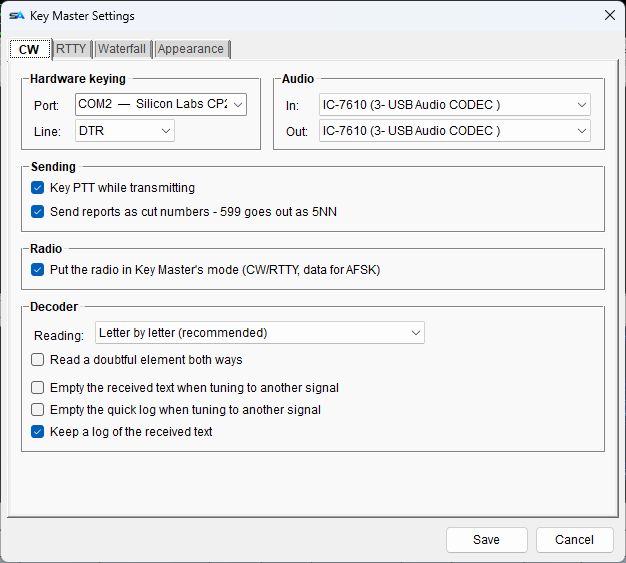
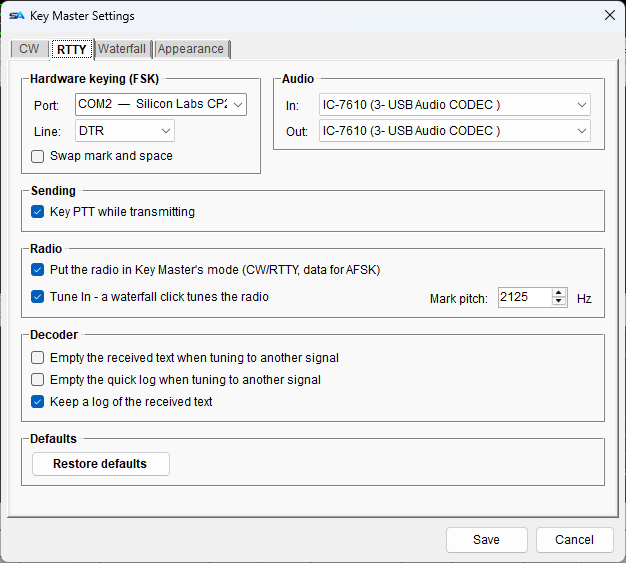
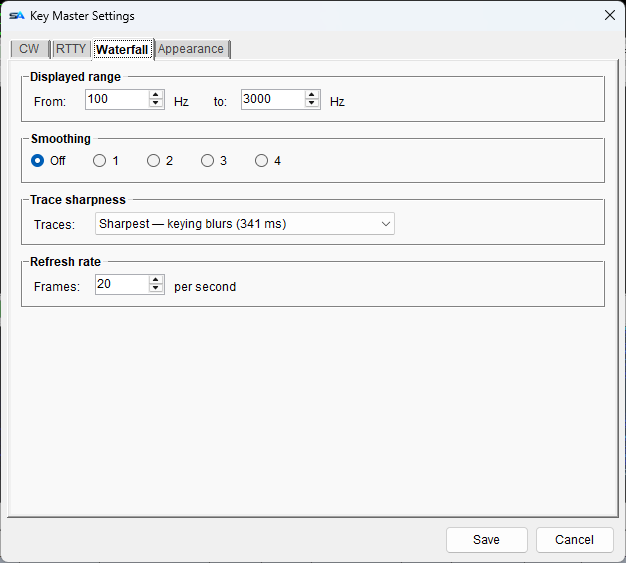
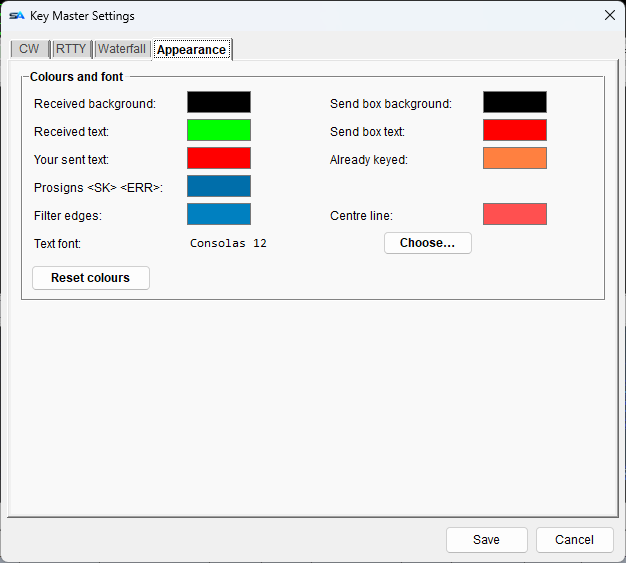
Key Master settings, four tabs

  • CW - how you key and on which port, the sound cards, PTT, cut numbers, decoder options.
  • RTTY - the port, mark/space swap, the sound cards, PTT, Tune In, your FSK mark tone.
  • Waterfall - range, smoothing, sharpness and refresh rate.
  • Appearance - text colours and font.

The sound cards and PTT are on the CW and RTTY tabs, one set per mode. Apply keeps the window open.

Contesting

From the first QSO to the Cabrillo file

For a contest you make a separate contest logbook. Open it and the main window switches to contest mode; open your everyday log and it is back to normal.

The contest rules come from N1MM .ctd files, which work in ShackAssistant as they are. Put them in the CTD folder and they appear in the list. A definition you make here also works in N1MM. 557 of them, across 442 contests, are on the Contests page - a zip per contest, with its section list and call history in it, to unzip straight into the CTD folder.

That is N1MM's CTD principle, used as it is - not a format of our own. Thousands of definitions already exist, written by people who read the rules carefully and then shared the result. Why invent something new when this is what the standard should be?

Making the log

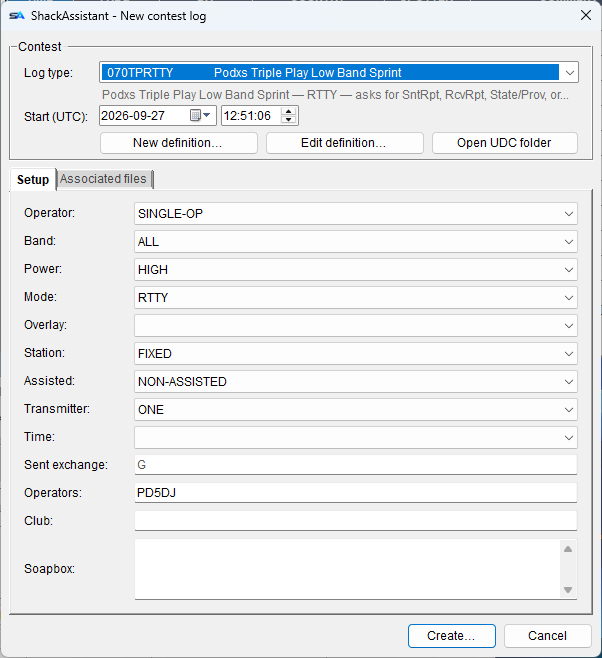
Choose New logbook and pick a contest log. Then fill in:

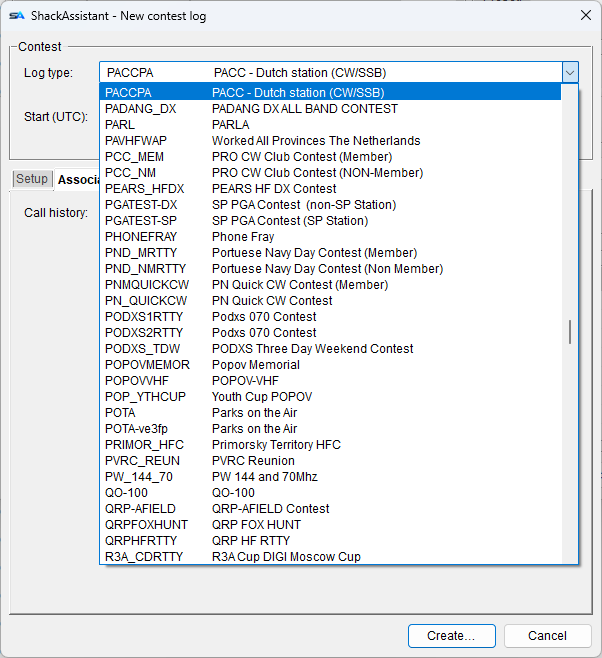
  • Log type - the contest. The list shows every .ctd in Documents\ShackAssistant\CTD.
  • Start (UTC) - when the contest starts.
  • Your categories (operator, band, power, mode…). These go into your Cabrillo file, the log you send to the organiser.
  • Sent exchange: {SERIAL} counts up from 001, or type what you send.
  • Click Create… and choose where to save.

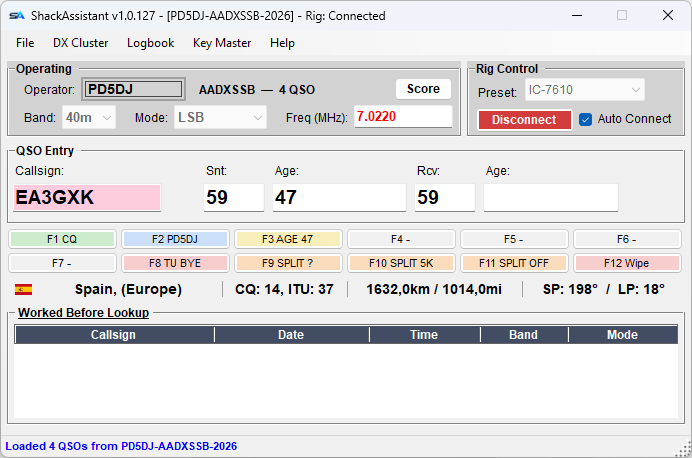
The main window in contest mode

  • One entry row with the boxes this contest needs, and twelve message keys below it.
  • Operating shows the operator, the contest, your QSO count and a Score button.
  • Enter logs the QSO. If something is missing, you are told which box.
  • DUPE in red means you already have this station. A red callsign means a new multiplier.
The main window in contest shape: Operating frame, one entry row with captions, and the message keys
Contest mode. The callsign is pink because this station is already in the log.

While you work

  • A dupe is logged but scores no points.
  • Serial numbers count up by themselves.
  • Call history fills in what a station sent before.
  • Score shows your score per band, the Multipliers you still need, and any contest Rules that are not applied.
  • Key Master works the contest too: its quick log grows the same boxes, and the right-click menu on the decoded text offers them.
  • Your score, live on the scoreboard. Tick one box under Station Setup → Contest Score of your contest logbook and ShackAssistant posts to Contest Online ScoreBoard every few minutes while the contest runs - and never in the way of your logging, because a slow scoreboard costs you nothing.
The Cabrillo file, made from your log
START-OF-LOG: 3.0
CONTEST: PACC
CALLSIGN: PA5DJ
CATEGORY-OPERATOR: SINGLE-OP
CATEGORY-MODE: MIXED
CLAIMED-SCORE: 30600
QSO: 14025 CW 2026-02-14 1522 PA5DJ         59  NH     PA6HQ         59  012
END-OF-LOG:

If a contest rule is not applied, you are told before the file is written.

You are also warned when a section list the contest needs is missing - without it the score comes out too high.

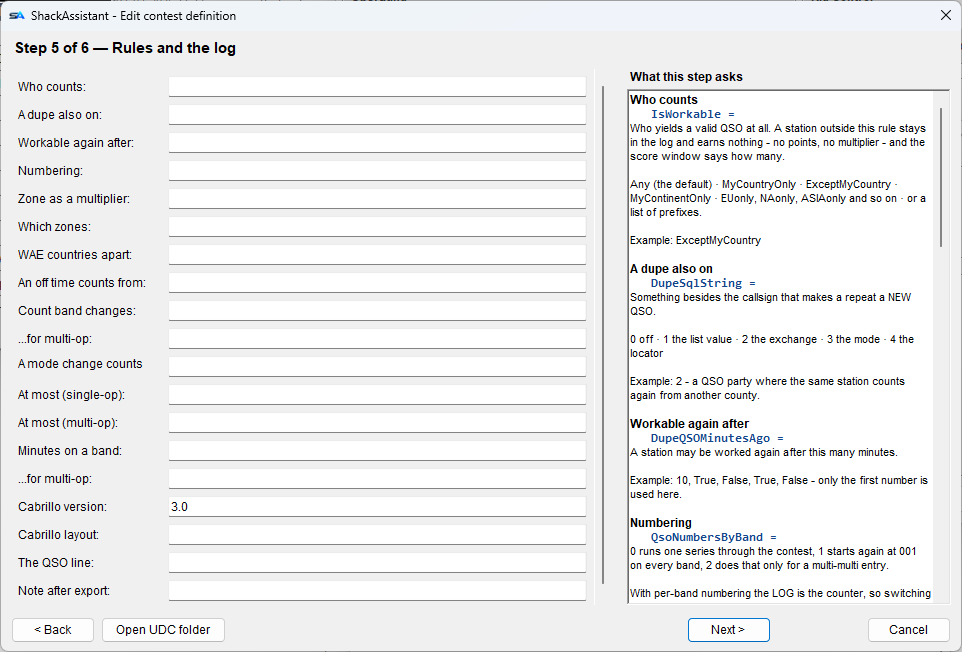
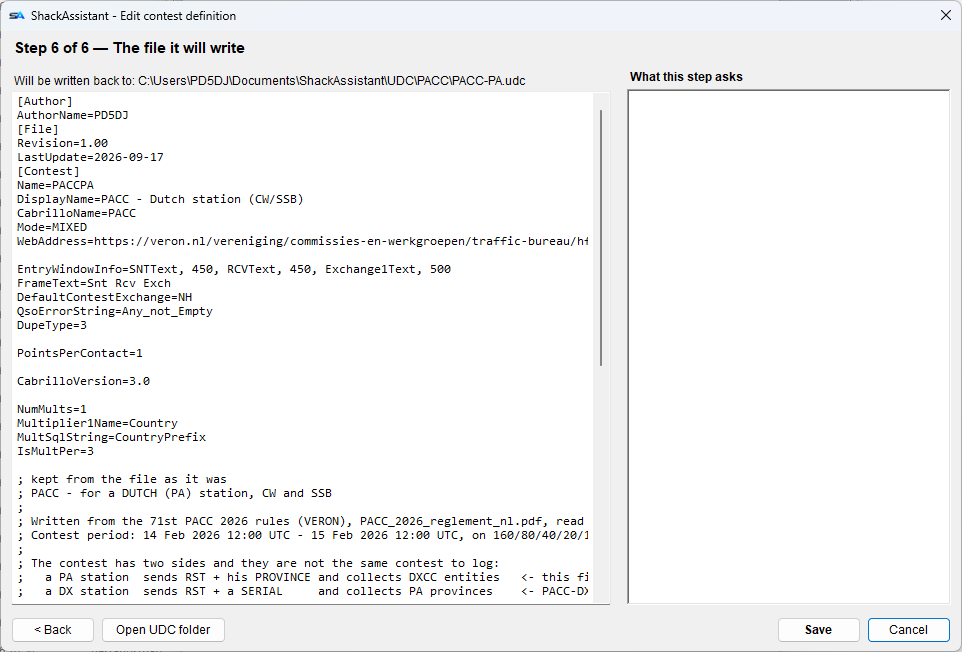
The definition editor, six steps

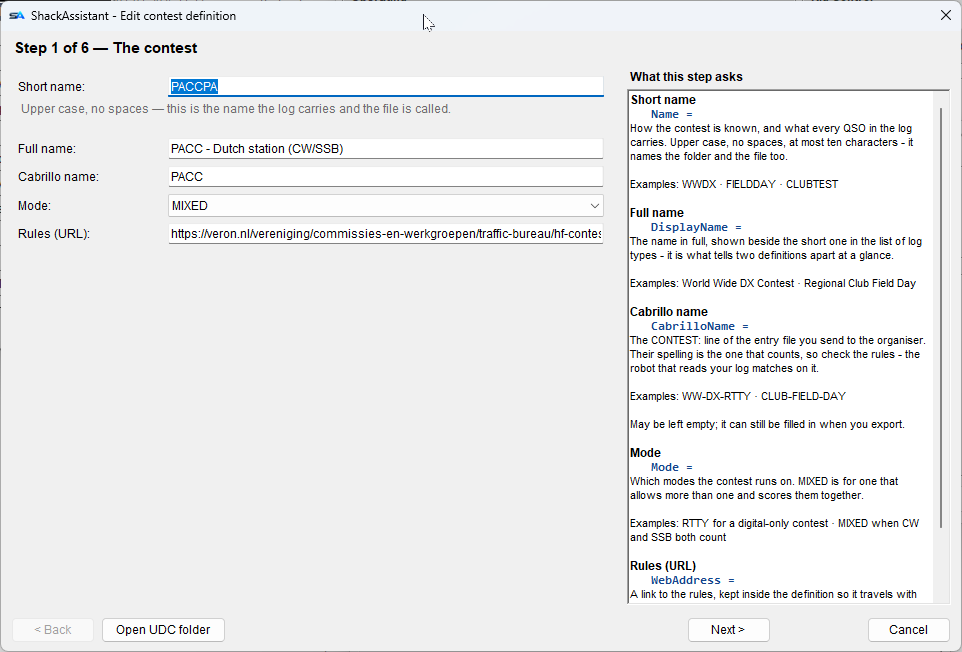
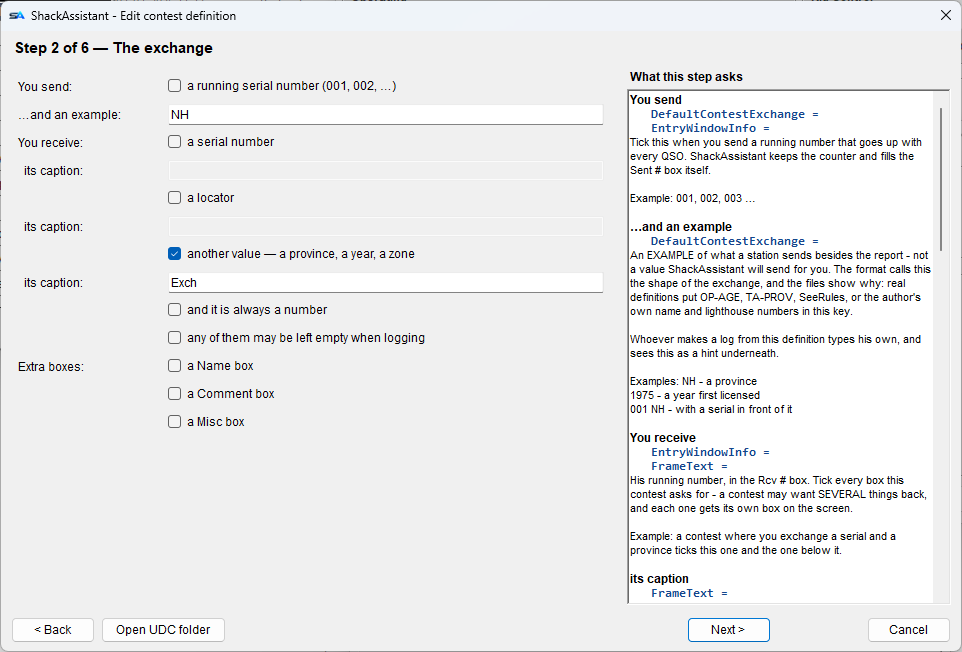
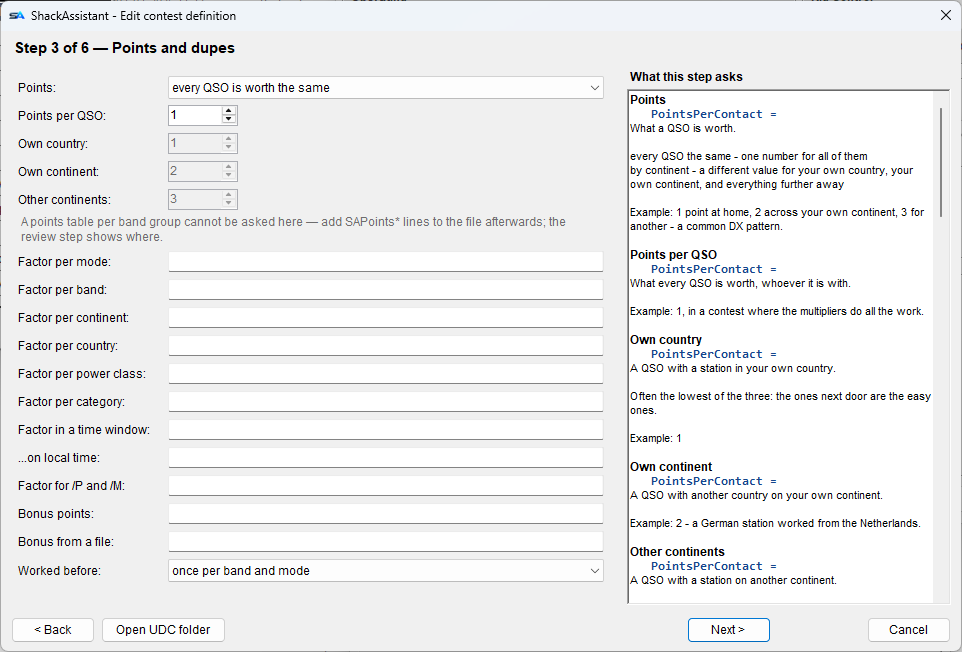
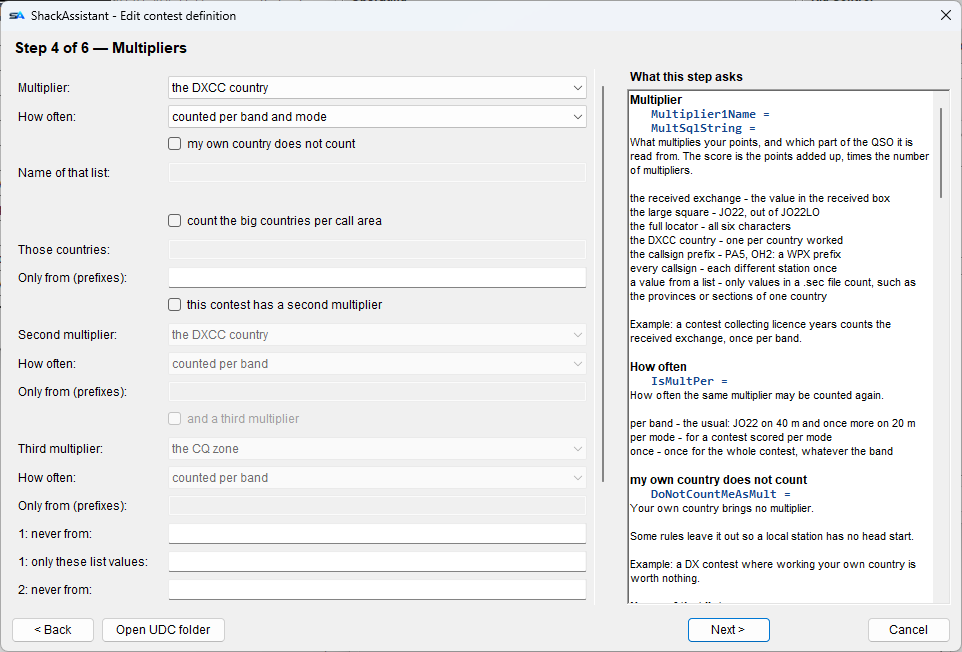
No .ctd for your contest, or a wrong one? The editor makes and edits them in six steps:

  1. The contest - names, mode and a link to the rules.
  2. The exchange - what you send and receive.
  3. Points and dupes.
  4. Multipliers - country, prefix, zone, locator, section…
  5. Rules and the log - extra rules and the Cabrillo layout.
  6. The file - which you can still edit before saving.

The panel on the right explains each step.

Message keys and starting definitions

The message keys work as described under Logging, with a set per contest. In CW and RTTY you can use Key Master's macros instead.

Three simple definitions come with the program to copy and adapt. For a real contest, use that contest's N1MM .ctd file.

What a definition looks like
[Contest]
Name=PACCPA
DisplayName=PACC - Dutch station (CW/SSB)
CabrilloName=PACC
Mode=MIXED
DupeType=3            ; per band AND per mode
PointsPerContact=1
Multiplier1Name=Country

A plain text file. The same file also works in N1MM.

QSL printing

Labels, sheets and pre-printed cards

Three ways to print your QSLs: roll labels, label sheets and pre-printed cards. Each has its own window, templates and a preview at real size. All three print from the same print queue.

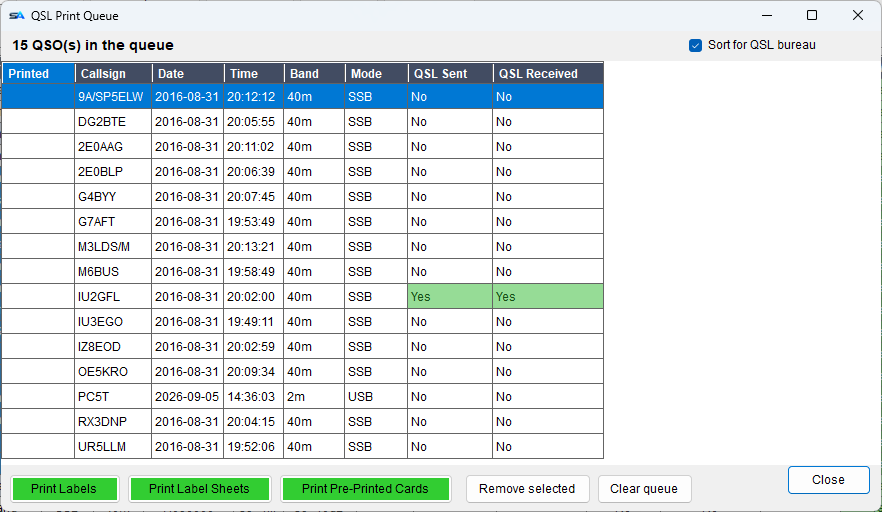
The print queue

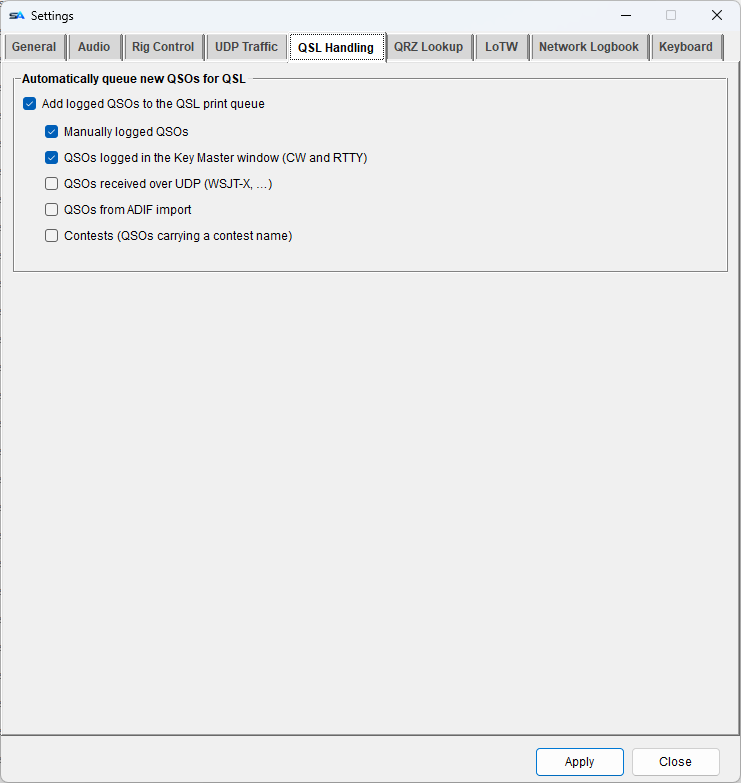
  • In the log, select QSOs, right-click and choose Add to QSL Print Queue. Or let new QSOs be added automatically under Settings → QSL Handling.
  • Sort for QSL bureau puts the queue in the order the bureau wants.
  • After printing you can remove the QSOs from the queue and mark them QSL sent.
The QSL print queue: QSOs waiting, with the three print buttons
The queue, with the three print buttons at the bottom.
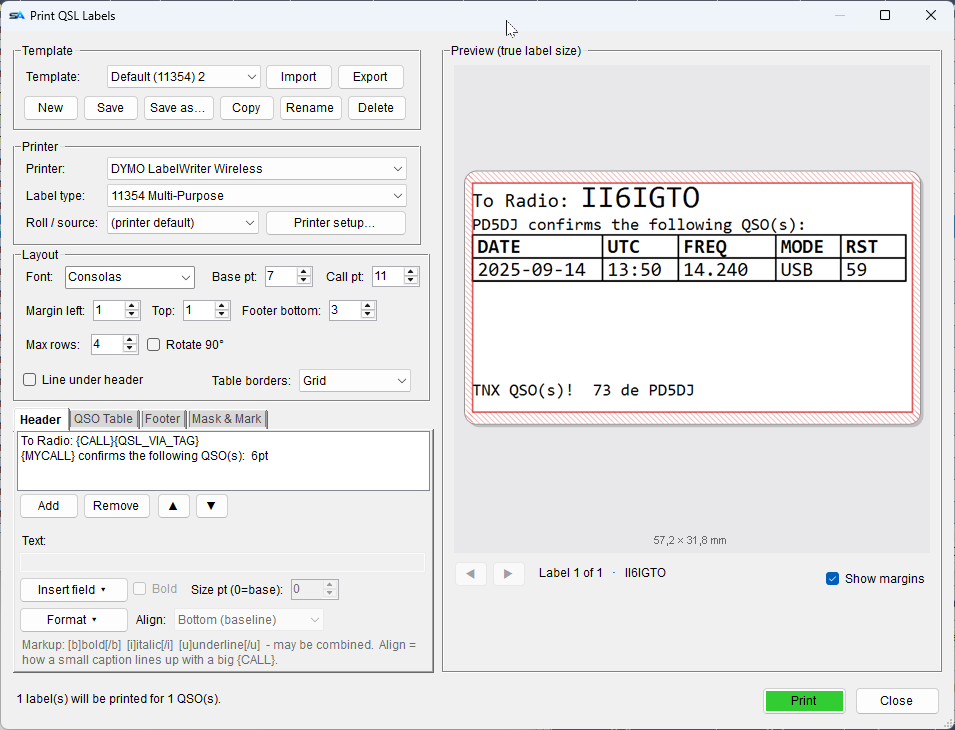
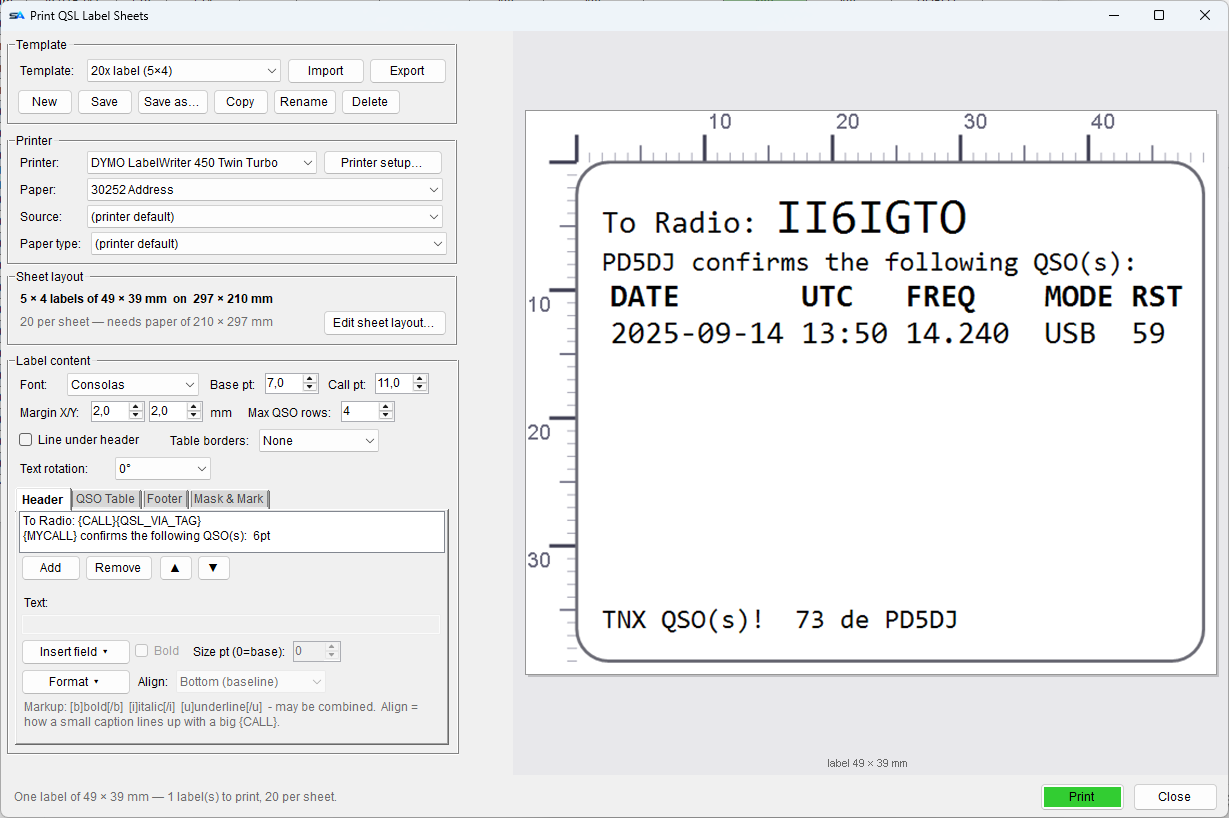
Print QSL Labels: template, printer, layout, the header/QSO table/footer editors and a true-size preview
Roll labels. On the right the label at real size; the red edge is where this printer cannot print.

Roll labels

  • One label per station, with its QSOs in a table.
  • Header, QSO table and footer are lines you write yourself, with fields in braces such as {CALL} and {DATE}. [b], [i] and [u] make text bold, italic or underlined.
  • Layout: font, sizes, margins, rows, borders and rotation.
  • Templates can be saved, copied and shared.

Mask & Mark

Boxes, crosses and text that print only in certain cases - for example a cross at "TNX QSL" when their card came in, and at "PSE QSL" when it did not. In all three print windows.

A header, as you write it
[b]To Radio: {CALL}{QSL_VIA_TAG}[/b]
{MYCALL} confirms the following QSO(s):

{QSL_VIA_TAG} prints via DL5XYZ only when the station has a QSL manager.

Some of the fields
{CALL} {QSL_VIA} {QSL_VIA_TAG} the station, and its manager
{DATE} {TIME} {BAND} {FREQ} {MODE} {RST_SENT} the QSO - {FREQ} is in kHz
{MYCALL} {MYNAME} {MYLOCATOR} {MYCITY} … your station, from Station Setup

Label sheets

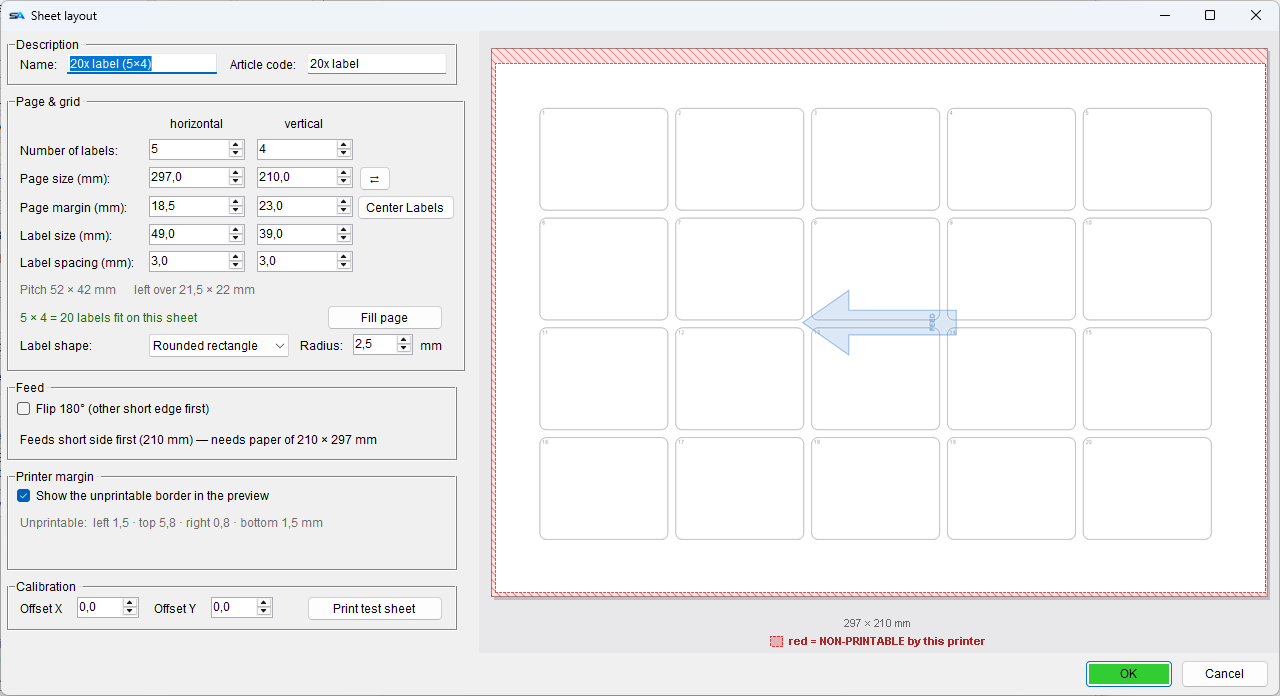
  • Set up your sheet: labels across and down, page size, margins and label size. Fill page works out how many labels fit.
  • Half-used sheet? When you print, click the first free label.
  • The part your printer cannot print is shown in red.
  • Print a test sheet and hold it against a real sheet of labels.
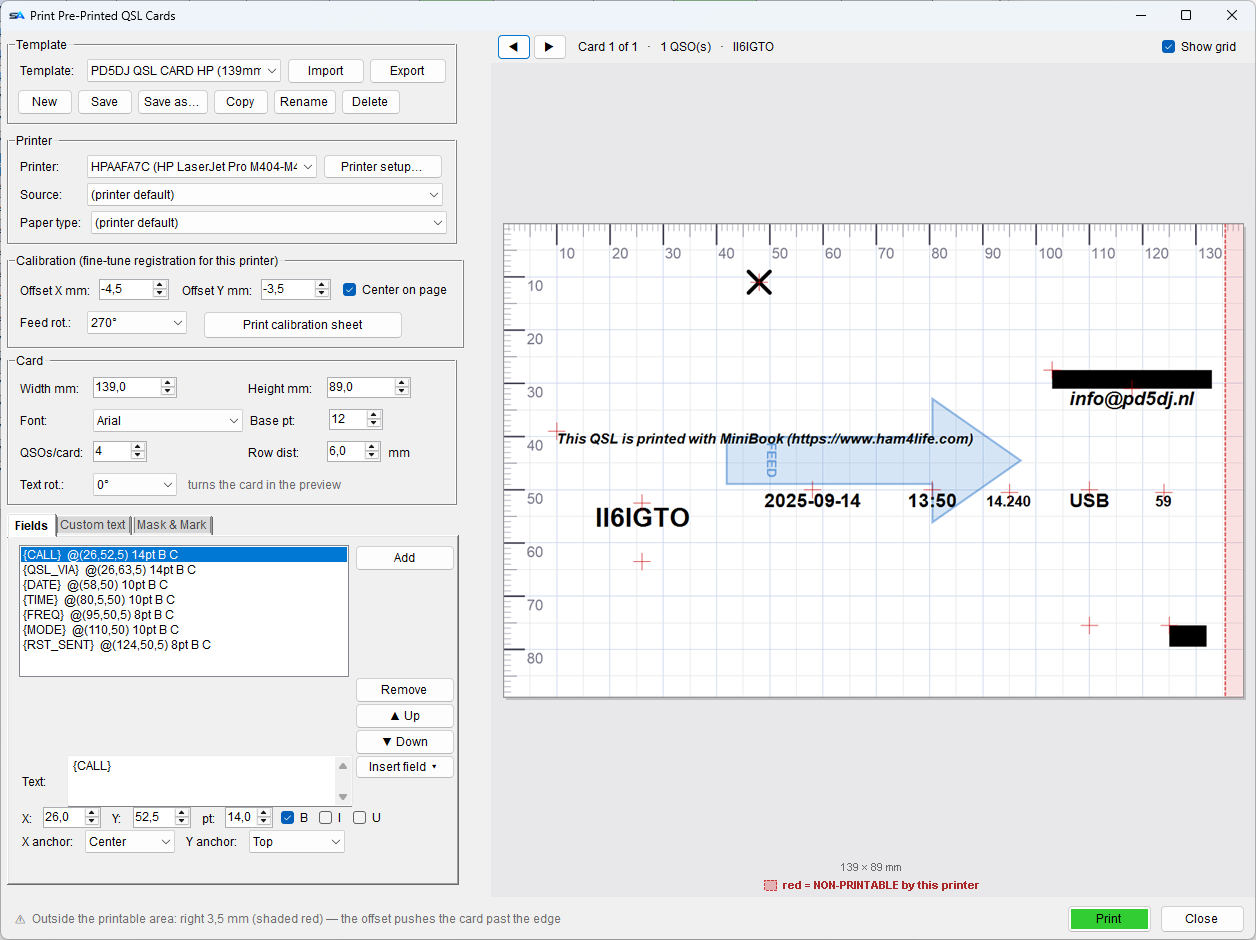
Print Pre-Printed QSL Cards: calibration, card size, the field list with millimetre positions, and a preview with rulers
Pre-printed cards. Each field is printed where you put it, in millimetres. A warning shows when something falls off the card.

Pre-printed cards

  • Only the QSO data is printed - your design is already on the card. Give each field a position in millimetres.
  • More than one QSO per card if you like.
  • Calibration: print the calibration sheet on plain paper, hold it over a blank card, and enter how far it is off.
  • One card at a time: the program asks for each card, handy for hand feeding.
  • Custom text: lines printed once per card, such as a greeting.
Networked logbook

Multi-Op: several PCs, one log

Put your logbook on your own MySQL or MariaDB database server - a NAS in the shack is enough. Every PC that opens it sees the others' QSOs within about a second.

Add the server, once per PC

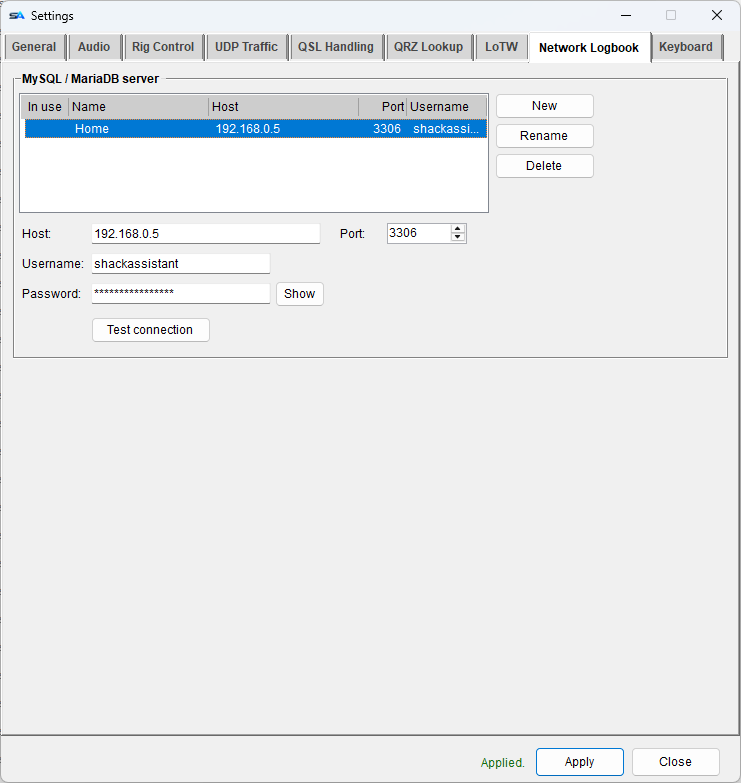
  • Go to Settings → Network Logbook and add a server: address, port, account and password. You can add several (home, club). An arrow marks the one in use.
  • Click Test connection to check it. The server's answer is shown, such as a wrong password.
  • To switch servers, pick another one and click Apply. The open logbook is closed.
Create the account once, on the server
-- every logbook is named sa_..., so one grant covers them all
CREATE USER 'shackassistant'@'192.168.1.%' IDENTIFIED BY 'a-good-password';
GRANT ALL PRIVILEGES ON `sa\_%`.* TO 'shackassistant'@'192.168.1.%';
Settings, Network Logbook tab: the list of servers with host, port and username, and the fields below it
Settings → Network Logbook.

Opening, making and deleting a server logbook

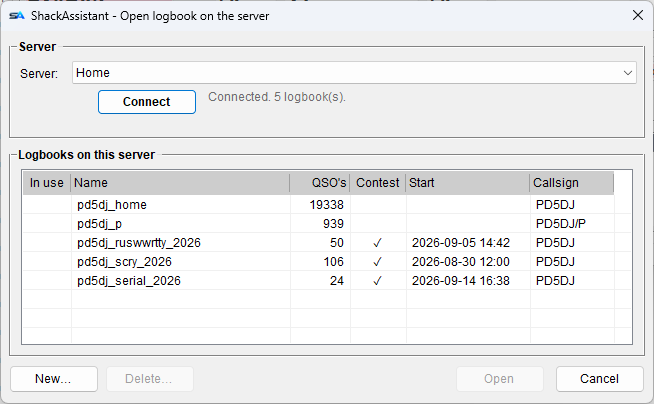
  • File → Network Logbook → Connect lists the logbooks on the server.
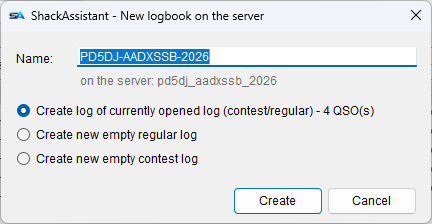
  • New… makes one: empty, empty contest log, or a copy of the logbook you have open - that is how you move a local log to the server.
  • Delete… removes a logbook from the server. This cannot be undone. The logbook you have open cannot be deleted.
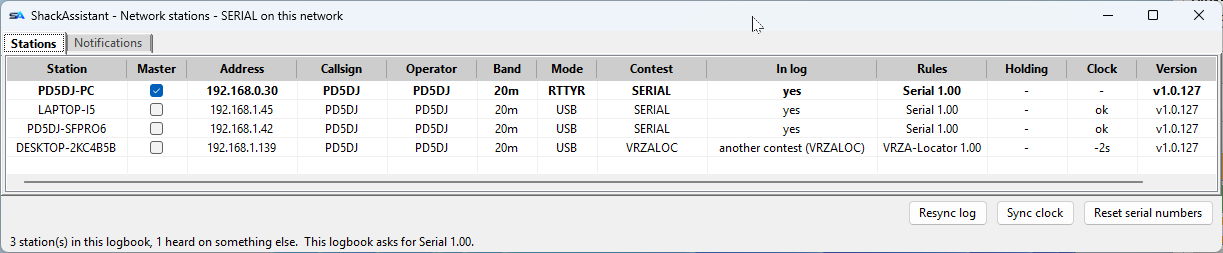
Network Stations: every machine with its band, mode, contest, rules, held serial, clock difference and version
Every PC on the network. The bold row is you; the last one is logging a different contest.

Network Stations: who is on, and what they are doing

For a contest you do not even need a server: PCs on the same network find each other and share their QSOs by themselves. Nothing to set up.

  • Who is on which band and mode.
  • In log and Rules: whether that PC is in this logbook with the same contest. Red or yellow means something differs - open the right logbook on that PC.
  • Clock: bold red when a PC's clock is more than three seconds off. Click Sync clock to fix this PC.
  • Resync log fetches the whole log from every PC. Use it when a PC is missing QSOs.
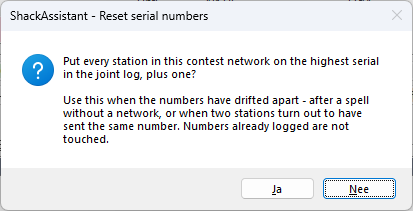
  • Reset serial numbers when the serial numbers have got mixed up.

Serial numbers that do not clash

Each PC reserves its next serial number when you leave the callsign box, so no two PCs send the same number.

  • The number is grey while it is not yet reserved, and red once it is yours.
  • A number that has been sent is not used again. A gap in the numbers does no harm.

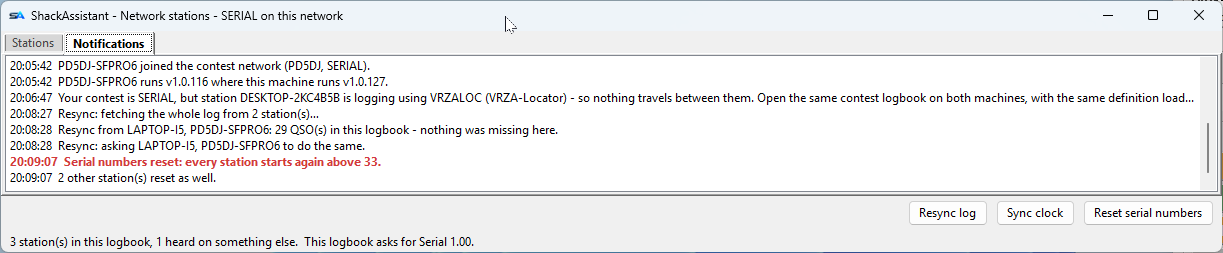
Notifications

The second tab lists what happened on the network. Anything that can cost you QSOs is in bold red.

The Notifications tab: timed lines about machines joining, version differences and serial resets
What happened on the network. Red can cost QSOs.

One cluster connection for the whole shack

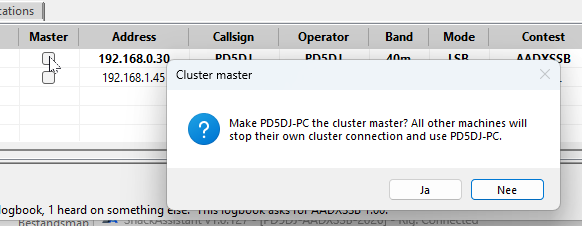
A cluster node does not like the same callsign logged in several times. So make one PC the master: it connects to the cluster and passes the spots to the others.

  • Tick the Master column in Network Stations and confirm.
  • The other PCs can still send spots; they go out through the master.
Integration

Works with the rest of the shack

  • QSOs from WSJT-X and others: WSJT-X, JTDX, MSHV, JS8Call and other programs that send logged QSOs over UDP log straight into ShackAssistant. The DX cluster spot fields are filled in too, ready to send.
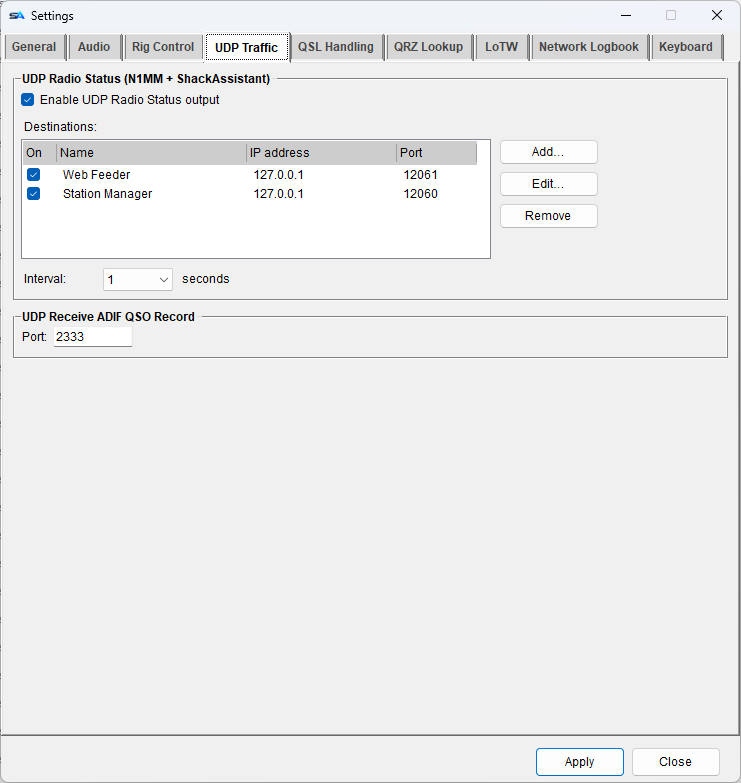
  • Radio status for other programs: frequency, mode and more are sent out every few seconds, the same way N1MM does. Band decoders, antenna switches, amplifier control or dashboards that work with N1MM can follow your radio. Set it up under Settings → UDP Traffic.
  • Sharing the radio with other programs - see Rig control.
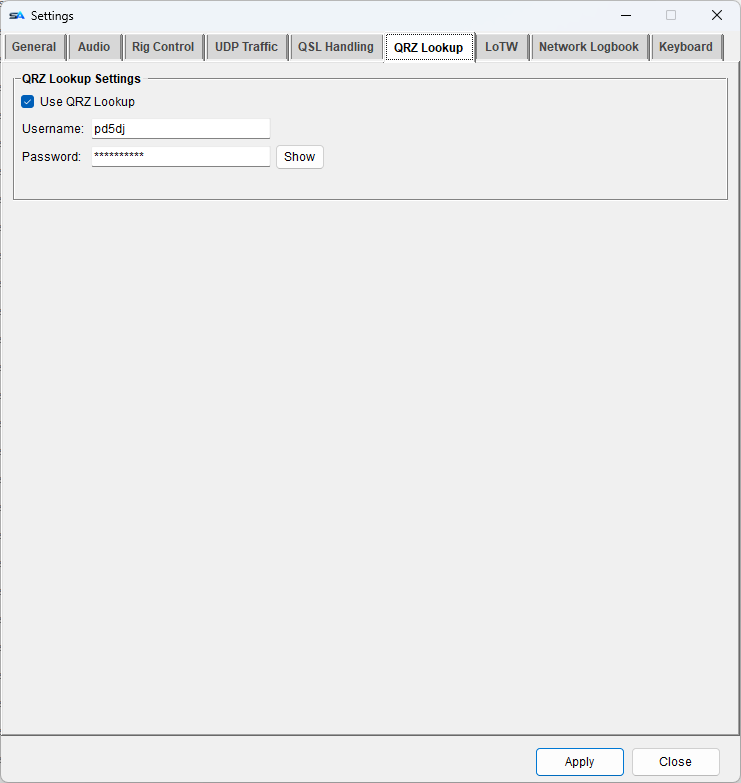
  • QRZ.com: look up callsigns while you type (needs a QRZ subscription), and upload to your QRZ logbook.
  • Club Log: upload each QSO automatically, or a selection.
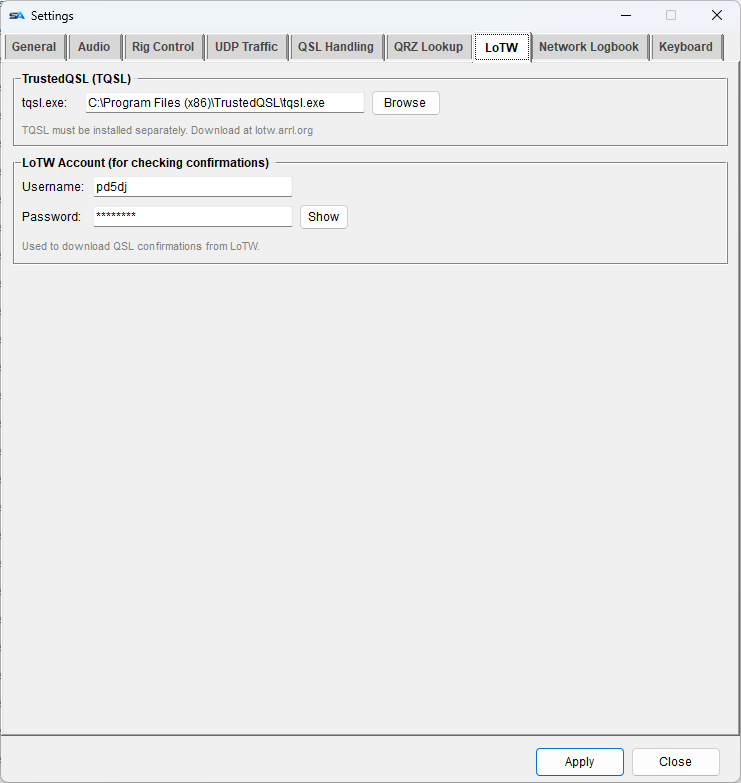
  • LoTW: upload through TQSL (which you install yourself). Check LoTW downloads your confirmations and turns the matching QSOs green in the log.
  • ADIF import and export for everything else.
What goes out, every few seconds
<RadioInfo>
    <App>ShackAssistant</App>
    <Freq>1402530</Freq>          <!-- in 10 Hz, as N1MM does -->
    <Mode>CW</Mode>
    <MyCall>PA5DJ</MyCall>
    <OpCall>PA5DJ</OpCall>
    <RadioName>Icom IC-7610</RadioName>
    <MyLocator>JO22LO</MyLocator>
    <Call>DA0HQ</Call>              <!-- last worked, this session -->
    <contestname>PACCPA</contestname>   <!-- only during a contest -->
</RadioInfo>
Settings

Nine tabs, and what is on them

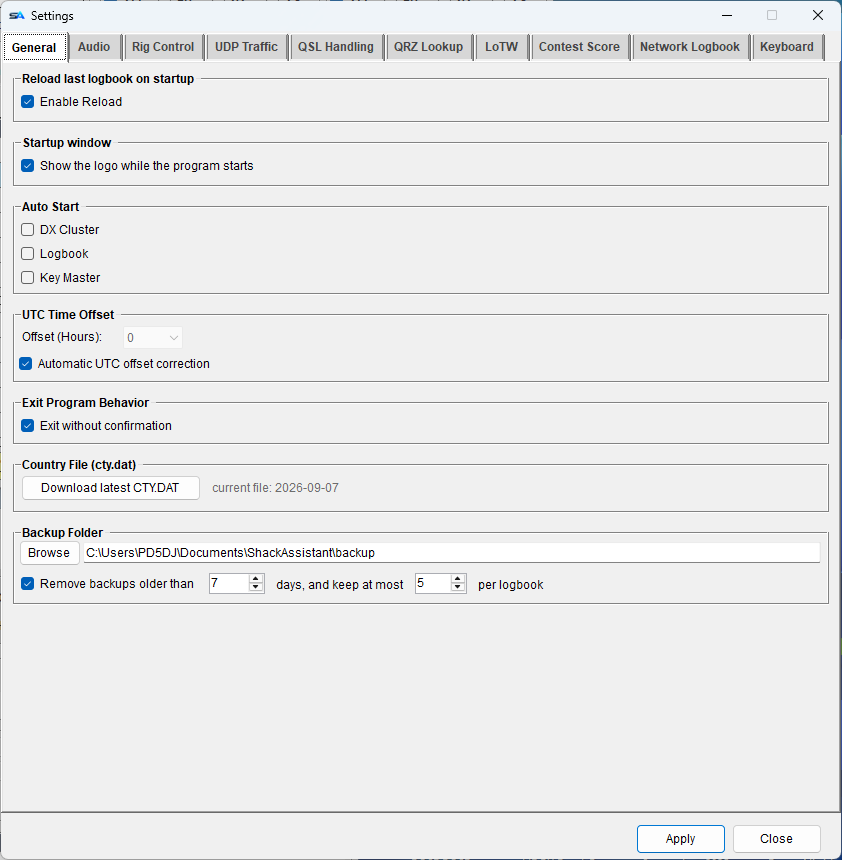
Apply takes effect straight away; Close just closes. Nothing needs a restart.

TabWhat is on it
General What happens at start, the update check, the country file download, and the backup folder.
Rig Control Your radio - see Rig control and Icom over the network.
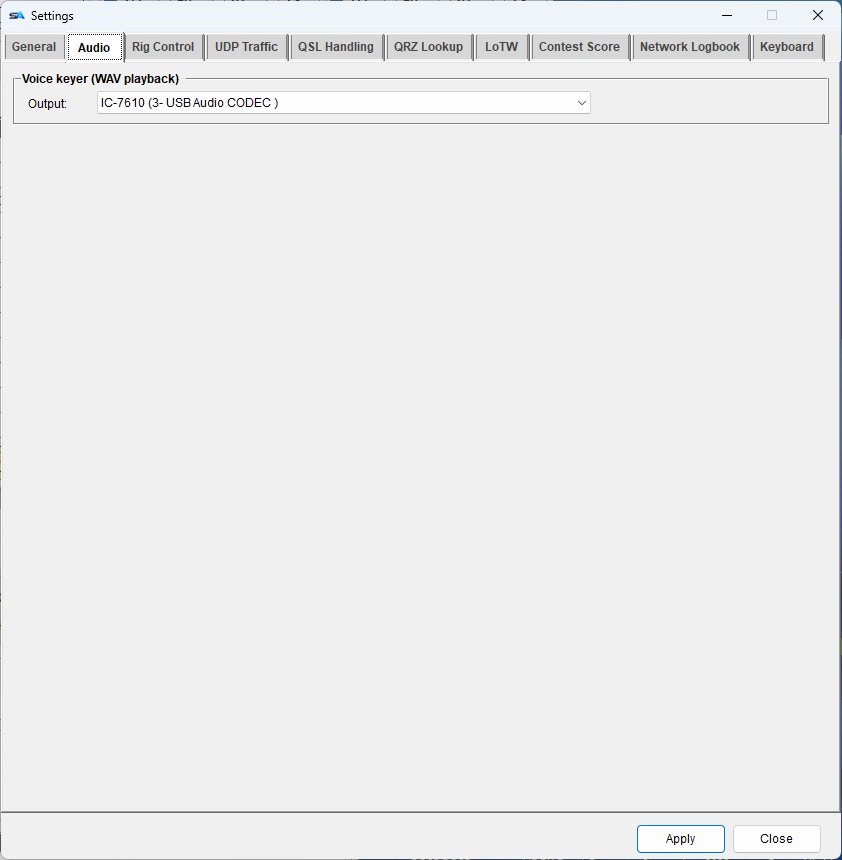
DVK The sound card and PTT of the voice keyer. Key Master has its own cards and PTT, per mode, in Key Master itself.
UDP Traffic Radio status for other programs, and QSOs coming in from WSJT-X and similar.
QSL Handling Which new QSOs go into the QSL print queue by themselves.
QRZ Lookup Your QRZ account, and lookups on or off.
LoTW Where TQSL is, and your LoTW account.
Network Logbook Your database servers - see Networked logbook.
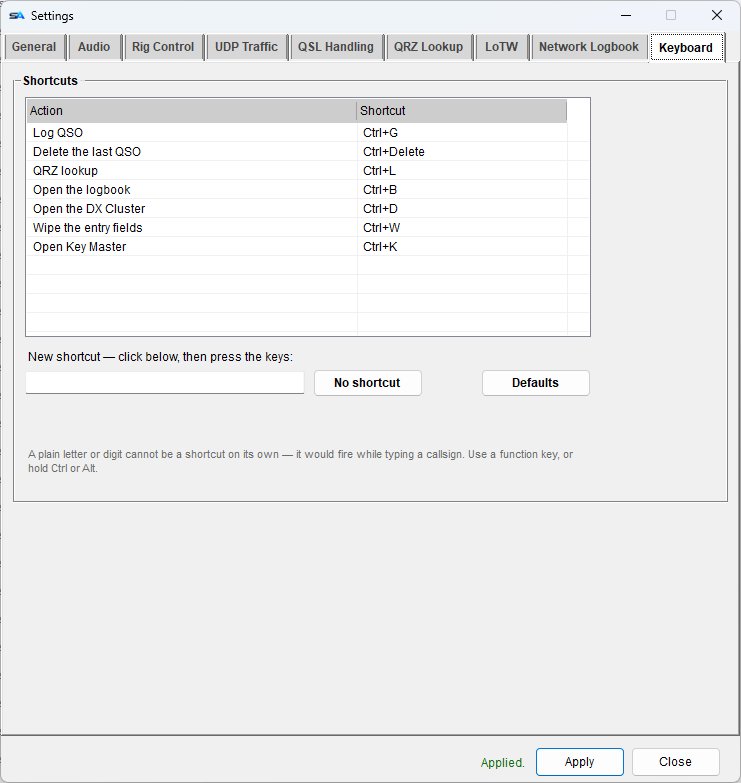
Keyboard Change any shortcut: click the box and press the keys.
And more

The smaller things

Keyboard shortcuts

ShortcutDoes
Ctrl+GLog the QSO
Ctrl+WClear the entry fields
Ctrl+LQRZ lookup
Ctrl+BOpen the logbook
Ctrl+DOpen the DX Cluster
Ctrl+KOpen Key Master
Ctrl+DeleteDelete the last QSO (asks first)
F1–F12Message keys / macros, in the window you type in
EscStop the voice keyer and the radio's voice memory

You can change them under Settings → Keyboard, except the F-keys.

Also included

  • Country data from BigCTY, updated with one click.
  • Sharp on any screen: nothing is cut off at 100, 150 or 200 % Windows scaling.
  • A splash screen at start, which you can turn off.
  • One installer for the program, Hamlib and the country data. It checks for the .NET 10 desktop runtime.
  • Free of charge, written by one radio amateur for his own station - and for anyone else who wants it.
Try it on your own station
Start with the guides - from install to the first QSO in a few minutes.
⬇ Download