ShackAssistant
Guide › Logbooks

Logbooks & storage

A logbook is a file on your PC or a database on your own server. Whichever you pick, it holds the same QSOs, and Save Logbook As moves a log from one form to another without touching the original.

Storage

The three kinds, and when to pick which

KindWhat it isPick it when
Local database
.sadb
A database file on this PC. Nothing to install. Nearly always - it is the default for a new logbook and stays fast however big the log gets.
File
.sak
One plain file you can open in a text editor and copy to a stick or a cloud folder. You want one file to look inside, mail to somebody or keep in a synced folder. Backups are always written in this form.
Server
MySQL / MariaDB
A database on your own server; a NAS in the shack is plenty. Two or more PCs log into one logbook at the same time - see Multi-Op & network logbook.

All three hold the same thing, and every feature works in each of them. The choice is only about where the log lives.

Compatibility

Which files it reads and writes

The logbook formats open as a logbook. ADIF is the standard file every logging program can read and write, so you use it to move QSOs between programs. Cabrillo is the file you send in after a contest.

FormatOpenSaveHow
Logbook database
.sadb
✓✓ File → Load logbook opens it. File → New logbook makes one (the default), and File → Save Logbook As writes any open logbook in this form.
Logbook file
.sak
✓✓ Same menus as the database. Backups are written in this form.
Network logbook
MySQL / MariaDB
no file
✓✓ File → Network Logbook opens, makes and deletes them on your server; making one can copy the local logbook you have open. Save Logbook As writes it to a .sadb or .sak on this PC.
MiniBook logbook
.mbk
✓– Opens with File → Load logbook. Save Logbook As turns it into a .sadb or .sak.
ADIF
.adi .adif
importexport Imported into the open logbook. Reads files from WSJT-X, N1MM, MiniBook and other loggers. Exported as .adi.
Cabrillo
.log
–export The contest log you send to the organiser. See Contesting.
Making one

Making a logbook

File → New logbook asks what you want to make:

  • Create log of currently opened log - a copy of the open logbook, QSOs and all. Only available when a local logbook is open.
  • Create new empty regular log - an everyday logbook.
  • Create new empty contest log - you pick the contest next. See Contesting.

Next come your station details, then the file dialog, where you choose .sadb (listed first) or .sak. Press Cancel at any step and nothing is created.
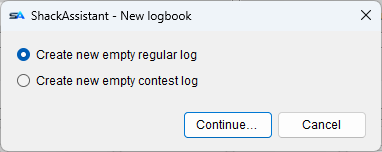
New logbook: what kind of logbook do you want to make
The same three choices appear for a logbook on the server.
Opening

Opening one

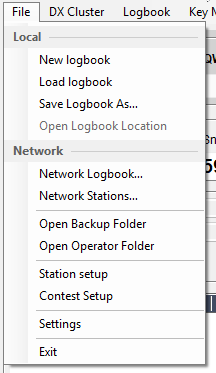
  • File → Load logbook for a file on this PC, File → Network Logbook for one on a server. The File menu shows them under separate headings.
  • Coming from MiniBook? ShackAssistant is its successor. A .mbk logbook shows up in the Open dialog beside the other logbooks and opens with all its QSOs and station details. Save Logbook As turns it into a .sadb or .sak whenever you like. ADIF exports from MiniBook import too, location field included.
  • An older logbook format is converted when you open it, after asking.
  • The last logbook opens again at the next start. If it is missing - a deleted file, a stick that is not in, a server that is off - the program starts empty, says so on the status bar, and tries again next time.
  • A contest log opens as a contest log by itself.

The title bar always shows which logbook is open - the file name, or name on server. Check it to be sure where your next QSO goes.

The File menu with its Local and Network sections
Local and Network each have their own section.
Moving a log

Converting between the forms

File → Save Logbook As writes the open logbook in the form you choose:

.sak → .sadbThe usual one: a file log becomes a database.
.sadb → .sakTo carry a log somewhere, or look inside it.
local → serverThrough New… in the network logbook window, with a copy of the logbook you have open - see Network logbook.
ADIF in

Importing ADIF

Open the logbook window (Ctrl+B) and use File → Import ADIF.

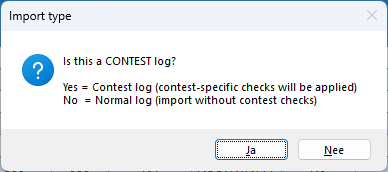
  1. “Is this a contest log?” Say yes and a small dialog lets you pick which ADIF fields hold the sent and received exchange (the serial number or other info swapped in a contest). The contest name is already filled in.
    Two fields per side, if the contest needs it. Some contests exchange two values and the file keeps them apart - a CQ WW RTTY log from N1MM has the zone in CQZ and the state in STATE, and neither on its own is the exchange. Pick a second field and they are joined with a space (5 PA); a station that sent no state simply keeps the zone.
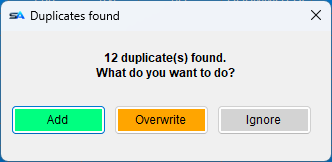
  2. QSOs you already have (same callsign, date and minute) are found, and you choose: Add them anyway, Overwrite what is there, or Ignore them.
  3. Afterwards you see how many were added, overwritten and ignored.
  • Into a contest log, every imported QSO gets that logbook's contest name.
  • N1MM's own extra fields are read too, so an N1MM export keeps its exchanges.
  • An import can put its QSOs in the QSL print queue - off by default. See QSL printing.

Imported the same QSOs twice? The Duplicate Finder in the logbook window finds them and can delete the copies, keeping the fullest one.

ADIF out

Exporting ADIF

  • The whole log from the logbook window's File menu, or just your selection from the right-click menu.
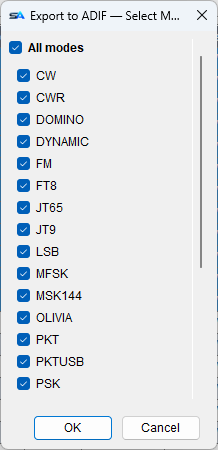
  • Pick the modes to include - for example only the digital contacts, or only CW.
  • The file reads properly in any other logging program.

For a contest there is also Export to Cabrillo - see Contesting.

ADIF export: pick the modes to include
All of it, or the modes you tick.
Safety net

Backups that clean up after themselves

Backups are made for you:

  • A copy every time a logbook is opened, and once a day while you log.
  • A logbook on a server is backed up as a .sak file, so you can read the backup without the server.
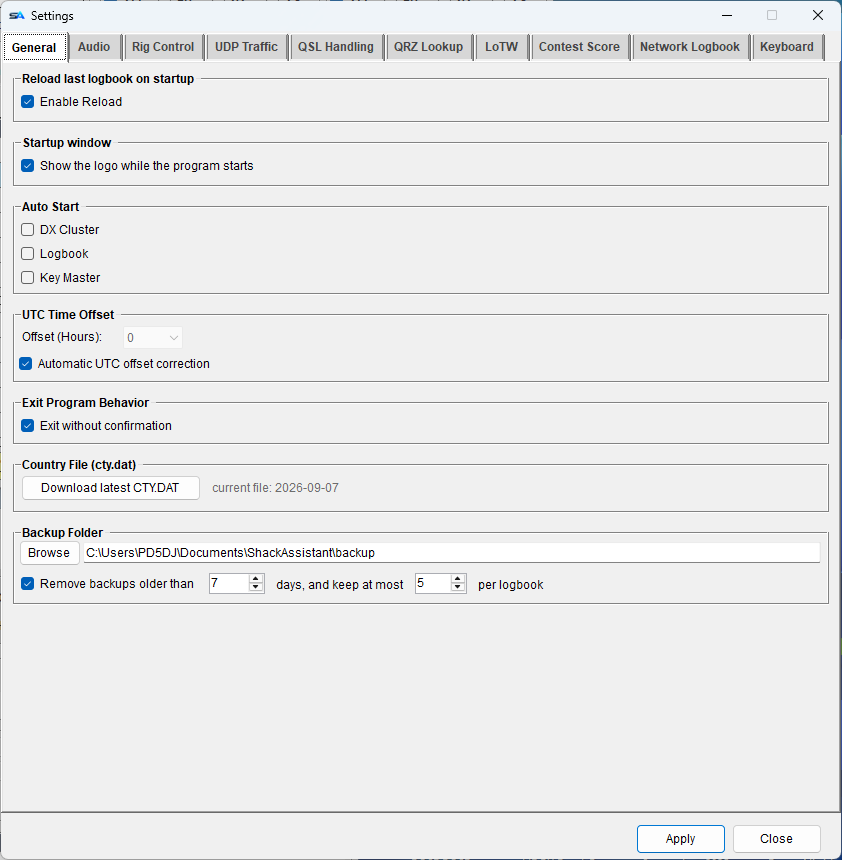
  • Kept for 7 days, at most 5 per logbook - both adjustable under Settings → General. The newest copy of each logbook is always kept, however old.
  • File → Open Backup Folder opens the folder. You can choose another folder under Settings → General.

To restore, open the backup and use Save Logbook As over your working copy - or simply carry on in the backup, which is a complete logbook.

A backup is a copy on the same PC. It protects you against a mistake in the log, not against a dead disk. Include Documents\ShackAssistant\ in whatever you back up the rest of your computer with.

Settings, General: startup, updates, country file and the backup folder with its two numbers
Settings → General: the backup folder, how many days and how many per logbook.
On disk

Where everything lives

WhatWhere
LogbooksDocuments\ShackAssistant\logs\
BackupsDocuments\ShackAssistant\backup\
Contest definitionsDocuments\ShackAssistant\CTD\
Call history filesDocuments\ShackAssistant\history\
Received CW and RTTY textDocuments\ShackAssistant\received\
Per operator: WAV files, message keys, macros Documents\ShackAssistant\UserFiles\<CALL>\
Settings, QSL templates, cluster list %APPDATA%\ShackAssistant\settings\
Country data and Hamlib%ProgramData%\ShackAssistant\
Log files for diagnosisDocuments\ShackAssistant\debug\

Every one of these folders has a menu entry that opens it. Nothing is written into the program folder, so to update you simply run the newer setup over the old one.

The other guides