ShackAssistant
Guide › DX cluster

DX cluster & band map

A DX cluster is an online network where hams post spots: which station is on the air, and on which frequency. Press Ctrl+D to open it. Each spot is coloured by your own logbook, so you see at a glance whether you still need that station.

Step by step

Connecting

  1. Press Ctrl+D and go to the Clusters tab.
  2. Pick a cluster server (a node) from the list of 231. Use the search box to find one by name or port, e.g. pi4.
  3. Double-click it to put it in the connection frame at the bottom. Or add your own with + Add.
  4. Your callsign is the login. Press Connect.
  5. Tick Auto reconnect to connect at every start, and again after a node drops you.

You can add, edit and delete entries in the list. Program updates keep your changes.

Log in only once per callsign - most nodes refuse a second login. With several PCs in one shack, see One connection for the whole shack.
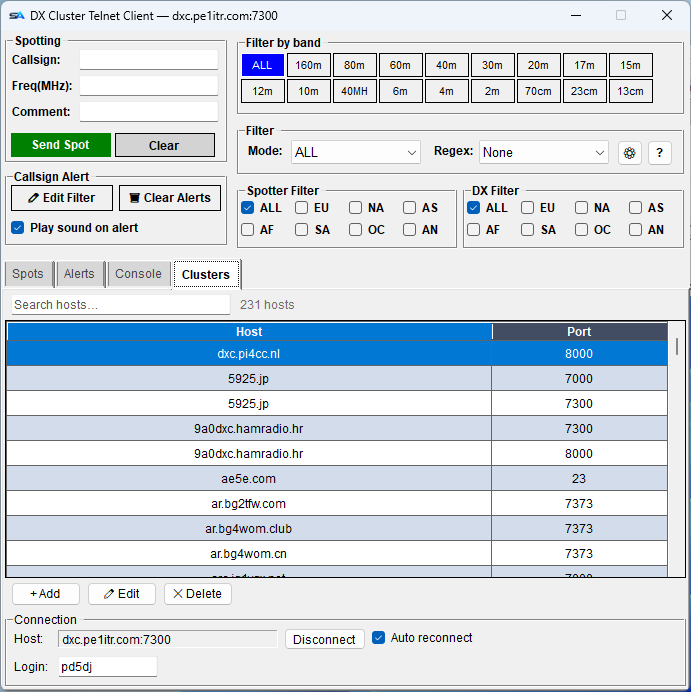
The Clusters tab: 231 hosts with a search box, and the connection frame
Searchable node list, with the connection frame underneath.
The main tab

The Spots tab

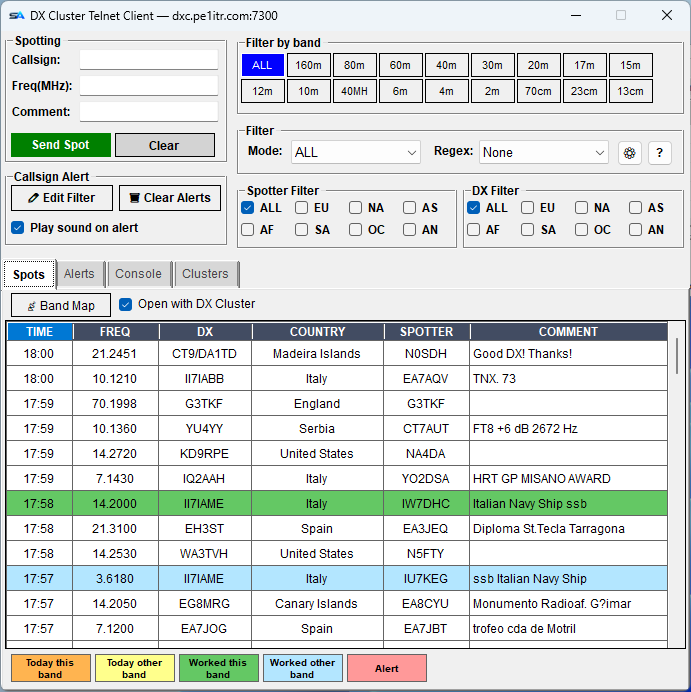
The DX Cluster window on the Spots tab: spotting, alerts, filters and the coloured spot list
Top: sending and filtering. Bottom: the spots, with the colour legend.

Each row is one spot: the station and its country, the frequency, the comment, who spotted it and when.

Why a spot is coloured

The colours

The colour shows what your own logbook says about the spotted station on that band:

ColourThe spotted station is
Purpleyou - your own callsign or operator call was spotted (also with /P or a prefix)
Redon your alert list
Dark orangeworked today, on this band
Yellowworked today, on another band
Dark greenworked before, on this band
Light blueworked before, on another band
Whitenever worked - go get it

The colours are also named along the bottom of the window.

What that gets you

A white line among coloured ones is a station you have never worked, on the air right now. One click takes you there. No wanted list to keep up: it all comes from your log.

Working one

One click to the station

Narrowing it down

The four filters, and they stack

FilterWhat it does
Band A button per band, 160 m up to 6 cm and 3 cm; select several at once. Selected buttons are blue. ALL clears them.
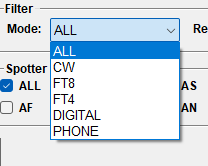
Mode ALL, CW, FT8, FT4, RTTY, DIGITAL or PHONE, decided by where the spot is in the band. The table behind it is the IARU R1 band plan, gone over band by band: every frequency in every band belongs to exactly one of them, so no spot can fall out of all the filters at once. RTTY runs up to where the voice section starts on the five contest bands - 14.150 on 20 m, not 14.099 - because a RTTY weekend fills that. The table is dxcluster_modes.json in your settings folder, and you may edit it.
Regex A saved list of search patterns (regular expressions) for anything else: only QRP spots, only one prefix, nothing with FT8 in it.
Spotter and DX By continent: only European spotters, only DX from Asia, or both.

Filters combine and work straight away, on the spots already in the list too. Clear a filter and the hidden spots come back.

Chasing one station

Alerts

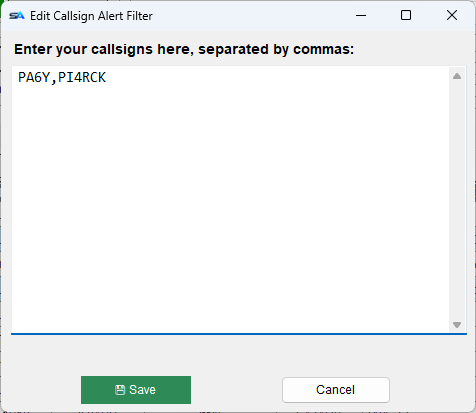
Click Edit Filter beside Alerts and type the callsigns you are chasing, separated by commas. When one is spotted it shows red, with a sound if you want one.

  • Red always wins over the other colours.
  • In Key Master, right-click a callsign in the decoded text to add it to the list.
Giving something back

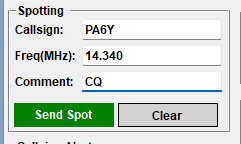
Sending your own spot

The raw session

The console

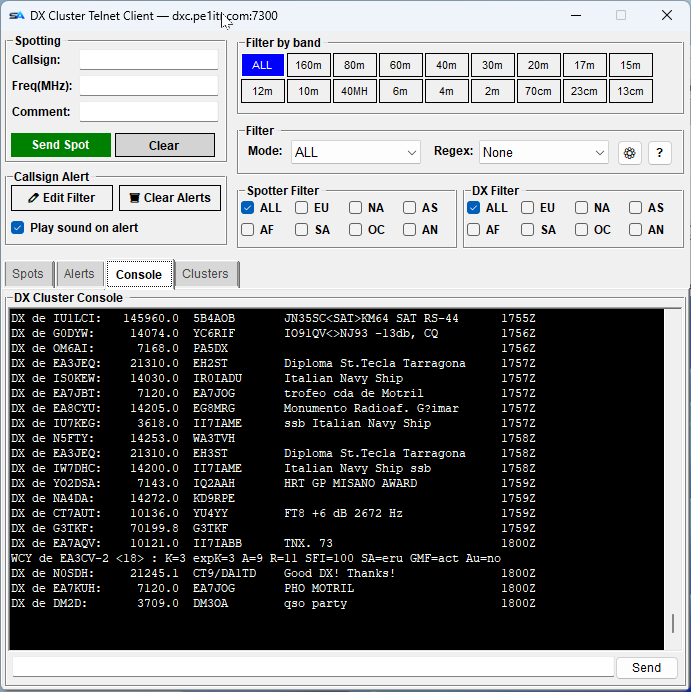
The Console tab shows everything the node sends, as plain text, with a line to type commands such as sh/dx or set/filter - whatever your node understands.

Use it when you need to talk to the node, or to see why a spot did not show up.

The Console tab: the raw cluster session with a command line
The raw session, with a command line.
The band, drawn

The band map

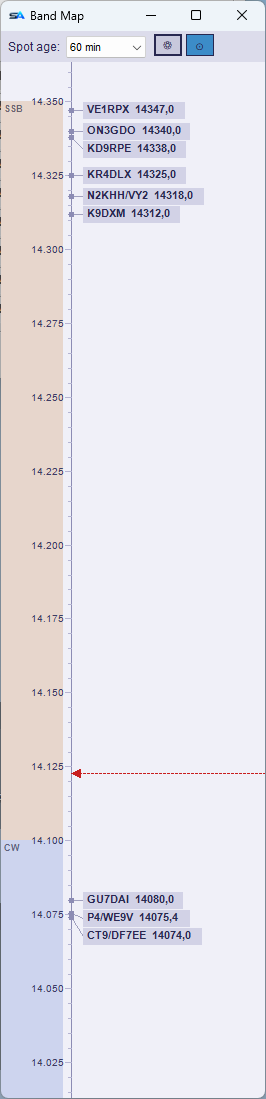
Band Map opens a picture of the band you are on. It follows your radio and shows the spots in their colours, with their age.

  • Click a spot on the map: the radio goes there and the call is filled in.
  • Tick Open with DX Cluster to open it together with the cluster window. Off by default.
The band map: spots along the band, following the VFO
The band map follows the radio.
Multi-Op

One connection for the whole shack

With several PCs in a contest, one PC is the master: it connects to the cluster and passes every spot on to the others over the local network. That way your callsign logs in only once.

More on the Network logbook page.

The other guides