ShackAssistant
Guide › Key Master

Key Master: CW & RTTY

Ctrl+K. One window that shows the band, decodes the station you click, sends from the keyboard or from twelve macro keys, and logs the QSO. The drop-down at the top left picks the mode: CW, CW-AFSK, RTTY or RTTY-AFSK.

First choose one

The four modes

The drop-down at the top left says how the transmitter is driven, not what ends up in your log. Pick the one that matches how your radio is wired.

ModeHow it goes out
CW The radio is keyed on a serial line (RTS or DTR) and makes its own tone. The cleanest CW there is.
CW-AFSK A tone through the sound card, with the radio in a data mode. For sets without a key input, and for soundcard interfaces.
RTTY FSK on a serial line: the radio shifts its own carrier. The mark tone it uses is a setting (2125 Hz by default).
RTTY-AFSK The two tones through the sound card, with the radio in a data mode.
Once

Setting it up

  1. Pick your mode in the drop-down, then open Settings in Key Master's own menu and fill in the tab with that name: the port and line for hardware keying, or the sound cards in and out. See its own settings below.
  2. PTT, on the same tab: how the transmitter is keyed for this mode - CAT, RTS or DTR - with a Test button. See PTT per transmitter.

Then press Ctrl+K. Audio starts when the window opens. If the sound card cannot be opened, the status line says so.

Settings → DVK only holds the voice keyer. Key Master's cards and PTT live into Key Master itself: with four modes they are not one station-wide pair any more, and a card you have to look up in another window is not an answer to “where does this go”.
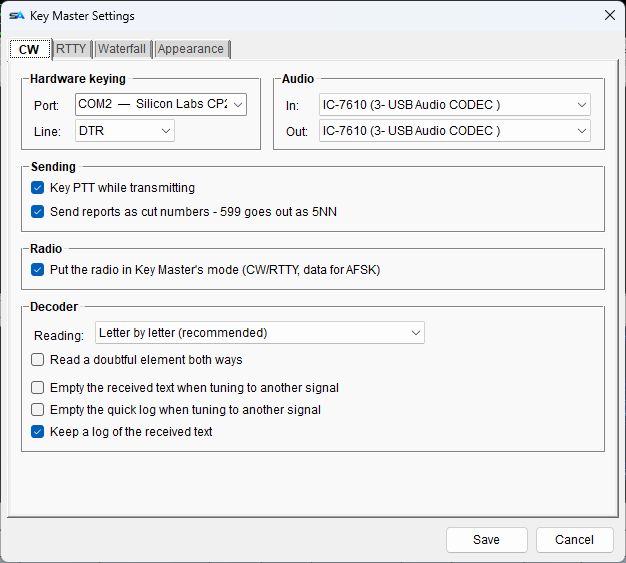
Key Master Settings, CW tab: hardware keying and the sound cards side by side
Each mode says how it is wired, on its own tab.
CW

Receiving

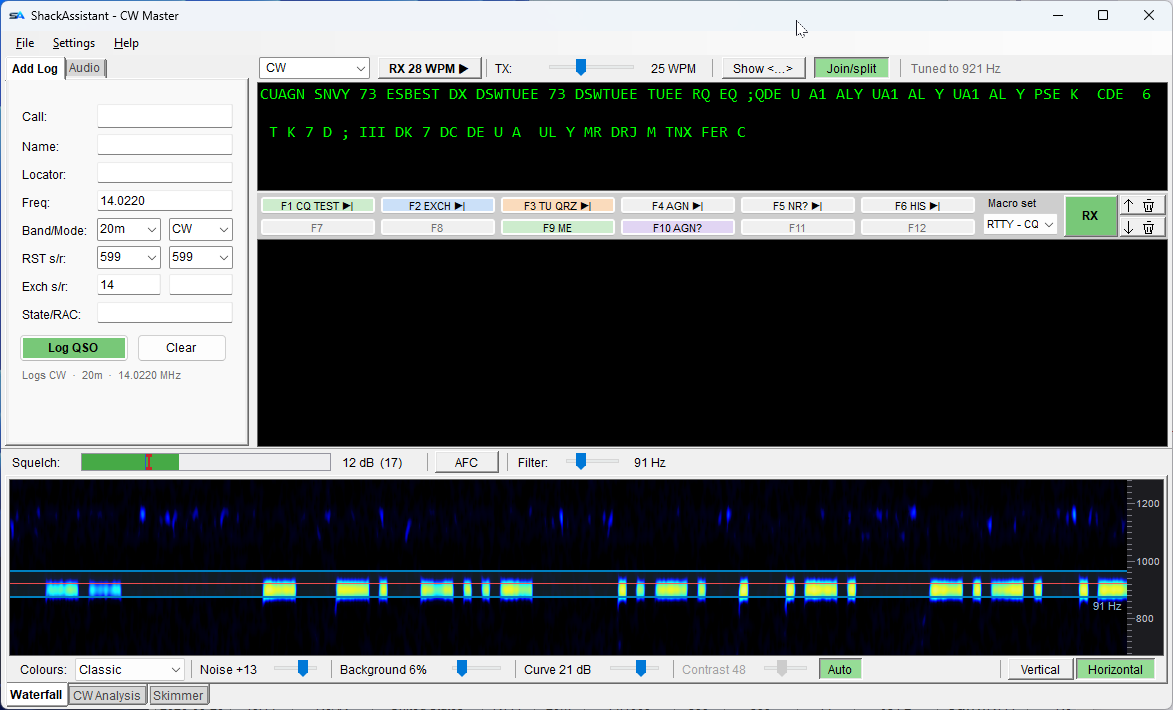
Key Master in CW: quick log, decoded text, macro keys, squelch bar and the waterfall
Left the quick log, middle the text and the macro keys, below the controls and the band.
  1. Click a station in the waterfall. The waterfall is the band as a scrolling picture; each station is a line (a trace). The decoder follows the one you click, and the last ten seconds are decoded at once, so text appears right away.
  2. Drag the squelch in the level bar until the noise stays quiet and the station prints. The squelch keeps noise off the screen. A red level number means the signal is below your squelch, and nothing is decoded.
  3. That is all. The speed is followed by itself, and the filter is chosen for you.
ControlWhat it does
Squelch In dB above the noise floor, which is measured for you.
RX nn WPM The speed you are receiving. It is followed by itself, never set. Press it and your transmit speed jumps to the same.
Filter 40 to 250 Hz, 120 by default. At high speed it opens as far as the keying needs.
AFC Automatic frequency control: follows a station that drifts, staying near the frequency you clicked.
Show <…> Print unreadable characters as <etttt>, or leave them out.
Tune In (RTTY) Whether a click on the waterfall moves the radio or only the cursor - see RTTY.

The row under the waterfall is about colour only - see the band, standing or lying. None of it changes the decoding.

The band

Three views

Three tabs under the text panes - in the two CW modes. In RTTY there is the waterfall and nothing else: a bank of CW decoders across the band has no RTTY equivalent.

Waterfall

The band, with the cursor and the filter drawn on it. It can stand or lie - see the band, standing or lying, which is also where the colours are. Range, smoothing, trace sharpness and refresh rate are on the Waterfall tab of the settings.

CW Analysis

What the decoder is hearing, in dB above the noise:

  • Signal - what it hears.
  • AGC - automatic gain control: the tone level it follows.
  • Squelch - your setting, as a line. Drag anywhere in the graph to set it.
  • Decide - above this line counts as tone, below it as silence.
  • Underneath, the dots and dashes and the letters made of them.

When a signal will not print, look here: the red line under the orange one means your squelch is too high.

Skimmer

Decodes the whole band at once, not just the station you clicked: one line per station, with its callsign in yellow once it has been confirmed. Callsign only hides everything else.

The picture

The band, standing or lying

The row under the waterfall is the whole of it: which colours, where they start, and which way round the picture runs. It works the same in all four modes.

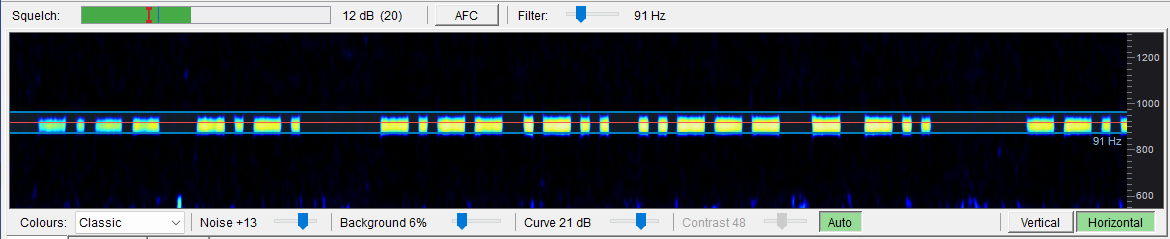
The waterfall lying down, with the colour row underneath: palette, Noise, Background, Curve and the Vertical or Horizontal buttons
Lying down: time runs left to right and the frequency up the side, the way CW Skimmer draws it. The row underneath is every colour control there is.

Standing or lying

  • Vertical - the band across, time running down. The familiar picture.
  • Horizontal - time across, the band up the side. A station is a straight line and its keying is readable in the picture itself.
  • The two share no pixels, so switching starts with an empty screen and the status line says so. Everything drawn on it - cursor, passband, the RTTY tone pair and its markers - turns with it, and a click still tunes.
  • Lying down, the mouse wheel zooms in and out on the frequency. The Hz scale follows: a number every 500 Hz over the whole range, every 50 Hz zoomed in. Nothing is lost either way.
  • Lying down is for CW. In the two RTTY modes the waterfall stands; your choice for CW is kept.
  • Speed, at the right end of the colour row: how fast a lying waterfall scrolls - 50, 100 or 200 columns a second. Grey while it stands.

The colours

ControlWhat it does
Colours Six ramps: Skimmer cyan, Classic, Grey, Green, Fire and Ice. Each has a dark ground.
Noise Where the signal colours start, in dB above the measured noise floor. Turn it up and only the stronger stations light up.
Background How bright the noise underneath is drawn. This is not the same handle as Noise: that one moves where the signal colours begin, this one only the ground they sit on.
Curve Over how many dB (3 to 30) the colours climb from the dark ground to the brightest. Small is steep - the Skimmer look, a signal is there or it is not. Large is gentle, so a stronger station really does look brighter.
Contrast, Auto Not the waterfall. These two set the strip on the Skimmer tab. They are greyed out while Auto is on, which sets the span itself.

None of it changes a single decoded character - it is the picture only. The colour of the filter edges and of the centre line drawn on the waterfall is on the Appearance tab of Key Master's settings.

From text to log

Getting the callsign out of the text

The tooltip tells you what a click will pick. Rest on a word in the received text for a moment and a small tooltip names exactly the word that will be selected.

That earns its place in the cases you cannot see by looking:

On screenThe tooltip says
599-14 599 - or 14, depending where you are. Two words, not one: a hyphen ends a word, because RTTY prints them where a station sending in figures puts its spaces.
<BK> BK, without the angle brackets.
15PA5DJ 15 on the left, PA5DJ on the right. Your own sent text is a boundary: the echo is written in its own colour, so the window knows where what you received ends and what you sent begins - even with no gap between them.

Drag across some text first and the tooltip names the selection instead, which is also what the right-click menu will act on. Nothing appears while you are dragging.

The received text with a tooltip naming the word that will be selected
The tooltip says which word a click takes.

Don't want the glued/split readings? Switch off Join/split on the bar. In RTTY they are never offered.

Sending

Transmitting

Twelve keys

Macros

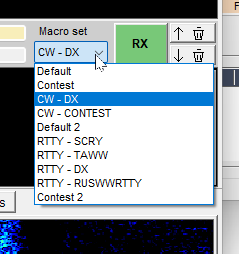
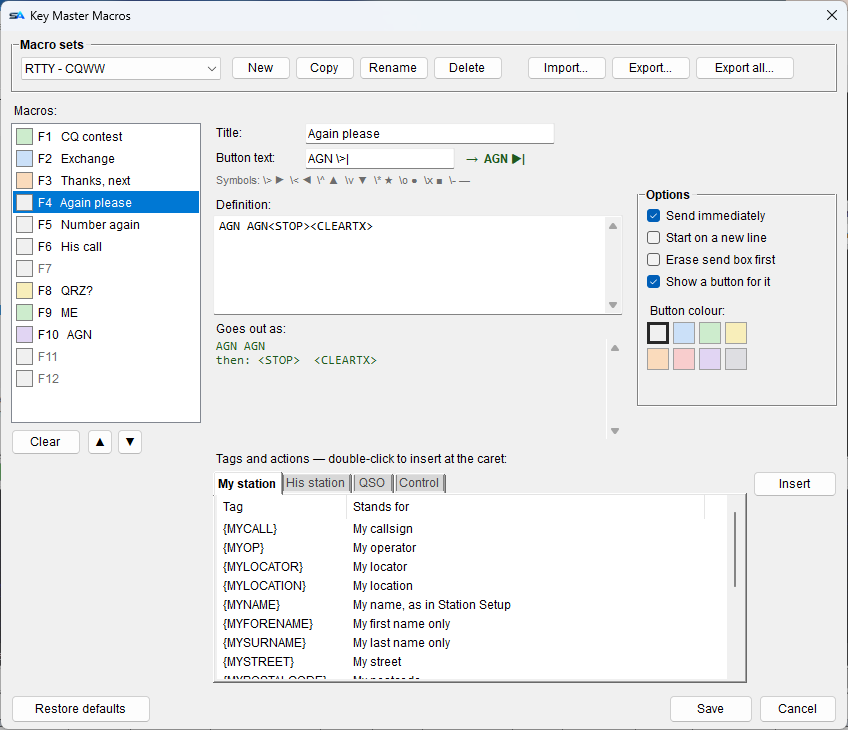
F1–F12, in as many sets as you like - everyday, DX, one per contest. The same sets work for CW and RTTY. Choose the set in the drop-down on the macro bar; right-click a key to edit it.

  • Braces fill in, angle brackets do something. {CALL}, {RST_SENT}, {STX}, {MYCALL}, {MYNAME}, {MYCITY} and two dozen more come from the QSO and from your station setup; <LOG>, <STOP>, <CLEARTX>, <CLEARRX>, <CLEARLOG>, <SERIAL+> and <SERIAL-> act.
  • An action happens at its place in the text. <LOG> at the end of TU {MYCALL} <LOG> logs once the last letter has been sent.
  • Each key has a caption, a colour and a preview of what will go out: Goes out as: DE PA5DJ K, then: <CLEARTX> <STOP>.
  • Keys keep their place: F7 is always F7. The two arrows beside Clear move a message to the next empty key in that direction; keys that are in use stay where they are.
  • A key is active as soon as it has text; an empty key does nothing.
  • Two greeting tags: {GREETING} by your clock and {HISGREETING} by his - GOOD MORNING, GOOD AFTERNOON or GOOD EVENING. His time comes from the prefix, because the country file carries a UTC offset per country. It is approximate: one offset per country and no summer time. Enough to pick a greeting, not to plan a sked. A call the table says nothing about falls back to your greeting, so a macro never leaves a hole in the middle of a sentence. {HISGREETING_SHORT} gives the short form for CW: GM, GA, GE - and GN late at night.
  • Pressing a macro while another is still going out is ignored. The STOP, LOG and CLEAR keys always work.
  • Sets can be imported and exported, one at a time or all at once. Export asks first, and names the set or sets that are about to go out - so Export all is never a surprise.
Logging from here

The quick log

The column on the left: call, name, locator, frequency, band and mode, both reports, both exchanges and a comment. The line underneath shows what will be logged: Logs CW · 40m · 7.0220 MHz.

  • It always logs the mode you are working here, whatever the main window was last used for.
  • Band and frequency follow the radio, unless you typed them yourself. Clear hands them back to the radio.
  • QRZ is looked up when you leave the callsign field. It fills name and locator only if they are empty, and not during a contest.
  • Clear empties it for the next station. Your sent report and exchange stay.
  • The report is 599 in CW and in every digital mode, and 59 on voice - so RTTY, PSK and the rest start on 599 like they should.
  • Clicking another signal in the waterfall can empty the quick log too. That is a setting (Empty the quick log when tuning to another signal), off by default - and clicking the same station again never empties anything, however often you click it.

In a contest

  • The boxes the contest asks for are here too, right behind Rcvd Exch: a section, a district, a state - whatever the definition wants, with the same captions as the main window. The rest of the column moves down to make room.
  • A section box carries its section list, so a wrong value is caught here and not at the Cabrillo file.
  • Name, locator and the comment box are gone while a contest runs. No QRZ lookups happen in a contest, which is what filled name and locator, so they would sit there empty between the callsign and the exchange; and a contest QSO has an exchange, not a remark. Everything below them moves up, so the exchange sits closer to the callsign. Anything already in them is left alone - they are out of the way, not emptied.

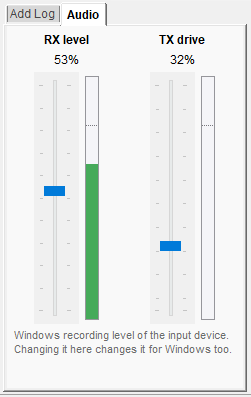
Beside it is the Audio tab. RX level is the Windows recording level of your receive card - changing it here changes it in Windows. TX drive is the level going to the transmitter. Both have a meter. More sound settings... opens the Windows sound panel, for everything else about your cards.

The Audio tab: RX level and TX drive sliders with their meters
RX level is Windows' own recording level.
The other mode

RTTY

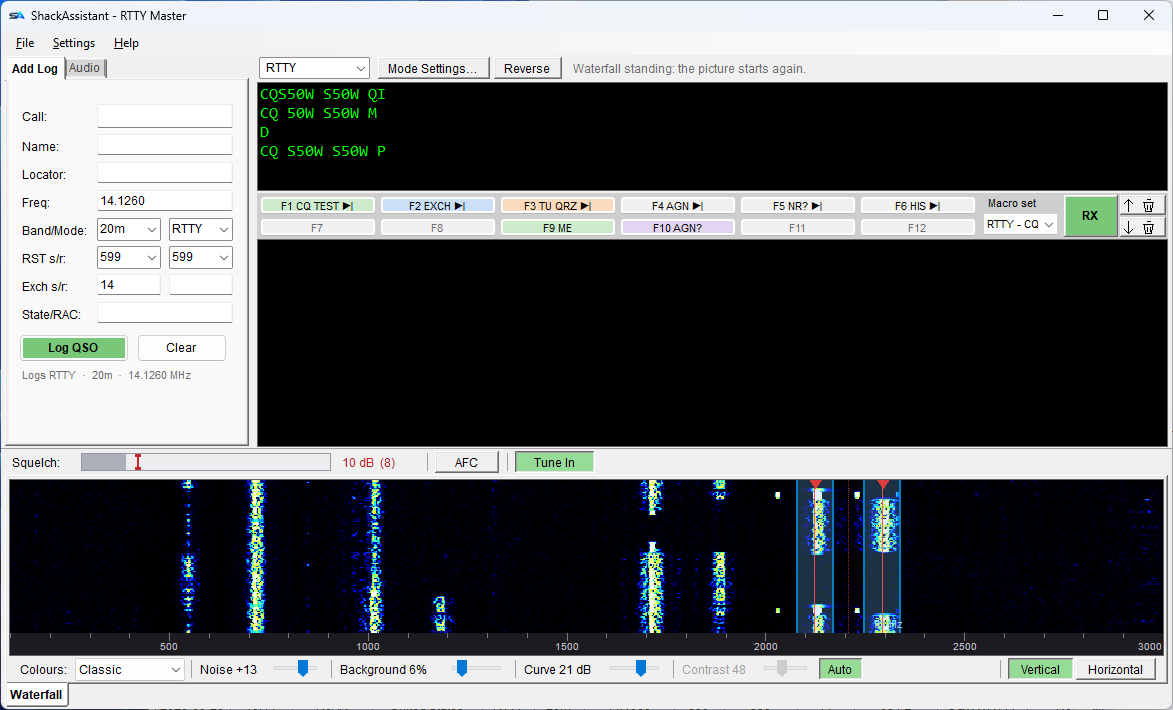
Choose RTTY (serial FSK) or RTTY-AFSK (tones through the sound card) in the drop-down. An RTTY signal is two lines close together, one for each tone. Only the mode's own controls change; the quick log, macro keys, text panes and waterfall stay where they are.

The bar carries three things, and nothing else:

On the barWhat it is
Mode Settings… Opens the window below: everything about the signal and the line endings, in one place instead of spread along a toolbar.
Reverse Swaps the two tones (mark and space). Try this first when a signal prints rubbish. It sits on the bar because that is where you reach for it mid-QSO.
Tune In (above the waterfall) Whether a waterfall click moves the radio or only the cursor. It is beside the waterfall because that is the thing whose meaning it changes.

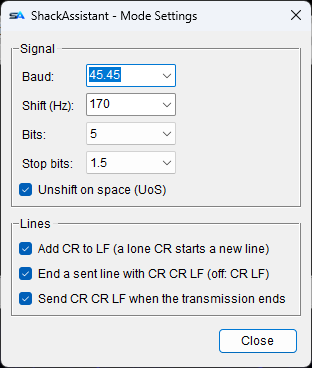
In the Mode Settings window:

SettingWhat it is
Baud45.45 and the usual rates, or type your own between 20 and 300.
Shift170 Hz and the usual shifts, or type your own.
Bits, Stop bitsITA2 (5-bit) or ASCII (7 or 8 bit), and the stop bits you send.
Unshift on space (UoS)After a space, go back to letters. On receive.
LinesAdd CR to a lone LF, end a sent line with CR CR LF or plain CR LF, and whether a transmission ends with CR CR LF. These are what the other end's printer expects.
  • The cursor is a tone pair and marks the middle between the two traces. Hover to see where the pair will land, then click.
  • Tune In: a click moves the radio so the station lands on your set's FSK mark tone (2125 Hz by default) - the one spot your own answer goes out from. The two red markers at the top of the waterfall show where the pair will end up. Off, the radio stays put and only the cursor moves.
  • Between your words it sends idle characters (diddles), so the other end stays in sync. It stops when you stop.
Key Master in RTTY: baud, shift, bits and CR/LF controls, decoded text and the tone pair on the waterfall
RTTY: Mode Settings and Reverse on the bar, Tune In above the waterfall, and the tone pair with its markers on it.
The Mode Settings window: baud, shift, bits, stop bits, unshift on space, and the line endings
Mode Settings: the signal above, the line endings below.
Reference

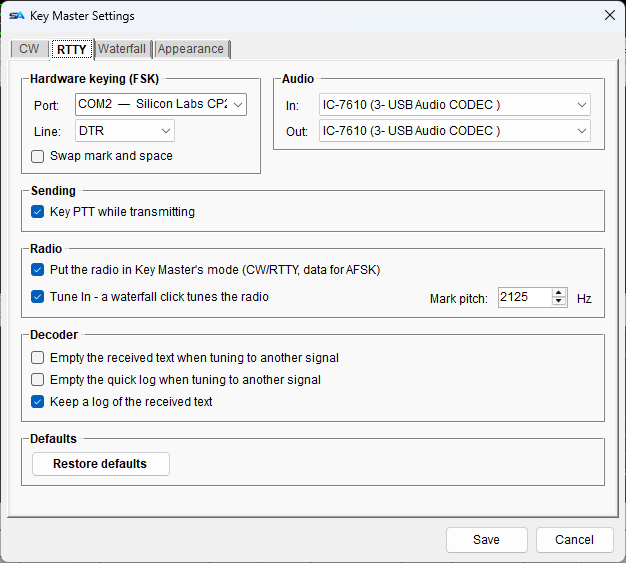
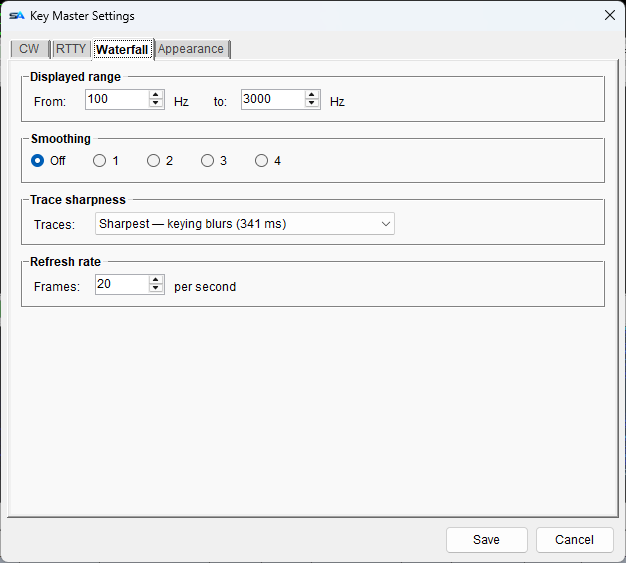
Its own settings, four tabs

The CW and RTTY tabs have the same shape, because they answer the same questions for their own mode: how it is wired at the top, then sending, the radio, and the decoder.

TabWhat is on it
CW Hardware keying: the port and the line (RTS or DTR). Audio: the cards in and out. Sending: key PTT while transmitting, and cut numbers. Radio: put the radio in Key Master's mode. Decoder: what a click on another signal empties - the received text, the quick log, or neither - and whether the received text is kept. PTT: how CW keys the transmitter.
RTTY The same, for FSK: port, line and swap mark and space; the cards; RTTY's own PTT; the radio, with Tune In and the mark pitch it tunes to; and the decoder. Baud, shift, bits and the line endings are not here - they are in Mode Settings, one click from the bar.
Waterfall Range shown (100 to 3000 Hz), smoothing, trace sharpness and refresh rate. The colours are not here - they are on the row under the waterfall, where you can see what you are changing.
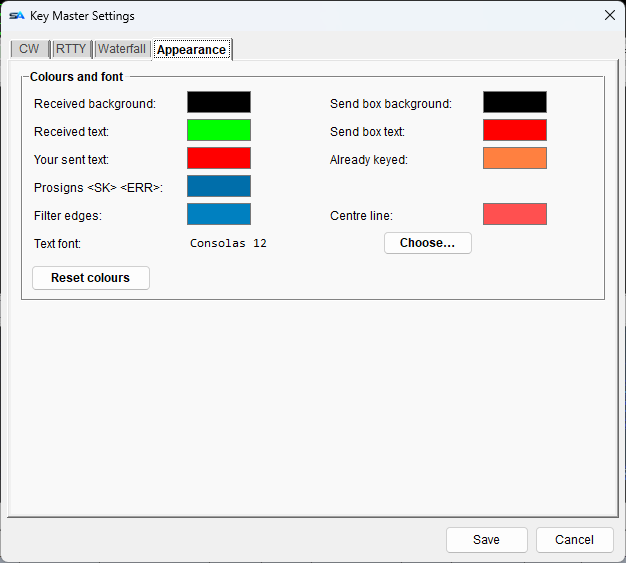
Appearance Colours of the received text, your sent text, prosigns, the send box and what has already been keyed, plus the filter edges and the centre line on the waterfall, and the font.

The sound cards and PTT are here, per mode; only the voice keyer's card and PTT are in Settings → DVK. Apply takes effect at once and keeps the window open; Close just closes.

Afterwards

What was received is kept

Everything printed on the screen is saved to a dated file per mode, in Documents\ShackAssistant\received - handy for the line that scrolled away.

  • Each line has the time in front, with a marker each time you switch between receiving and transmitting.
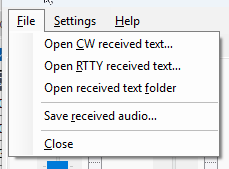
  • The File menu opens today's CW file, today's RTTY file, or the folder.
  • On by default, and switchable per mode. You can read the file in Notepad while the QSO is still running.

Save received audio

The same menu saves the received audio, with a text file beside it listing the tone, filter, squelch and speed. That lets you try the same signal again later with other settings.

The File menu of Key Master: received text per mode, the folder, and save received audio
The received text of each mode, and the audio itself.

The other guides