ShackAssistant
Guide › Station setup

Station setup

Your callsign, locator, address and upload keys. Fill this in before you log your first QSO.

The idea

One station per logbook

Open it with File → Station setup. A new logbook asks for it by itself.

The station details are saved in the logbook, not in the program. So each logbook can have its own:

Tab 1

Basic Info

The four fields with a red caption are required. You cannot make a logbook without them.

FieldWhat to fill in
Callsign ● Your call. It goes into every QSO, onto your QSL labels and into the Cabrillo (contest log) file.
Operator ● Who is operating. At home that is your own call. At a club station or field day it can be someone else - see below.
Locator ● Your Maidenhead grid locator (grid square). Typos are caught. Do not know it? Use Find Your QRA Locator.
QSO Location ● Where you are, in words - your town or site. It goes into your ADIF exports and can be printed on a label.

The distance and heading to every station you work are worked out from this locator, so get it right.
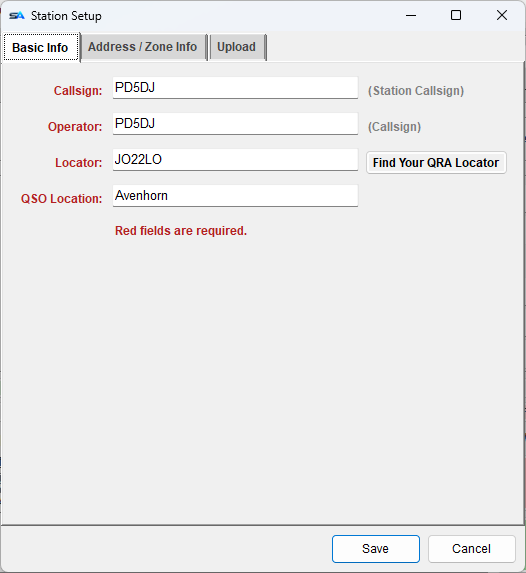
Station Setup, Basic Info: callsign, operator, locator and QSO location
Fields with a red caption are required.
Tab 2

Address & Zone Info

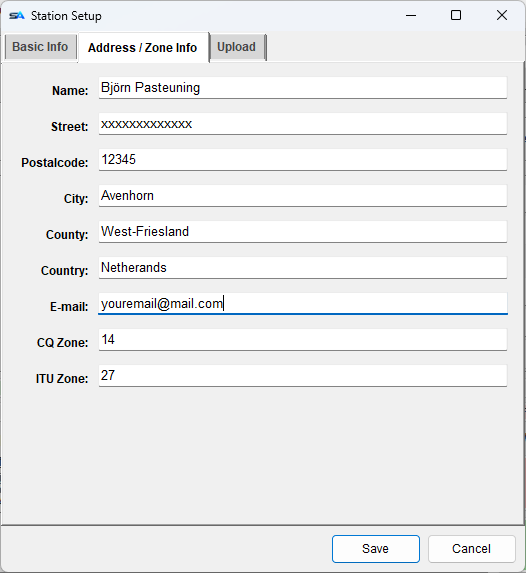
Your name, address, country, your CQ and ITU zone, and your ARRL section. Fill them in once and your macros, QSL labels and Cabrillo export can use them. Each field has a tag:

For a contest log they are all required, and they turn red when you make one. That is not tidiness: they go into the Cabrillo header one by one - NAME, ADDRESS, ADDRESS-CITY, ADDRESS-STATE, EMAIL - and an organiser who wants to send you a plaque needs them. For an ordinary logbook they stay optional.

Field on this tabTag
Name{MYNAME}, or split as {MYFORENAME} / {MYSURNAME} (first word, and the rest)
Street, postcode, town {MYSTREET}, {MYPOSTALCODE}, {MYCITY}
County, country{MYCOUNTY}, {MYCOUNTRY}
CQ zone, ITU zone{MYCQZ}, {MYITUZ}

ARRL Section has no tag, because it is not something you send: it is what the Cabrillo file wants. Fill in your section, or DX if you are outside W/VE. The export writes it in the LOCATION: line, and - for a contest whose definition asks for a location column, such as CQ WW RTTY - behind your sent exchange on every QSO line as well. Contests without that column are untouched, and for an ordinary logbook the field can stay empty.

So a CW macro can send UR 599 IN KOLN OP BJORN, and a QSL label can print your address, without you typing it again.

These are your details. The station you are working has its own tags ({CALL}, {NAME}…).

Station Setup, Address and Zone Info tab
Typed once per logbook, used by every macro and label.
Tab 3

Upload

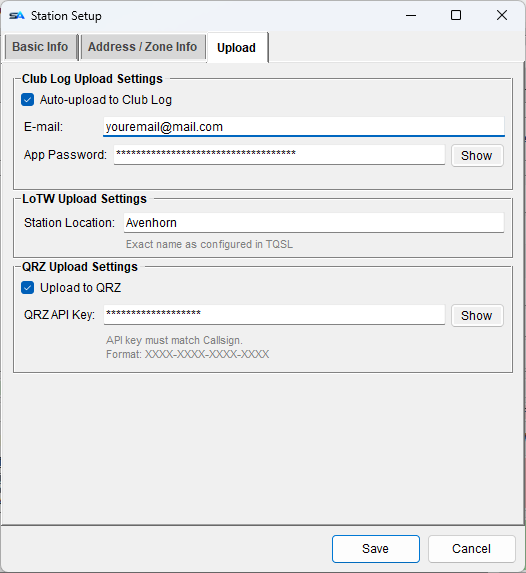
Only needed if you upload your QSOs. Each logbook has its own keys:

  • QRZ logbook key - the API key of your logbook on QRZ.com.
  • LoTW station location - the name of your station location, spelled exactly as in TQSL (the ARRL program that signs LoTW uploads). A different spelling is the usual reason an upload is refused.
  • Club Log app password - the application password from your Club Log account.
  • QO-100 Dx Club API key - from your profile on qo100dx.club. Only QSOs made through QO-100 are sent (propagation SAT, satellite QO-100); everything else in the log stays home.

Your QRZ lookup login, your LoTW account and where TQSL is installed are set under Settings instead - see Settings & integration.

QRZ, Club Log and the QO-100 Dx Club each have an auto-upload tick: every QSO goes out as you log it, also the ones that arrive from WSJT-X. Older QSOs can be sent from the logbook window's right-click menu. The status bar shows a small label per service, so you see it worked.

A new logbook starts with this tab empty, even though the rest is filled in from the log you had open. A QRZ key and a station location belong to that logbook: carried over silently, the first upload would go to the wrong place. A copy of an existing logbook does keep them - a copy is the same log.

The Check LoTW button in the logbook window stays grey until you fill in the station location here and an account under Settings → LoTW. Hover over the button to see what is missing.

Station Setup, Upload tab: QRZ logbook key, LoTW station location, Club Log password and QO-100 Dx Club key
The upload keys, per logbook.
Tab 4 - contest logbooks only

Contest Score

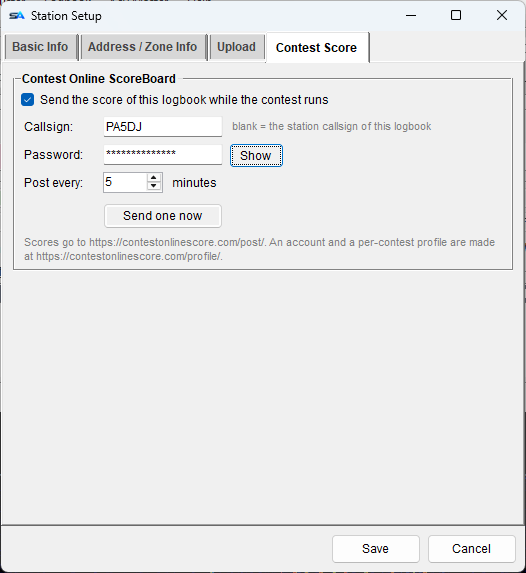
Your score, live on Contest Online ScoreBoard, while the contest runs. This tab is only there for a contest logbook; an ordinary logbook never posts a score.

  • Send the score of this logbook while the contest runs - off until you tick it.
  • Callsign and password of your scoreboard account. Leave the callsign blank and it posts under the station callsign of this logbook; fill it in when one account carries several calls.
  • Post every so many minutes (5 is usual).
  • Send one now posts once, straight away, and asks first - a good test before the contest starts.

It belongs to the logbook, not to the PC. A score can only ever go out under the account of the log it came from, and a new contest logbook starts with posting off and the boxes empty - you switch it on for each contest you want on the board.

Make the account, and a profile per contest, at contestonlinescore.com/profile. The scoreboard only accepts a score for a contest your profile lists, so a score that does not show up is usually a missing profile.

A scoreboard can never get in the way of logging. Posting happens off the path a QSO takes; a scoreboard that is slow or down costs you one line on the status bar.

The password is kept in plain text in the logbook, like the other upload keys. Use a password you do not use anywhere else.

Station Setup, Contest Score tab: sending the score of this contest logbook to Contest Online ScoreBoard
Per contest logbook - never a score under the wrong call.
Finishing

Save and Cancel

Club stations and field days

More than one operator at the same station

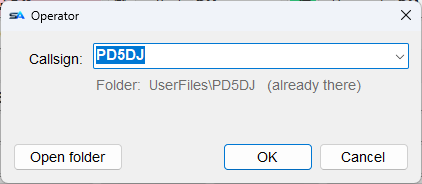
The operator button on the main window shows who is operating now. To change it, click it, type the other call and press OK. The station stays the same; only the operator changes.

  • The line under the box shows which folder that operator gets. Open folder takes you there.
  • From then on the operator is saved with every QSO, and goes into the OPERATORS line of a Cabrillo file.

Changing the operator in Station Setup does the same.

The Operator window: the callsign of the operator now at the key
Click the operator button to open this.
Per operator

What follows an operator

Each operator has a folder, Documents\ShackAssistant\UserFiles\<CALL>\, for their voice recordings, message key sets and CW/RTTY macros. A shared Default folder sits beside them.

WhatWhich one is used
Message key sets (F1–F12 under the entry) Your own, or else the one in Default. If you edit a shared set, your copy is saved in your own folder and the shared one stays as it was.
Key Master macros The same: your own if you have them, or else the shared ones.
WAV recordings for the voice keyer Only your own. A recording has a callsign spoken in it, so the shared ones are never used. No recording of your own? Then nothing is played, and you are told so.

A new operator starts with empty folders. File → Open Operator Folder opens the folder of the current operator.

A field day, in practice. One logbook with the club's callsign. Each operator clicks the operator button when he sits down, and gets his own recorded CQ and message keys. Every QSO he logs carries his call, and the Cabrillo OPERATORS line is made from that.

The other guides