ShackAssistant
Guide › QSL printing

QSL printing

A QSL card confirms a QSO. There are three ways to print them: roll labels, a sheet of labels, or your own pre-printed cards. Each has its own window, templates and a true-size preview. All three print from the same queue.

Collect first

The print queue

The queue collects the QSOs that need a card. You print when it suits you.

  • Right-click QSOs in the log and Add to QSL Print Queue - one, or a hundred.
  • Or queue them automatically. Settings → QSL Handling can queue every QSO you log: by hand, from Key Master, from WSJT-X or from an ADIF import. Each source can be switched on or off; contests are separate and off by default.
  • Editing a queued QSO keeps it in the queue.
  • Sort for QSL bureau sorts the way the bureau (the service that forwards cards in bulk) wants: by the QSL manager's call where there is one, otherwise the station's own, grouped by main prefix, unknown countries last.
  • Already printed entries are greyed. Print again and you are asked whether to skip them.
  • Three buttons at the bottom: Print Labels, Print Label Sheets, Print Pre-Printed Cards.

Set QSL Received on a QSO whose QSL Sent is still No, and you are asked whether to add it to the queue.
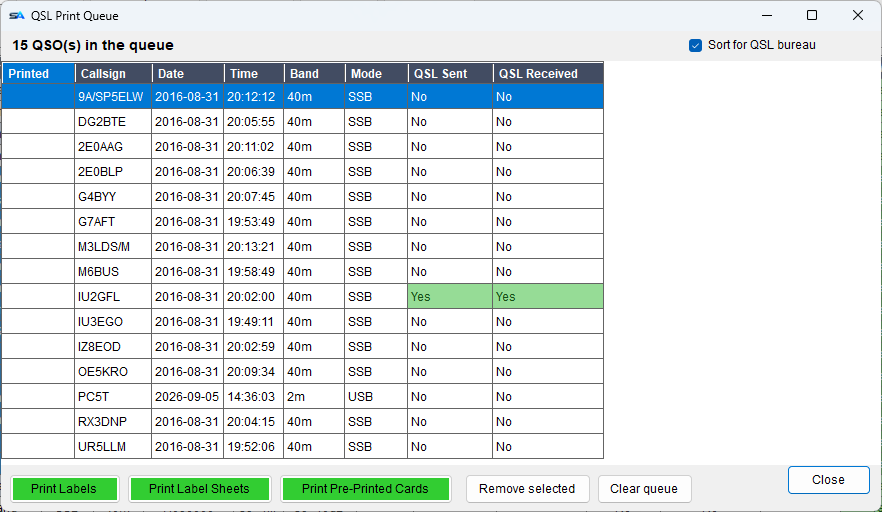
The QSL print queue: QSOs waiting, with the three print buttons
Collect first, print when it suits you.

To print a selection straight from the log, without the queue: right-click → QSL Printing.

Shared

The field language

All three windows print text with fields in braces - the same names the macros use.

FieldsWhat they are
{CALL} {QSL_VIA} {QSL_VIA_TAG} The station, and its QSL manager (who handles cards for it)
{DATE} {TIME} {BAND} {FREQ} {MODE} {RST_SENT} The QSO. {FREQ} is in kHz, three decimals
{MYCALL} {MYNAME} {MYLOCATOR} {MYCITY} … Your station, from Station Setup
A header, as you write it
[b]To Radio: {CALL}{QSL_VIA_TAG}[/b]
{MYCALL} confirms the following QSO(s):
Window 1

Roll labels

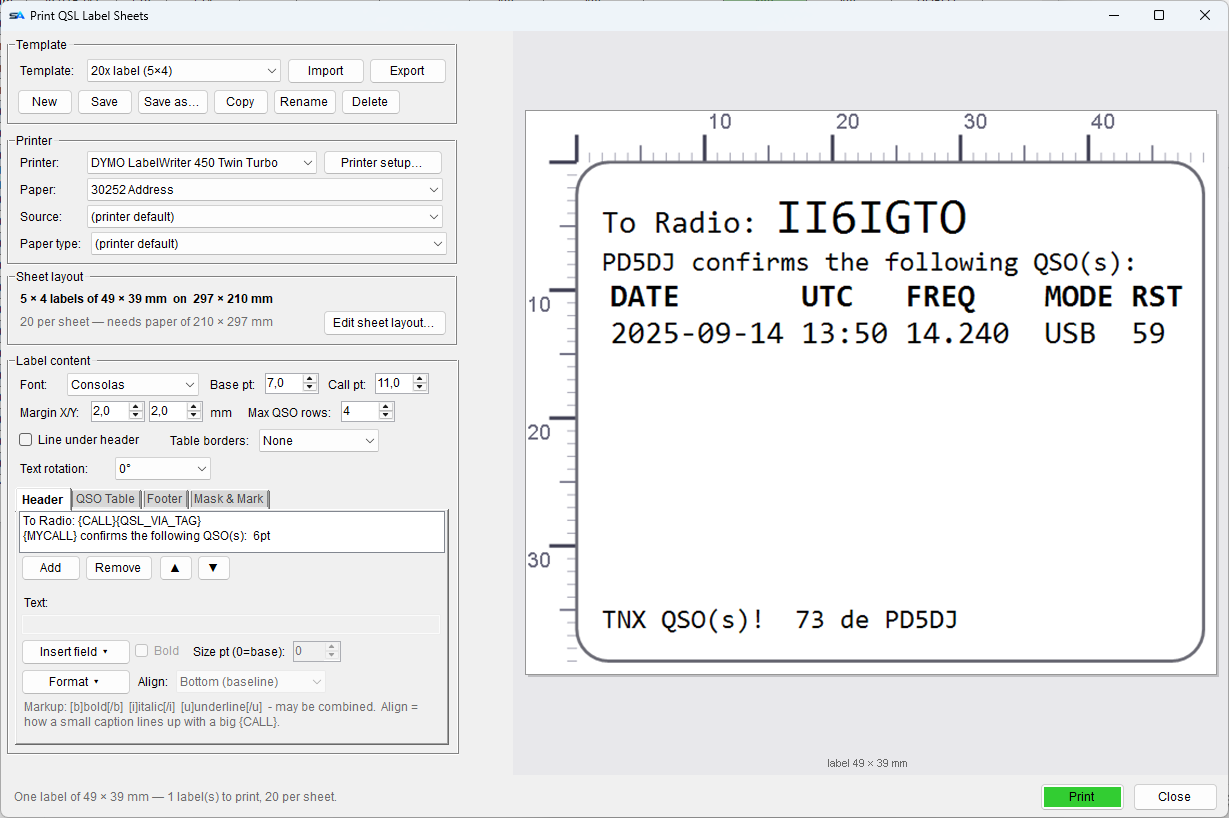
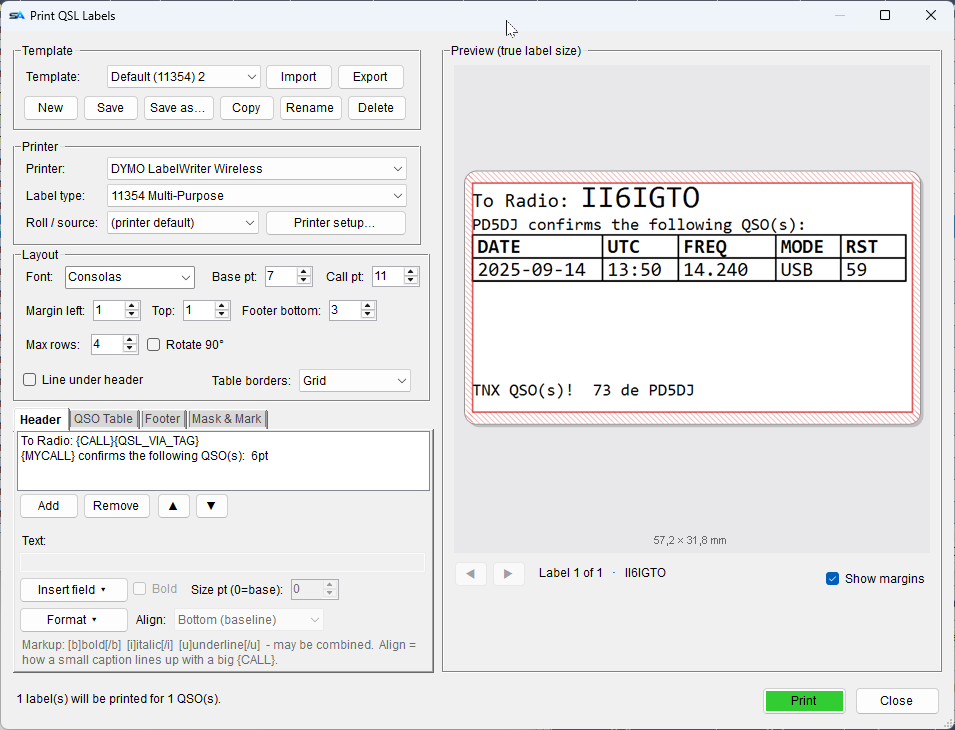
Print QSL Labels: template, printer, layout, the header/QSO table/footer editors and a true-size preview
Settings left, the label at its real size right. The printer's unprintable margin is shaded red.

What it prints

  • One label per station, with its QSOs in a table, up to the number of rows you set. More QSOs than fit? A second label.
  • A QSO via a different manager gets a label of its own.
  • Header, QSO table and footer are lines you write yourself, with the fields above. The QSO table has its own columns.

Layout

  • Font and size, a separate callsign size, margins, number of QSO rows, table borders and rotation.
  • The preview is at the true size of the label, with a millimetre ruler.

The printer frame

  • Printer, Label type (the paper), source/roll, and Printer setup… for your driver's own window. These settings are saved with the template.
Window 2

Label sheets

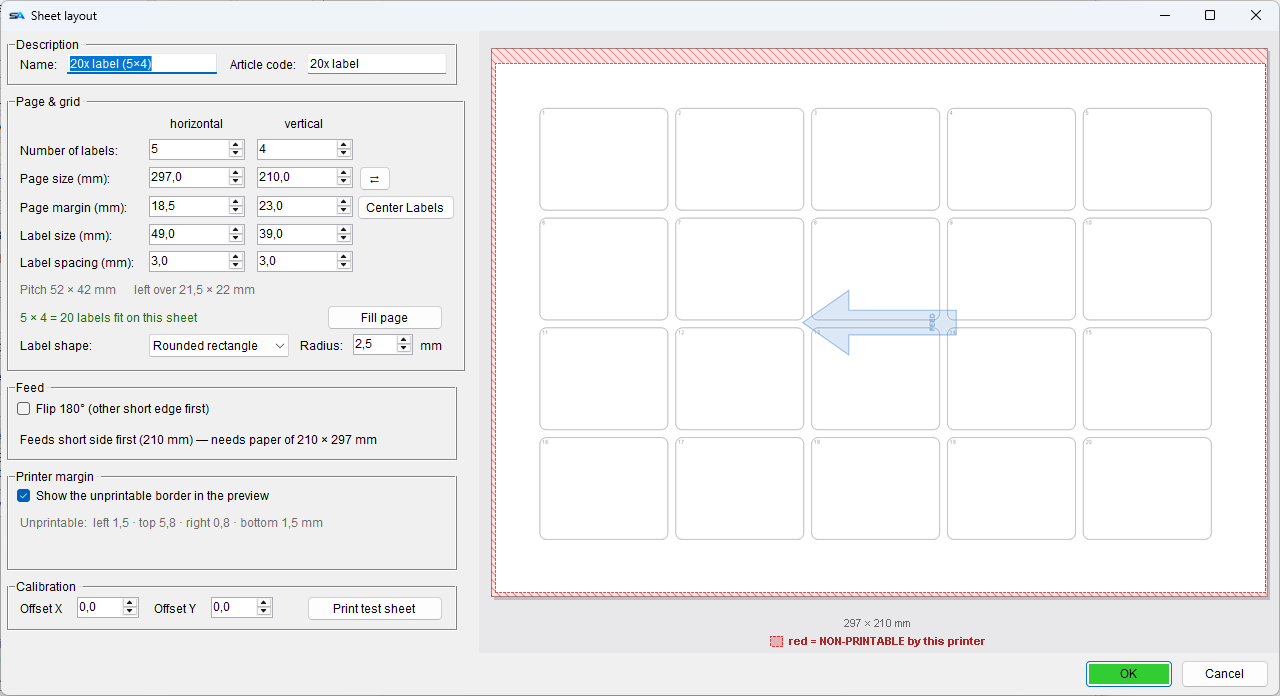
For an A4 sheet of labels - Avery, Master, or any other. Print QSL Label Sheets designs one label; Sheet layout describes the sheet.

The sheet

  • Your own grid: labels across and down, page size, margins, label size and spacing. It tells you whether the grid fits the sheet.
  • Fill page works out how many fit; Center labels centres the grid.
  • Your printer's unprintable margin is shown in red, with a warning if labels run into it.
  • Feed sets which edge goes in first, with Flip 180° if the sheet comes out upside down. The test sheet prints the grid with numbered labels: hold it against a real sheet to check it lines up.

Printing

  • Start on a used sheet: click the first free label. The next sheets start at label 1.
  • The label is designed with the same header/table/footer editors as the roll labels.
Window 3

Pre-printed cards

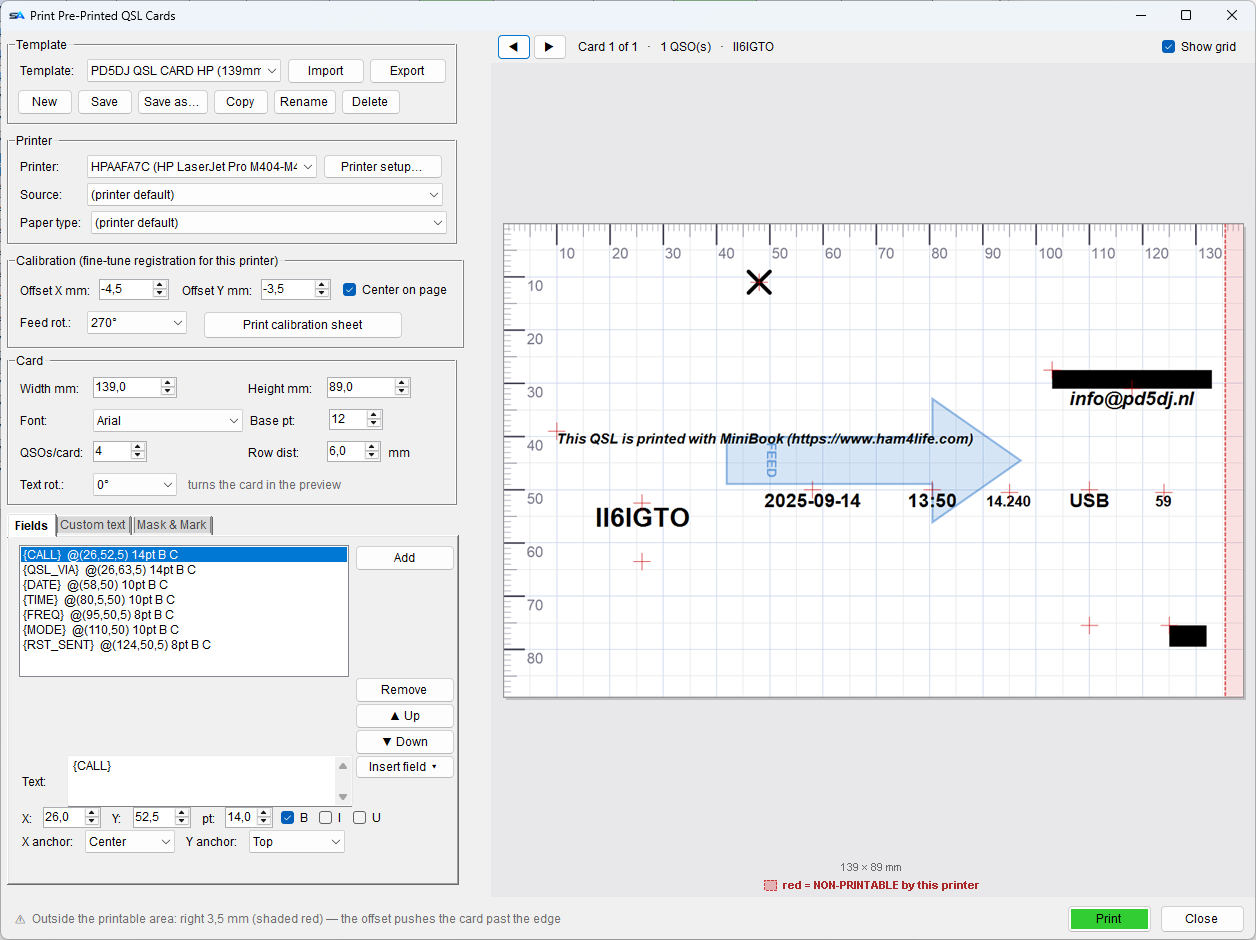
Print Pre-Printed QSL Cards: calibration, card size, the field list with millimetre positions, and a preview with rulers
Only the QSO data is printed, each field where you put it.

Fields

  • Only the QSO data is printed - your design is already on the card.
  • Each field has an X and Y in millimetres, a size, bold/italic/underline, and an anchor: left, centre or right, and top, middle, baseline or bottom. A centred callsign stays centred whatever its length.
  • Custom text: lines printed once per card - a greeting, a club line, a thank you.

More than one QSO per card

  • Set how many and the row distance, and the fields repeat down the card.
  • Callsign and manager are printed once. QSOs are grouped the same way as on the labels.

Calibration - do this once

  1. Print the calibration sheet on plain paper. It has a ruler, a cross through the middle of the card, the word SAMPLE, a feed arrow, and big +X / -Y labels.
  2. Lay it over a blank card and read off how far it is out.
  3. Enter that as the offset. From then on the text lands in the right place.

The +X / -Y labels show which way to move. Offsets follow the page, whatever the rotation.

Two rotations, and they are different things

  • Text rotation turns the design on the card - for a card you write on sideways.
  • Feed rotation turns the card as it goes through the printer.
  • The preview shows the feed direction as a blue arrow.

One card at a time

For hand feeding, the program asks for each card, prints it, and asks for the next. Stop halfway and the rest stay in the queue.

On all three

Mask & Mark

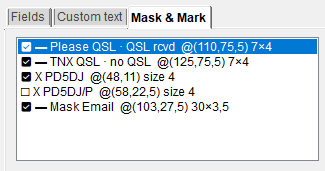
A tab in all three windows: blocks, crosses and lines of text that print only when a condition is met.

  • PSE QSL when no card came in, TNX QSL when one did - ticked for you from the QSL-received flag.
  • A block can cover something pre-printed on your card that should not show this time.
  • Each item has a condition - always, QSL received, QSL not received, when a field is filled in or when a field is empty (with a Field to choose) - and a position in millimetres.

Mask & Mark is printed on top of everything else.

The Mask and Mark tab: blocks, crosses and conditional text
PSE QSL and TNX QSL are just two items with the right condition.
Keeping designs

Templates

In each window Template, Printer and Layout are tabs of the notebook on the left. The printer settings are saved with the template.

Save template sits next to Print in all three windows, so it is always in sight. It turns gold with a star while what is on screen differs from what is stored.

Paper and ink

The printer itself

SettingWhat it is
PrinterWhich one. Saved with the template.
Label type / Paper The paper size, from the printer's own list. For an exact card size, add a custom form in the Windows printer settings - it then shows up here.
Source / RollWhich tray or feed.
Paper type Plain paper, labels, card stock, glossy - your printer's own list.
Printer setup… Your driver's own window, opened with the settings this template already has.

ShackAssistant only uses paper sizes your printer already has. If none is the right size, the printer's default is used and the card is centred - correct it with the calibration offset, or add a custom form in Windows.

Afterwards

Marking them as sent

After printing you are asked two things:

  1. Mark these QSOs as QSL sent? - with today's date and the route.
  2. Take them out of the queue, or keep them? Kept entries get the print date and are greyed, so you can still reprint them.

Only the QSOs that were really printed are included.

The other guides