ShackAssistant
Guide › Settings

Settings & integration

The nine Settings tabs, and how to connect ShackAssistant to WSJT-X, QRZ, LoTW, Club Log and the QO-100 Dx Club. Apply takes effect straight away; Close just closes. No restart needed.

Tab 1

General

SettingWhat it does
Reload the last logbook at start On by default. Off, you choose a logbook yourself.
Startup window The splash screen at start. Untick it to hide it.
Updates Look for a newer version at startup. Says nothing unless there really is a newer release; Help → Check for Updates always answers.
Windows that open by themselves DX cluster, logbook, Key Master - tick the ones you want open at every start.
Ask before closing Asks for confirmation when you close the program. Off by default - everything is saved as you go.
Country file The BigCTY cty.dat, which gives each callsign its country, zones and flag. Shows the date of your copy, with a one-click download for the newest.
Backup folder Where backups go, how many days to keep them (7) and how many per logbook (5). See Logbooks & storage.

Time is always UTC, straight from the Windows clock - there is no offset to set.
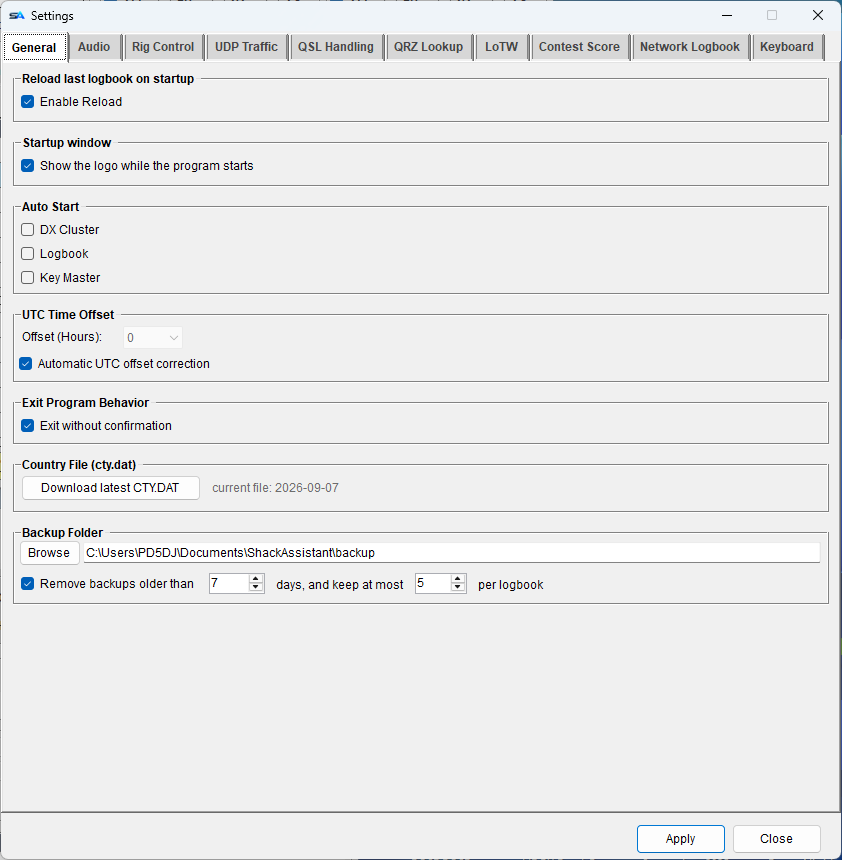
Settings, General tab
General.
Tab 2

Rig Control

Connecting your radio, the transverter and QO-100 row, sharing the rig with WSJT-X and updating Hamlib. See Rig control. An Icom radio on the network - audio, scope and all - is on its own page: Icom over the network.

Tab 3

DVK

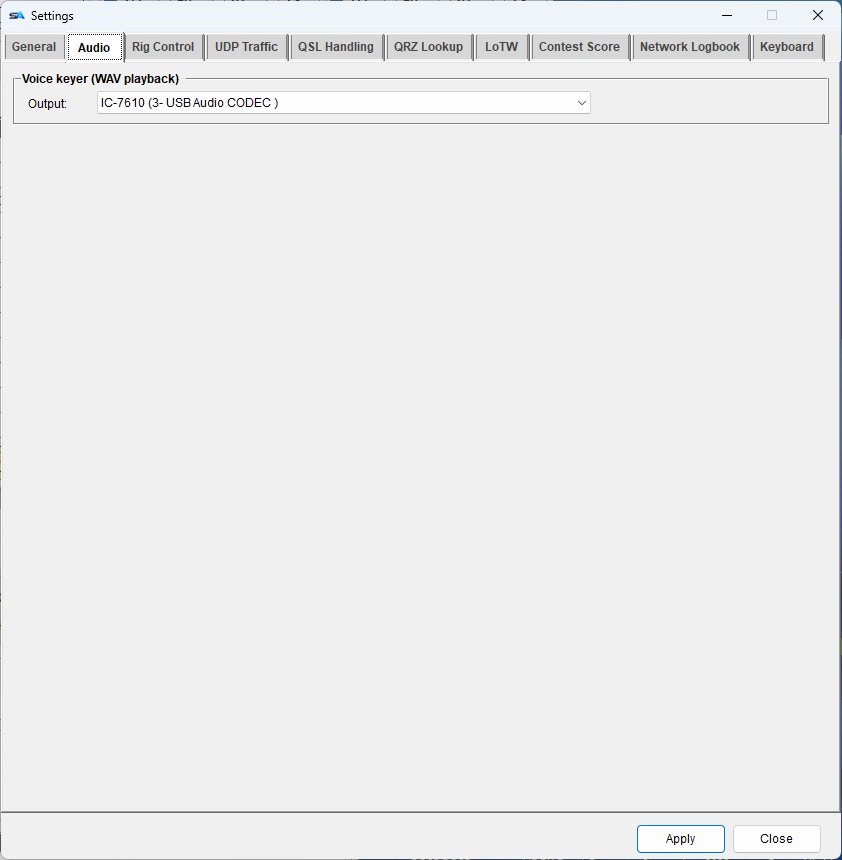
The voice keyer: Voice keyer (WAV playback), the card that plays the recorded messages of the message keys, and its own PTT line - see PTT per transmitter.

A recording is not a keyed tone. It can come off a different card, at a different level, and on a radio with a second audio input that is exactly how a voice keyer is wired - so it gets to say which card, on its own.

Key Master's sound cards are not here. They moved into Key Master itself, where they are used: with four modes they are no longer one station-wide pair, and CW and RTTY each have their own.

Cards are remembered by name, so the right card stays selected even when Windows lists your cards in a different order.

Settings, DVK tab
DVK (it used to be called Audio).
The window itself

Two columns, if your screen allows

On a wide enough screen the frames on every tab are laid out in two columns and the window is much wider and much shorter than it used to be. On a narrow screen it stays one column.

Does a tab not fit on a small screen? It scrolls, and the frames keep clear of the scroll bar.

Tab 4

UDP Traffic

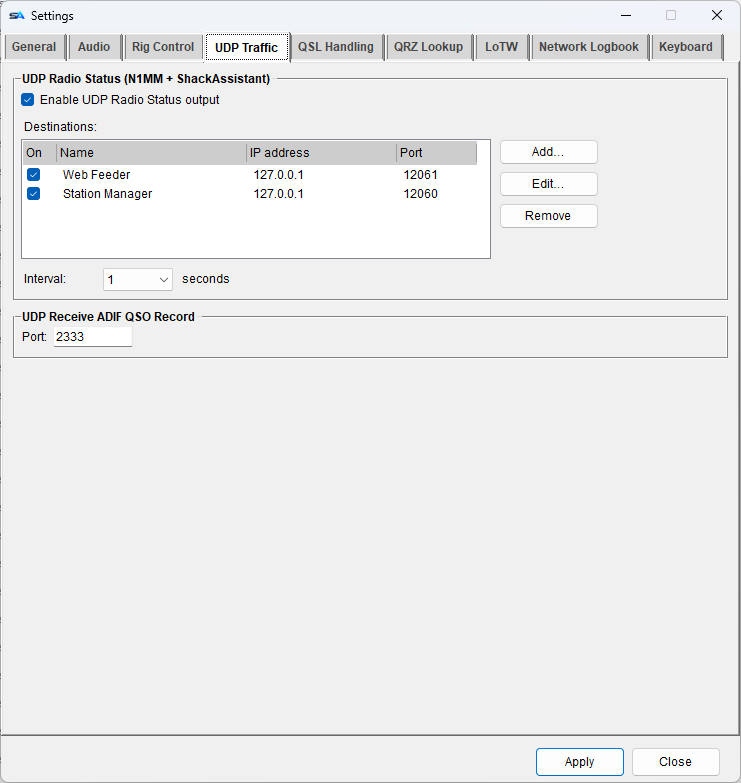
UDP is a simple way for programs to send messages over the network. This tab has two parts:

Radio status out

  • Sends your frequency, mode and more in the N1MM Logger+ format, so anything that works with N1MM can follow it: dashboards, band decoders, antenna switches, amplifier control.
  • Add as many destinations as you like (name, address, port) and set the interval in seconds.
  • A broadcast address such as 192.168.1.255 reaches every PC on your network.

QSOs in

  • UDP Receive ADIF QSO Record - the port on which QSOs from other programs arrive (for example WSJT-X). See below.
What goes out, every few seconds
<RadioInfo>
  <App>ShackAssistant</App>
  <Freq>1402530</Freq>          <!-- in 10 Hz, as N1MM does -->
  <Mode>CW</Mode>
  <MyCall>PA5DJ</MyCall>
  <OpCall>PA5DJ</OpCall>
  <RadioName>Icom IC-7610</RadioName>
  <MyLocator>JO22LO</MyLocator>
  <Call>DA0HQ</Call>              <!-- last worked, this session -->
  <contestname>PACCPA</contestname>   <!-- only during a contest -->
</RadioInfo>
Settings, UDP Traffic tab
Destinations out, one port in.
Tab 5

QSL Handling

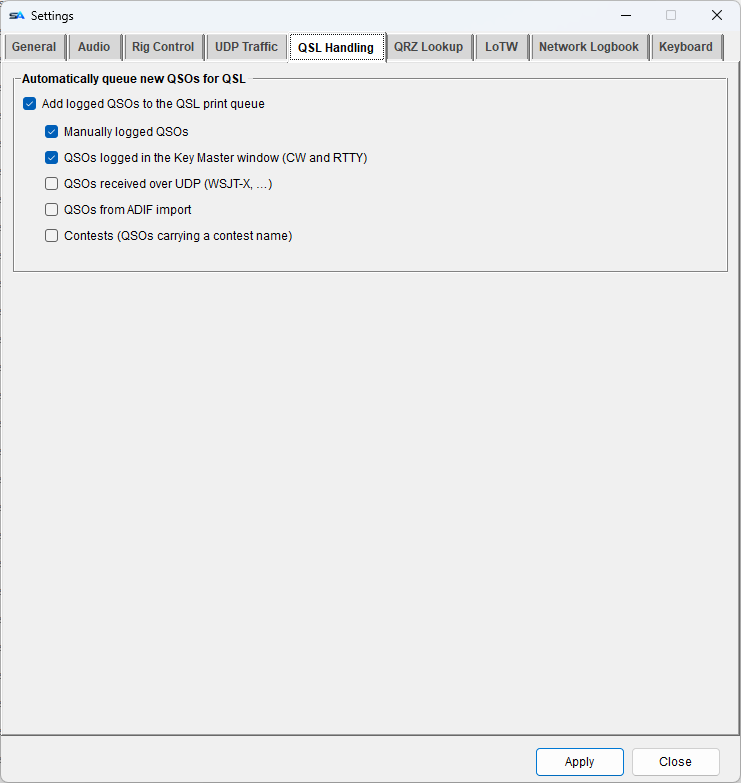
Which new QSOs are added to the QSL card queue automatically. One main switch, then a tick per source:

Typed by handOn
Key Master window (CW and RTTY)On
Over UDP (WSJT-X)On
From an ADIF importOff - one import can be thousands of QSOs
ContestsOff. Contest QSOs from any source are only queued when this is ticked

A QSO already marked QSL sent is never queued again. See QSL printing for the queue.

Settings, QSL Handling tab
QSL Handling.
Tab 6

QRZ Lookup

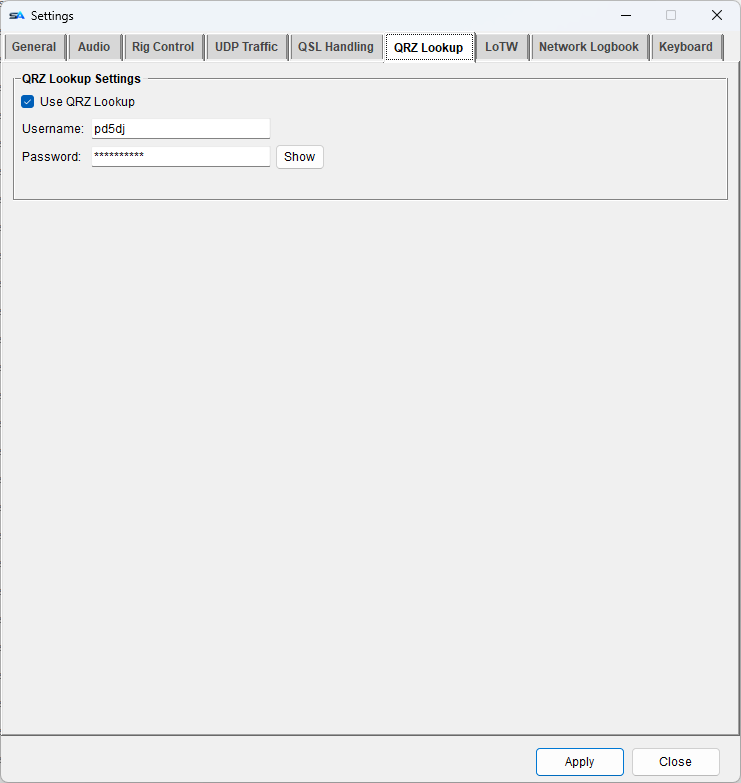
  • Fill in your QRZ account (it needs a QRZ XML subscription) and switch lookups on. It is off until you do.
  • Then the magnifier appears beside the callsign, and Ctrl+L looks up the call. No lookups during a contest.
  • The key for uploading to your QRZ logbook is set elsewhere: Station Setup → Upload.
Settings, QRZ Lookup tab
QRZ Lookup.
Tab 7

LoTW

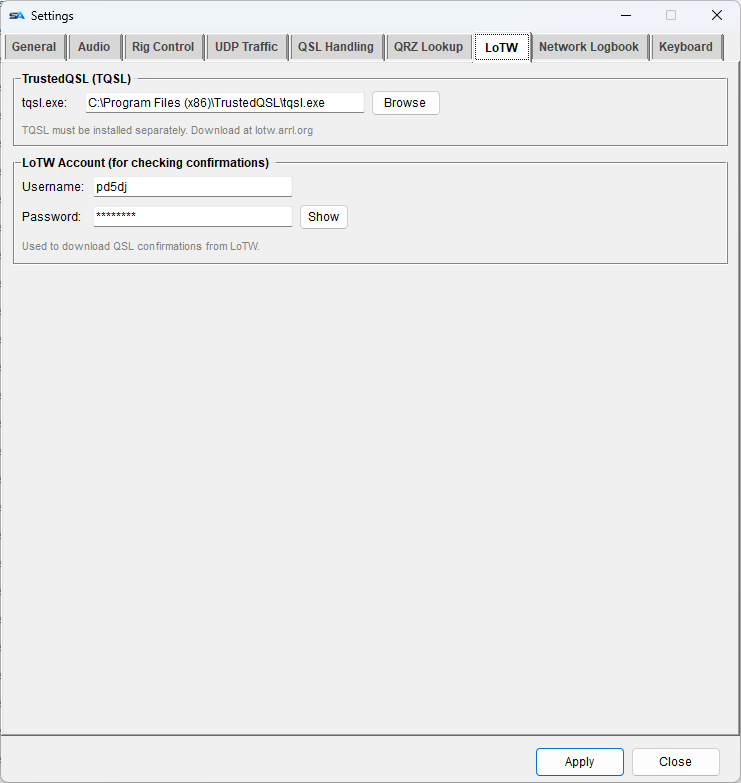
  • Where TQSL is. ShackAssistant uses your installed TQSL and certificates to sign uploads.
  • Your LoTW account, to download your confirmations.
  • The station location is set per logbook in Station Setup, spelled exactly as in TQSL.

Check LoTW in the logbook window downloads your confirmations and marks the matching QSOs green. The button stays grey until TQSL and your account are both set; its tooltip says what is missing.

Settings, LoTW tab
LoTW.
Tab 8

Network Logbook

Your MySQL or MariaDB servers, with Test connection. See Multi-Op & network logbook.

Tab 9

Keyboard

Change any shortcut: click the box and press the keys. The default list is on the Logging page.

Integration

UDP QSO forwarding, step by step

WSJT-X, JTDX, MSHV, JS8Call and similar programs can send each QSO you log straight into ShackAssistant. The steps below use WSJT-X; the others have the same settings. Sharing the radio is separate - use either one, or both.

The QSOs, into your log

  1. In WSJT-X: Settings → Reporting, secondary UDP server (logged ADIF). Tick it, enter 127.0.0.1 and a port, for example 2333. The program must run on the same PC as ShackAssistant.
  2. In ShackAssistant: Settings → UDP Traffic → UDP Receive ADIF QSO Record, enter the same port.
  3. Log a QSO in WSJT-X. It appears in your logbook, and in the DX cluster's spot fields with a ready comment: FT8 -12 JO22TC <> KO32AB TNX QSO.

The radio, shared

  1. In ShackAssistant: Settings → Rig Control, tick Server active on port 4532.
  2. In WSJT-X: Rig: Hamlib NET rigctl, Network Server: 127.0.0.1:4532, PTT Method: CAT.

This also works for JTDX, MSHV and other Hamlib programs. See Rig control.

WSJT-X → Settings → Reporting
Secondary UDP Server (deprecated):
  [x] Enable logged contact ADIF broadcast
  Server name or IP: 127.0.0.1
  Server port number: 2333
WSJT-X → Settings → Radio
Rig:             Hamlib NET rigctl
Network Server:  127.0.0.1:4532
PTT Method:      CAT
Mode:            Data/Pkt

These QSOs can also go into the QSL queue: the over UDP tick under QSL Handling.

Integration

Uploads, and where each key lives

ServiceWhat it needsWhere that is set
QRZ lookupAn XML subscription account Settings → QRZ Lookup
QRZ logbook uploadThe logbook's API key Station Setup → Upload
LoTW uploadTQSL, and the station location as TQSL spells it TQSL's path in Settings, the location in Station Setup
LoTW downloadYour LoTW accountSettings → LoTW
Club LogThe app passwordStation Setup → Upload
QO-100 Dx ClubThe API key from your qo100dx.club profile Station Setup → Upload
Contest Online ScoreBoardYour scoreboard account Station Setup → Contest Score, per contest logbook

Rule of thumb: anything for one logbook is in Station Setup; anything for this PC is in Settings.

For other programs, use ADIF import and export - see Logbooks & storage. Contests are exported as Cabrillo.

When something is wrong

Log files

Help → Open Debug Log Folder opens Documents\ShackAssistant\debug\:

ShackAssistant.logWhat the program did, including its version and the folders in use.
hamlibThe radio library's log - and, for an Icom on the network, what the connection did: audio, PTT, dropped packets.
rigctldThe rigctld server trace, when you switch it on.
QRZ, LoTW, Club LogOne file each, so a refused upload says why.

The logs stay on your PC. Attach them when you ask for help.

Messages that flash by on the status bar are kept too: click the status line, or Help → Status messages, for the last few hundred with their time.

The other guides