ShackAssistant
Guide › Multi-Op

Multi-Op & network logbook

Put the logbook on your own MySQL or MariaDB database server - a NAS (network storage box) in the shack is plenty - and every machine that opens it sees the others' QSOs within about a second. For a contest you do not even need a server: the machines find each other on the LAN by themselves.

First

Which of the two you need

This page covers two different things. Most people only need one of them.

A logbook on a serverThe contest network
What it is The logbook lives in a MySQL/MariaDB database instead of in a file. Machines in one shack exchange contest QSOs directly over the LAN.
What you need A server, an account on it, and its address typed in once per machine. Nothing. No addresses, no port numbers, no server.
Use it for One everyday log used from the shack PC and the laptop; a club log everybody logs into. A contest weekend with two or three operating positions.
Needs a contest?No.Yes - it only runs in a contest log.

You can combine them: a contest logbook on a server uses both. The contest network works just as well with a .sak file or a local .sadb.

Once

Setting up the server

  1. Install MySQL or MariaDB on something that is always on - a NAS, a small PC, or one of the shack machines. Most NAS boxes offer MariaDB as a package.
  2. Let it listen on the network, not only on localhost, and open port 3306 in the server's own firewall for your shack network.
  3. Make one account by running the two lines beside this text on the server (for example in phpMyAdmin or the mysql command line). Change the password and the network address to your own.

Each logbook is a database of its own, named sa_…. In ShackAssistant you only see the name you gave it.

Give the account a password of its own and limit it to your own network (192.168.1.%), as in the example.
A server account, once, on the server
-- every logbook is named sa_..., so one grant covers them all
CREATE USER 'shackassistant'@'192.168.1.%' IDENTIFIED BY 'a-good-password';
GRANT ALL PRIVILEGES ON `sa\_%`.* TO 'shackassistant'@'192.168.1.%';
Why ALL PRIVILEGES

Making a logbook creates a database, and deleting one drops it. The grant only covers names starting with sa_, so it reaches your logbooks and nothing else.

Once per machine

Telling ShackAssistant about it

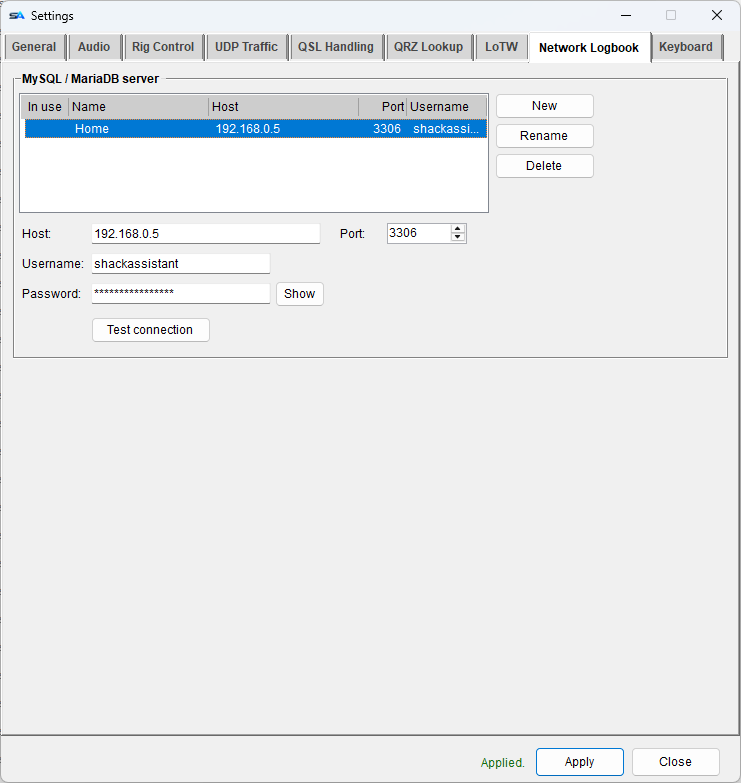
Settings → Network Logbook. Add as many servers as you like - the NAS at home, the club station. The grid shows which one is in use.

  1. New, then a name of your own, the host, the port (3306), the username and the password.
  2. Test connection shows what the server answers - for example a wrong password, or host not allowed.
  3. Apply.
  • One server at a time. Picking another and pressing Apply closes the logbook you had open and switches over.
  • The password is stored in plain text in the settings file, like the QRZ and LoTW ones.
Settings, Network Logbook tab: the list of servers with host, port and username, and the fields below it
As many servers as you like; the arrow marks the one in use.
Day to day

Opening, making and deleting a logbook on the server

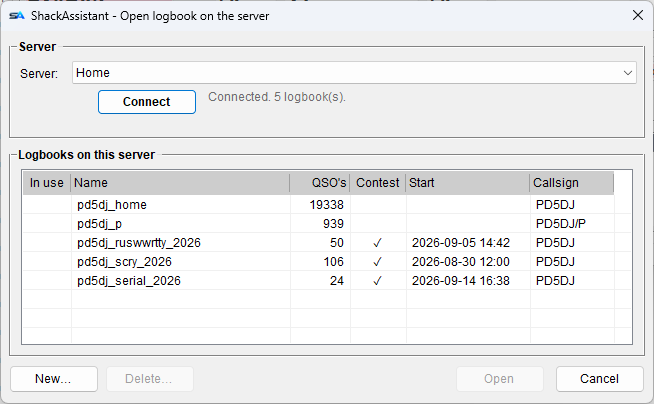
File → Network Logbook opens the list. Press Connect to load it.

  • Each row shows the name, the number of QSOs, whether it is a contest and when it starts, and the callsign.
  • The arrow and the bold row mark the logbook you have open.
  • The drop-down at the top lets you look at another server without going to Settings. Press Connect after choosing.
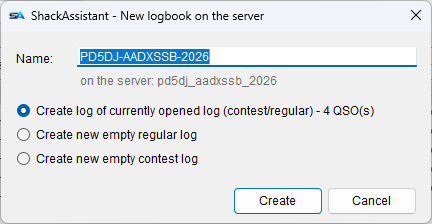
  • New… makes one: empty, empty contest, or a copy of the logbook you have open - that is how you move a local log to the server. The new logbook opens straight away.
  • Delete… removes a logbook from the server. It shows the QSO count and callsign and asks first. There is no way back. The logbook you have open cannot be deleted.
  • Rename… gives a logbook another name. It is refused while another machine has that logbook open; your own open logbook is closed, renamed and opened again.
Good to know

How the machines keep in step

Every new QSO, edit or delete reaches the other machines within about a second.

A contest weekend

The contest network

A contest network needs no server at all. The machines find each other on the LAN by themselves and exchange their QSOs. Nothing to type in.

Arrange the firewall beforehand - see below, and Install.

Who is on

Network Stations

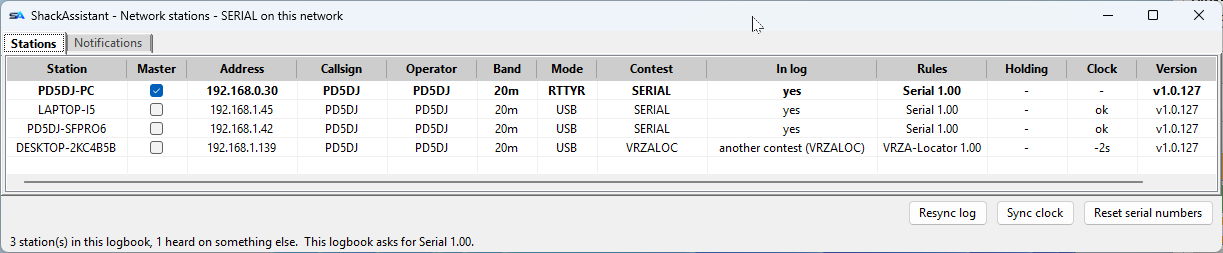
Network Stations: every machine with its band, mode, contest, rules, held serial, clock difference and version
Every machine that can hear this one. The bold row is you.

File → Network Stations. One row per machine, updated every few seconds.

ColumnWhat it says
Station, AddressThe machine's name and its address on the network.
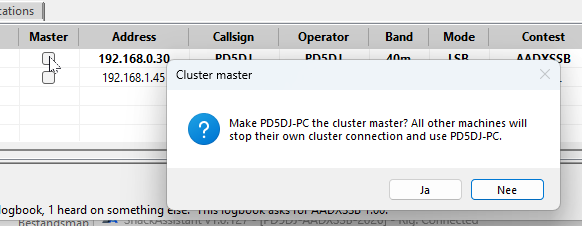
MasterWhich machine holds the cluster connection - see below.
Callsign, OperatorWho is logging, and who is at the key.
Band, ModeWhere that machine is now.
In logWhether it is in this logbook.
RulesThe contest definition and revision it runs. Red: no definition at all. Yellow: another revision - it works, but worth a look. The line underneath shows what this logbook asks for.
HoldingThe serial number that machine has reserved right now.
ClockHow far its clock is from yours, in seconds. Bold red past three seconds - fix it, or QSOs can be lost at the log check.
VersionThe program version. Different versions work together.

Three buttons along the bottom:

  • Sync clock sets this machine's clock from the others on the network. Clocks are only changed when you press it.
  • Resync log fetches the whole log from every machine and asks the others to do the same. Use it when a QSO is missing somewhere.
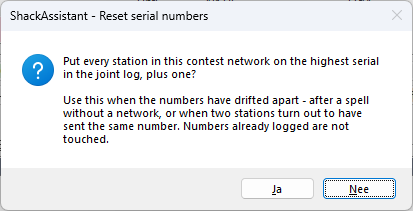
  • Reset serial numbers puts every station above the highest number in the joint log, for when the numbering has drifted apart. It never lowers a number.
In a contest

Serial numbers that cannot collide

Each machine takes its own next number and claims it when you leave the callsign box. Two machines never send the same number.

What happened

Notifications

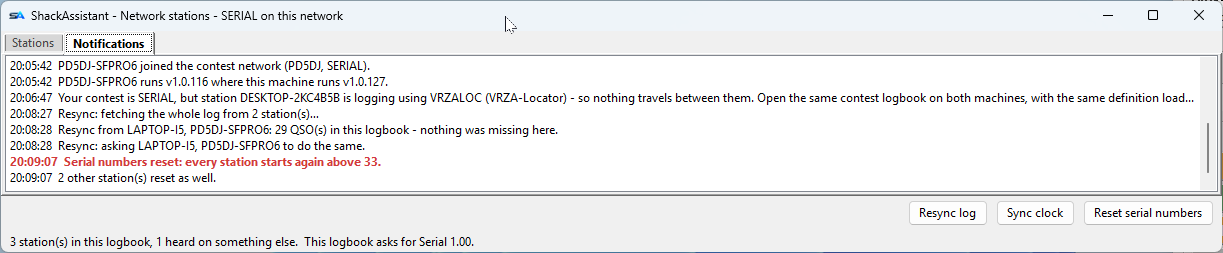
The second tab of the Network Stations window lists what happened, with the time: a machine joining, a different version, a station logging another contest, a resync, a serial reset, a clock that drifts.

  • Messages that can cost you a QSO are in bold red, and the tab shows a mark until you have looked.
  • They appear here, not on the status bar, so they never hide your own logging messages.
  • They are kept when you close the window.
The Notifications tab: timed lines about machines joining, version differences and serial resets
What the network did while you were working.
Spots

One cluster connection for the whole shack

A DX cluster sends you spots: stations other hams hear on the air. In a shack with several machines, one machine is the master: it holds the cluster connection and passes every spot on to the others. So your callsign is logged in to the node only once.

  • Tick the Master column in Network Stations and confirm. The tick shows once the network has agreed.
  • The others close their own connection and use the master's spots. The cluster window shows whose spots these are and from which node; on the master it shows how many machines it feeds.
  • A slave can still spot: the spot goes out through the master, under the master's login.
  • On a slave the Clusters tab is greyed out until the master is gone or the contest is closed.
  • A machine that joins later knows who the master is right away.
Troubleshooting

If they cannot see each other

What you seeWhat to do
They see me, I see nobody The Windows firewall blocks incoming traffic. The installer adds the rule, but if somebody once clicked Cancel on the Windows firewall question, that block wins. Re-install to fix it.
A machine is listed but greyed, with another contest beside it It has a different logbook open. Open the right one.
Red in the Rules column That machine has no definition for this contest. Copy the .ctd over, into the CTD folder in Documents.
Serial numbers have drifted apart Reset serial numbers in Network Stations.
A QSO is missing on one machine Resync log in Network Stations.
Two machines with the same Windows name They show up as one row. Give one of them another name in Windows.
Cannot connect to the server at all Test connection in Settings shows what the server said. Host not allowed means the account is limited to other addresses.

The other guides