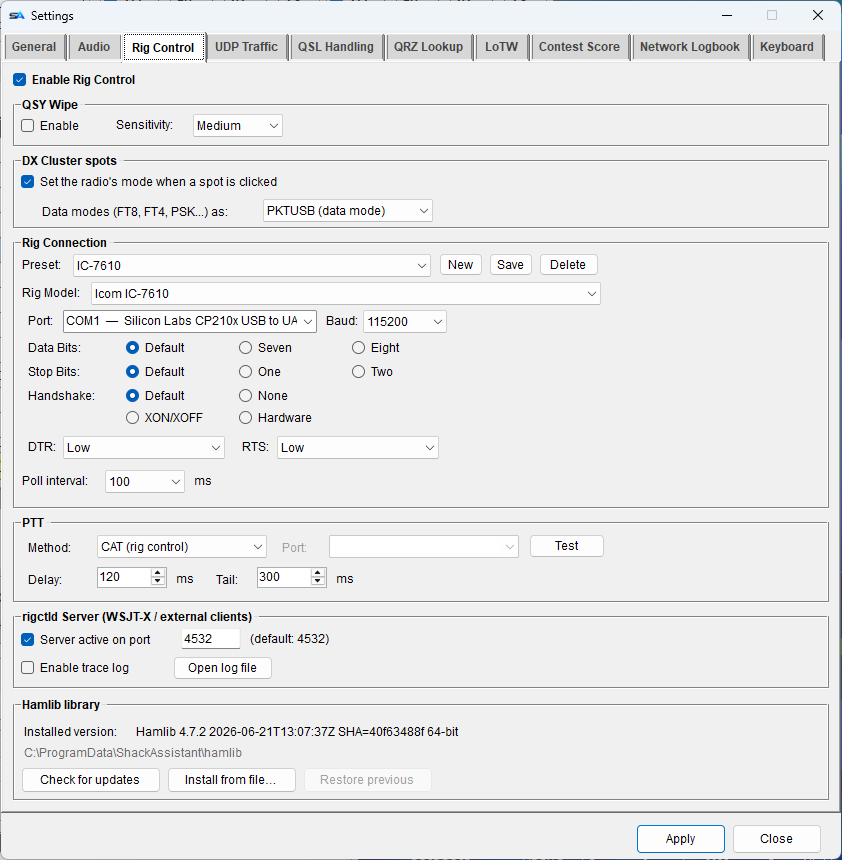
Rig control lets ShackAssistant read and set your radio's frequency and mode over a cable (CAT).
Hamlib, the radio library that does this, is included - nothing to install. Pick your radio, pick
the port, press Connect. The rest of this page can wait until you need it.
An Icom with a network connection (IC-7610, IC-7300MK2, IC-7760, IC-9700, IC-705) can also be
reached without a cable, audio and scope included - see Icom over the
network.
A preset stores the whole connection under a name: model, port and serial settings, host and
network port, poll interval, the transverter row, and for an Icom on the network its address,
login, audio quality and scope switch.
New stores what is on the tab now under a new name. Save updates the selected
preset and takes it into use at once - a connected radio reconnects with it. Delete removes
it.
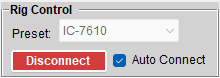
The preset list is also on the main window, next to Connect, so switching radios is one
choice in a drop-down.
Picking a preset takes effect at the next Connect. The list is locked while
connected.
Day to day
On the main window
Connect turns green when the radio answers, and becomes Disconnect in red.
Auto Connect connects at every start.
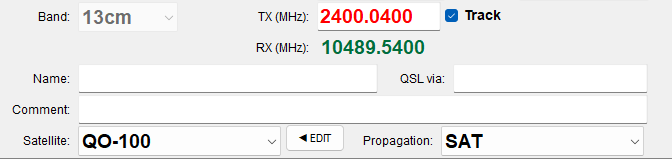
Track beside the frequency: ticked, the radio sets the frequency (red field). Untick it
to type a frequency yourself, for example to log a QSO afterwards.
Mode and Submode are locked while the radio is connected, so the log always has the
mode the radio was on.
If the connection fails, a message tells you what went wrong.
The callsign box also takes commands for the radio
14074go to 14.074 MHz+600move up 600 Hz (-600 moves down)CWswitch the radio to CW
Anything else you type there is treated as a callsign.
Another radio is one choice away.
Microwaves
Transverter and QO-100
A transverter makes a 2 m radio into a 13 cm station, and the radio never finds out:
it still reads 144.100. ShackAssistant puts one offset between the two. That offset is a
translation layer and not a display trick - above it everything speaks the real frequency,
below it the radio speaks its IF.
What is on which side
Speaks 2300.100
Speaks 144.100
the entry box and the title bar
the cable to the radio
the logbook, so the QSO is right
a DX spot you click
the UDP broadcast to a dashboard
WSJT-X, over the rigctld server
The layer sits at the boundary of the radio connection, which is why all of those are right at
once: the rigctld server and the UDP sender hold the same connection, so a layer any higher up
would miss exactly those two.
Where to set it
Settings → Rig Control, in the Rig Connection frame - the same frame as the
radio and the port, because New / Save / Delete at the top of it save these
three with the preset. A 13 cm setup and a plain HF setup are then two entries in one list.
Field
What it is
Mode
Off, Transverter or QO-100. This tick box is the
only authority: an offset with the box off does nothing, and the marker stays away.
IF band
The band the radio itself works in, by name, from the same band
table the rest of the program uses.
Offset
In MHz, added to what the radio shows. A comma is read as a point,
and it is stored in a way that travels between machines.
The line under the row has five states, three of them red - no band, a zero
offset, or not a number. A row that looks usable and does nothing is worse than no row.
A 13 cm setup
Mode:TransverterIF band:2mOffset:+2156.000# radio 144.100# offset +2156.000# antenna 2300.100 <- this is what gets logged
What the refusals mean
2320.800 MHz is another band a band change - switch the layer off first164.800 MHz is not in a band at all a typing mistake
Nothing is sent in either case, and the reason says where to switch it off. A set
command outside a band cannot be taken back once it is on the air.
Three fields, saved with the preset.
While it is on
The band list is locked to the band the output window falls in. Nothing but that window
reaches the radio, so the program cannot put your set outside a band - and the knob on the radio
is then a choice you make, which it reports rather than hides.
A marker beside the frequency reads TRV +2156.000, or QO-100.
The title bar carries it too, and the Hamlib log notes both frequencies on every translated move.
It hangs on the tick box, never on the number: a marker worked out from the offset could be
on while the layer is off, and that is exactly the lie it exists to prevent.
WSJT-X on 13 cm works because what the rigctld server advertises follows the output
window. WSJT-X asks for that range once, when it connects, and refuses anything outside it - so
without this, 2300 MHz would simply not be accepted however good the layer underneath was.
Changing it in Settings takes effect while the radio stays connected.
QO-100
The QO-100 narrowband transponder is a fixed 500 kHz wide, and its downlink sits a fixed
distance from its uplink. So there is nothing to type twice: choose QO-100, give the
IF start frequency your transverter wants, and the offset is worked out from it.
The frequency box is labelled TX (MHz): in this mode, with the RX row
under it - so there is never a doubt which of the two you are typing.
Connecting parks the radio in the IF window if it was elsewhere. Without that the box
would show an IF number, because the layer rightly does not translate outside the
transponder.
A QSO made through the transponder is stamped with the receive frequency and the band
3cm, and Satellite and Propagation fill themselves in. Only what the
program itself put there is cleared again, so your own entry is never overwritten. An
imported QSO is never stamped - a satellite mark on a QSO that did not go that way is a
lie in your log.
The receive frequency and band have their own box in Edit QSO, under Frequency.
One offset, so a separate receive path - an LNB with its own LO on the
downlink - cannot be expressed and is not this. Simplex is the assumption.
PTT switches the radio to transmit. Each thing that transmits has its own PTT
setting, set where that transmitter is set up - so a voice keyer on CAT and an FSK key on a serial
line can live side by side.
Nothing is keyed. For listening or testing decoders.
CAT
Through the control connection. Rig control must be connected. With an
Icom on the network, PTT goes straight to the radio.
RTS / DTR
A hardware line on a serial port, as most simple interfaces
use. Works without rig control.
Test keys the transmitter briefly, so you can check the wiring.
CW and RTTY also have a Delay (between PTT and the first tone, 120 ms) and a Tail
(how long PTT is held after the last tone, 300 ms).
PTT and CAT may use the same serial port, for example RTS for PTT and DTR for the key on
one plug.
Opening a serial port does not key your transmitter: ShackAssistant drops RTS and
DTR as soon as it opens a port.
Sharing
Sharing the radio with WSJT-X
Only one program can open the radio's port at a time. So WSJT-X connects to ShackAssistant
instead, on port 4532, as if it were rigctld (Hamlib's standard radio server).
WSJT-X, JTDX and other Hamlib programs can then share the radio - frequency, mode and PTT.
On the Rig Control tab, tick Server active on port 4532 (the port can be changed).
In WSJT-X, Settings → Radio, use the settings beside this text.
Test CAT in WSJT-X should go green.
If something does not work, switch on the trace log: it records every command and
answer.
Rig:Hamlib NET rigctlNetwork Server:127.0.0.1:4532# the port set under rigctld ServerPTT Method:CATMode:Data/Pkt
The title bar counts them
While the server runs, the title bar shows how many programs are connected - a
quick check that WSJT-X found it.
A small kindness
QSY wipe
Tune away from the station you were working and the entry is cleared, so an unworked call does not
end up in the next QSO.
Sensitivity
Counts as “away” from
Fast
0.5 kHz
Medium
2 kHz
Slow
5 kHz
It only works while Track is on.
It is off until you switch it on.
Maintenance
Updating Hamlib from inside
The Hamlib library frame at the bottom of the tab shows the loaded version and its
folder.
Check for updates downloads the newest Windows release from the Hamlib project. Only when
you press it.
Install from file takes a zip you downloaded yourself - handy behind a proxy or on a PC
without internet.
Restore previous puts the last version back. Two previous versions are kept.
Restart ShackAssistant to use the new version.
A newer Hamlib adds new radios and fixes, separate from ShackAssistant updates.
Troubleshooting
If it does not work
What you see
What to look at
Connect fails at once
Another program has the port - WSJT-X, a terminal program, a second copy of ShackAssistant.
The message says so (Hamlib error -22: port in use).
Let other programs in through the rigctld server.
Connected, but the frequency stands still
Check baud rate and CI-V address in the radio's menu, and settings like “CI-V
transceive” or “CAT rate”.
The frequency updates about once a second
You are probably connected to an external rigctld with its own caching.
PTT does nothing
Press Test in the PTT frame of that transmitter (DVK, or Key Master's CW or RTTY tab).
With CAT, rig control must be connected; with RTS/DTR, try the other line.